
Software
Microsoft Teams isn’t just for professionals—it’s a game-changer for students balancing coursework, group projects, and virtual learning. These 10 benefits show how Teams simplifies collaboration, enhances productivity, and keeps everyone organized—whether you’re studying remotely or in a classroom.
Seamless Classroom Communication with Teachers
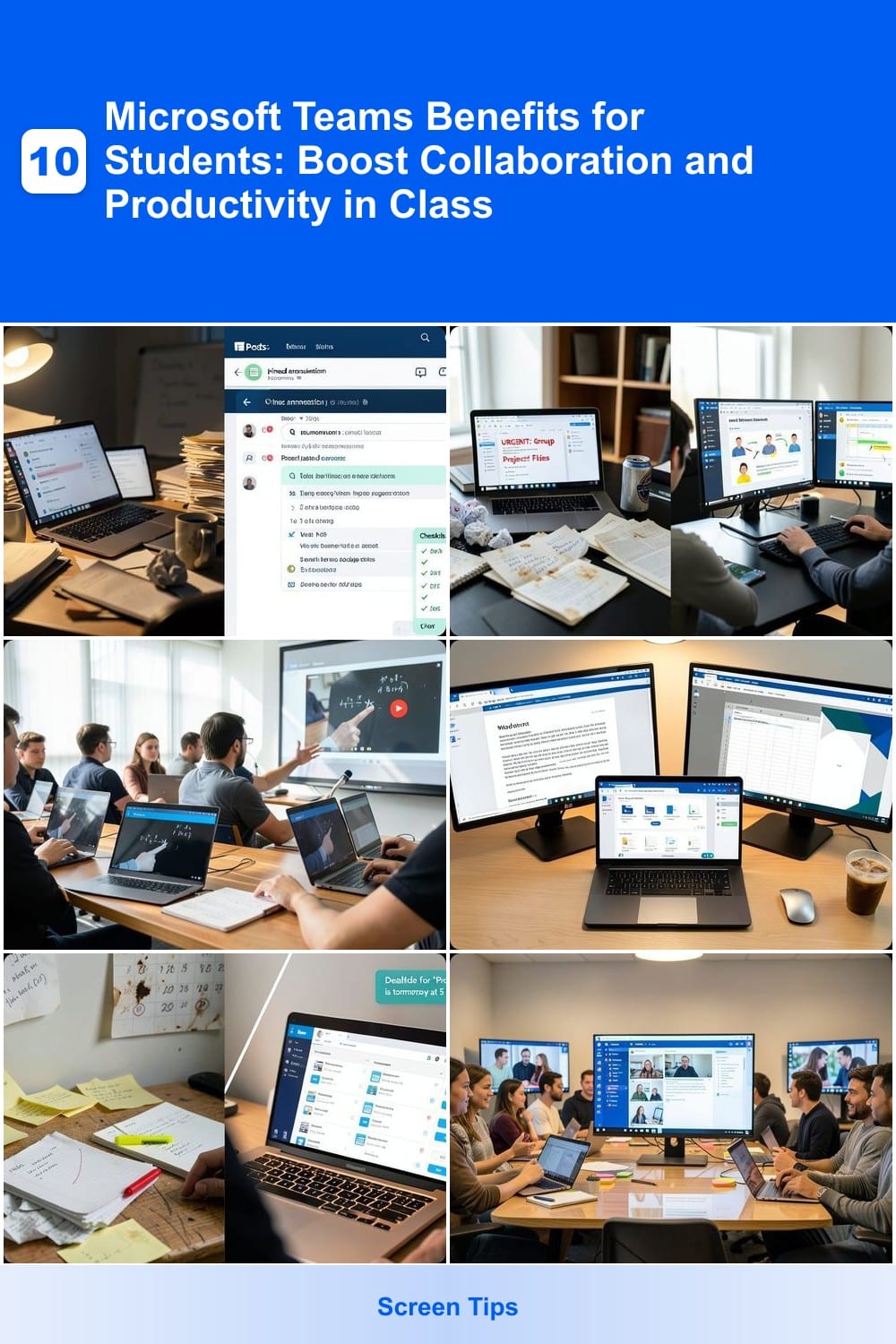
Tired of drowning in a sea of ignored emails and forgotten deadlines? Microsoft Teams turns classroom communication into a single, organized hub where announcements, assignments, and Q&A live—no more digging through cluttered inboxes.
The Posts tab lets teachers pin critical updates (like syllabus changes or exam reminders) at the top, while the Assignments section automatically tracks deadlines with real-time notifications. Need to ask a question? The chat threads keep discussions tidy, with @mentions ensuring your teacher sees your message instantly. Even parents can get involved through shared class updates, so no one misses a beat.
Perfect for overloaded students juggling multiple classes—this is your stress-free command center for academic success. ⚡
Real-Time Group Project Collaboration
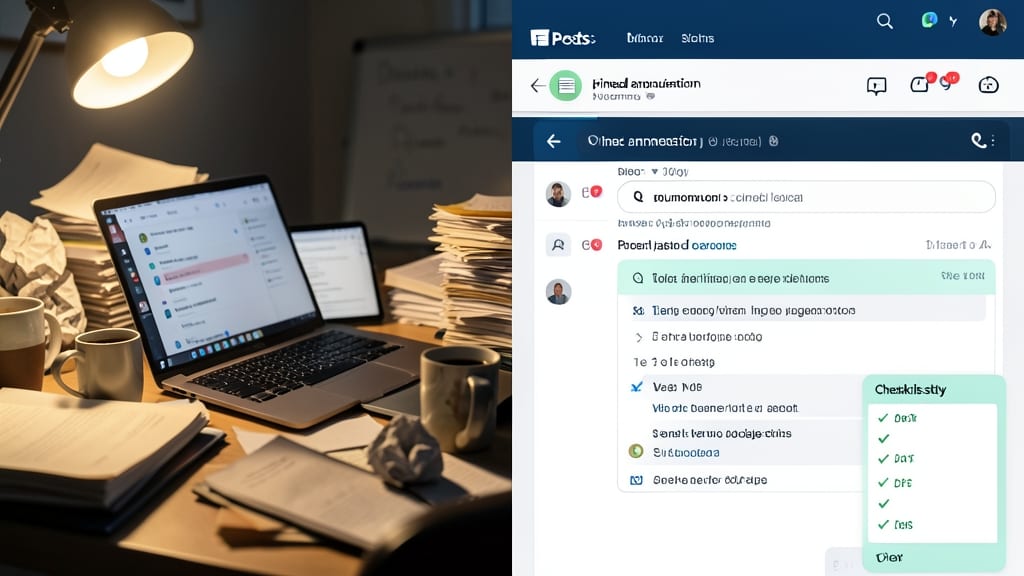
Group projects used to mean endless email chains, lost files, and last-minute panic—until Microsoft Teams changed the game. With its real-time co-authoring tools, every team member can edit the same Word doc, PowerPoint deck, or Excel spreadsheet simultaneously, so no one’s stuck waiting for the latest version.
The shared files tab keeps all project documents in one place, while chat threads with @mentions ensure everyone stays on the same page—no more "I thought you were handling that!" moments. Need to brainstorm? The whiteboard tool lets you sketch ideas together in real time, and version history tracks changes so you can always revert if something goes wrong. Plus, the task list breaks projects into manageable steps with due dates.
Perfect for engineering teams, creative groups, or study partners—this is the ultimate tool for turning chaotic group work into a smooth, stress-free process. 💡
Built-In Video Lectures and Recordings
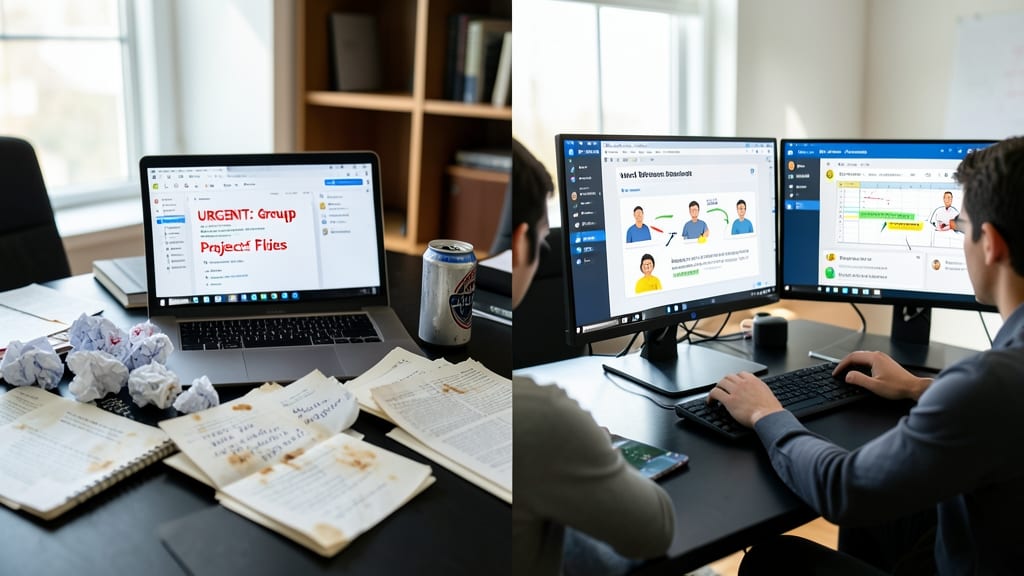
Missed a lecture or need to replay a tricky concept? Microsoft Teams’ built-in video recording feature lets professors capture entire classes with one-click recording, so you can watch, pause, and replay at your own pace—no third-party tools required.
The recordings include high-quality video, audio, and screen-sharing (like slides or whiteboard notes), so you never lose a single detail. Plus, the searchable transcript feature lets you jump straight to key moments, making review sessions lightning-fast. For visual learners, this is like having a personal tutor on-demand.
Perfect for night owls, commuters, or students with packed schedules—this feature turns passive listening into active mastery. ✨
Integration with Microsoft Office Suite
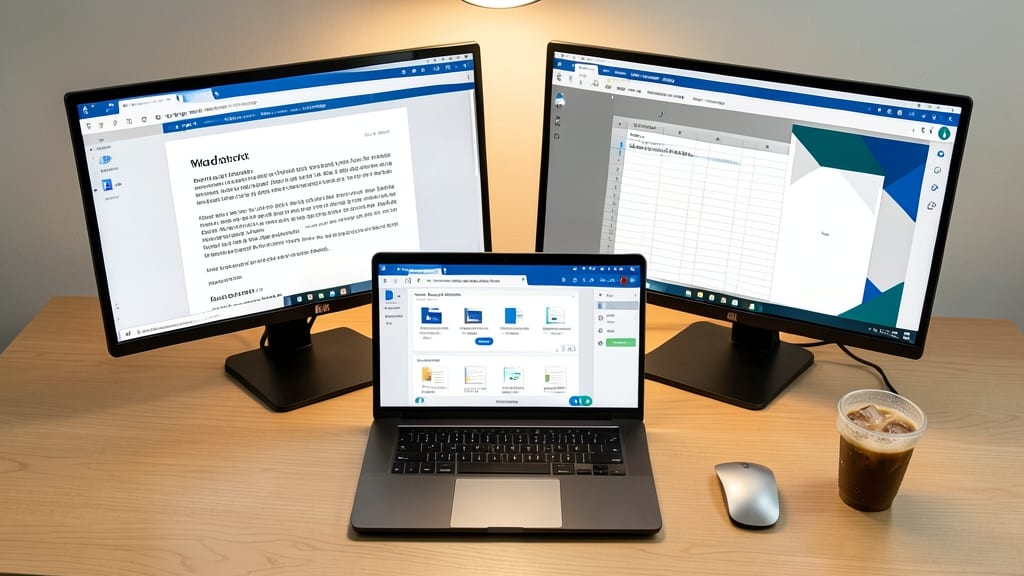
Tired of bouncing between apps to finish assignments? Microsoft Teams’ deep integration with Office Suite lets you edit Word docs, crunch Excel spreadsheets, and refine PowerPoint slides—all without ever leaving the platform.
Open a shared assignment directly in Teams, collaborate in real-time with classmates, and submit work with a single click. The Office Online tools mirror the full desktop experience, so you get all the familiar formatting, formulas, and design tools—just streamlined. Plus, version history tracks changes automatically, so you never lose progress.
Perfect for students juggling multiple files—whether it’s a group project in Word or financial analysis in Excel. Say goodbye to file attachments and hello to seamless workflows. ✨
Organized Assignment Tracking System
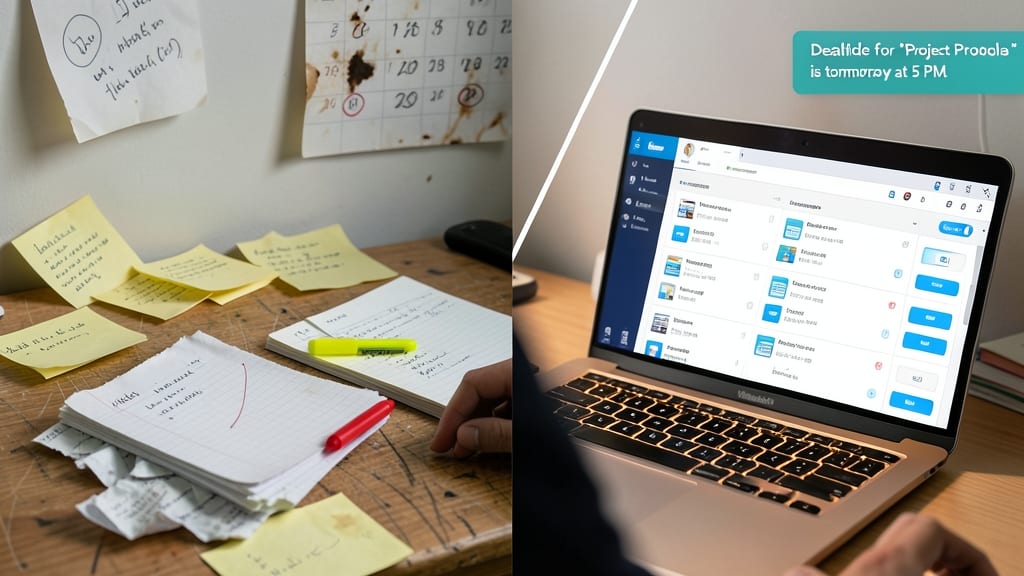
Forget juggling sticky notes and scattered emails—Microsoft Teams turns assignment chaos into a streamlined, stress-free system. The built-in Assignments tab lets teachers post deadlines, attach rubrics, and even collect submissions directly in the platform, while students get real-time reminders and progress tracking.
With automatic due date alerts and a clean dashboard showing upcoming tasks, overdue items, and submitted work, you’ll never miss a deadline again. The integration with Microsoft Planner takes organization further, letting you break projects into smaller tasks and track progress visually. Grades sync seamlessly, so you always know where you stand.
Perfect for high schoolers, college students, or anyone drowning in coursework, this system turns academic stress into clarity. ⚡
Virtual Study Groups and Brainstorming

Forget passive study sessions—Microsoft Teams turns group study nights into dynamic, interactive workshops with breakout rooms and real-time collaboration tools. Split into smaller groups to tackle tough concepts, debate ideas, or practice presentations without distractions, all while staying connected to the main session.
Use screen-sharing to annotate slides, highlight key points, or even pull up reference materials instantly. The whiteboard feature lets you sketch diagrams or mind maps together, while the polling tool helps gauge class understanding in seconds. No more awkward group chats or lost notes—everything stays organized in one place.
This is your secret weapon for preparing group projects or mastering complex topics. Whether you're cramming for finals or brainstorming creative solutions, Teams makes collaboration feel like an in-person workshop—minus the coffee stains. 💡
Accessibility Features for All Learners

No student should ever feel left out of the classroom conversation—Microsoft Teams removes that barrier with its built-in accessibility tools designed for every learning style. From deaf or hard-of-hearing students to those with visual impairments, these features ensure everyone can engage fully in lectures and discussions.
Enable live captions in real time during calls or meetings, so you never miss a word—even in noisy environments. The screen reader integration reads aloud chat messages, file content, and meeting details, while adjustable text sizes and high-contrast themes make digital content easier to follow. These tools work seamlessly with Windows, Mac, and mobile devices, so accessibility follows you wherever you study.
Perfect for students with hearing loss, dyslexia, or low vision, these features also help neurodivergent learners or those who simply prefer auditory reinforcement. No extra apps or plugins needed—just toggle them on in Teams settings. ✨
Secure File Sharing and Cloud Storage
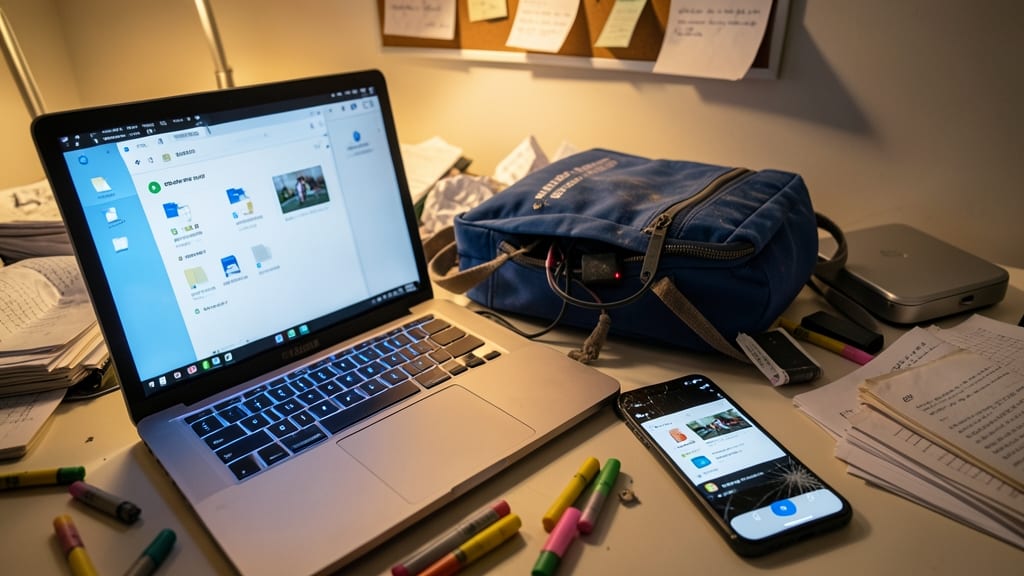
Forget the days of frantically searching for that one USB drive you lost in your backpack—Microsoft Teams and OneDrive integration keeps all your files safe, synced, and accessible from any device. Whether you're working on a laptop, tablet, or even your phone, your documents are always just a few clicks away, backed up in real-time to the cloud.
With 25GB of free cloud storage (or more with an educational account), you’ll never run out of space for assignments, research papers, or group projects. Files sync automatically, so you’re always working on the latest version—no more "finalfinalv3.docx" chaos. Plus, sharing documents with classmates is effortless with permission controls, ensuring only the right people can view or edit your work.
This feature is perfect for students juggling multiple classes and devices—whether you're collaborating on a group project or just need to access lecture notes from your phone during a commute. 💻
Parent-Teacher-Student Communication Bridge
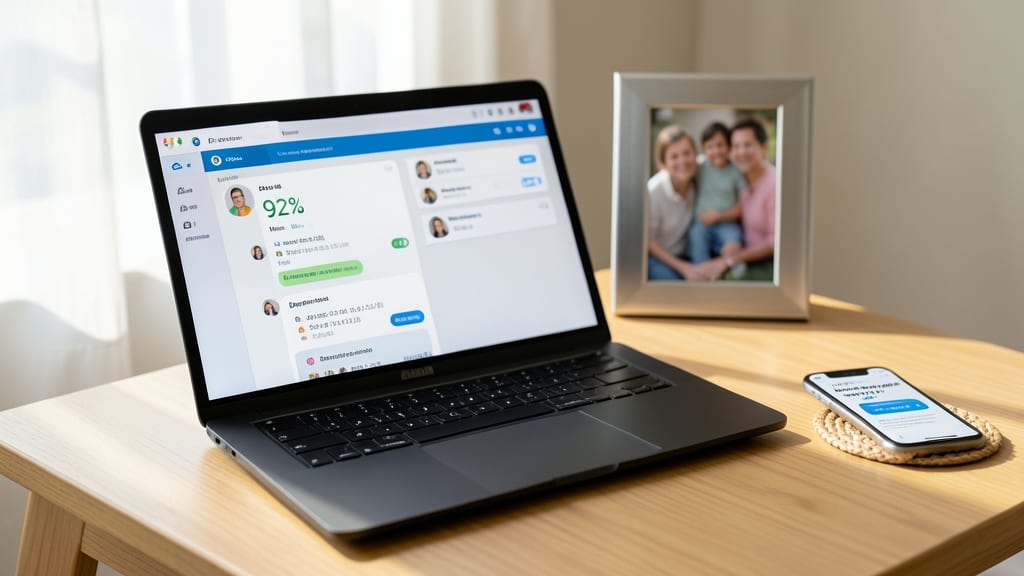
Ever wished your parents could see your academic progress without hovering over your shoulder? Microsoft Teams bridges that gap with a parent-teacher communication hub that keeps everyone informed—without overstepping boundaries.
Parents receive real-time updates on assignments, grades, and class announcements through dedicated parent portals (like Class Notebook integration), while teachers can share insights without exposing private student data. The @mention feature lets families ask quick questions or request check-ins, and shared calendars sync deadlines across devices. Best of all, students control what’s visible—no more awkward family debates about "Why didn’t you tell them about the quiz?!"
This feature is a lifesaver for high schoolers juggling extracurriculars or college students balancing work and studies. Parents get peace of mind, teachers maintain transparency, and students avoid the "I forgot to tell you" guilt. ✨
Free and Easy-to-Use for All Students
Most student tools come with hidden costs—subscription fees, premium features, or paywalls that leave you scrambling for alternatives. But Microsoft Teams is completely free for anyone with an educational email address, giving you access to the same professional-grade collaboration tools used by Fortune 500 companies.
You get unlimited chat history, 10GB of team file storage, and 24/7 technical support—all without spending a dime. The setup is zero-config for students, with automatic integration into your school’s Microsoft 365 account. Even the mobile app is fully functional, so you can join class discussions or study groups from your phone without extra charges.
This isn’t just a budget hack—it’s a career-ready advantage. You’ll master the same platform professionals use, making your resume stand out before you even graduate. 💻