
Tip & Trick
Remote work offers flexibility but exposes your data to new risks. These 10 security best practices keep your digital life protected without disrupting workflows—essential for anyone working outside the office.
Use Multi-Factor Authentication Everywhere
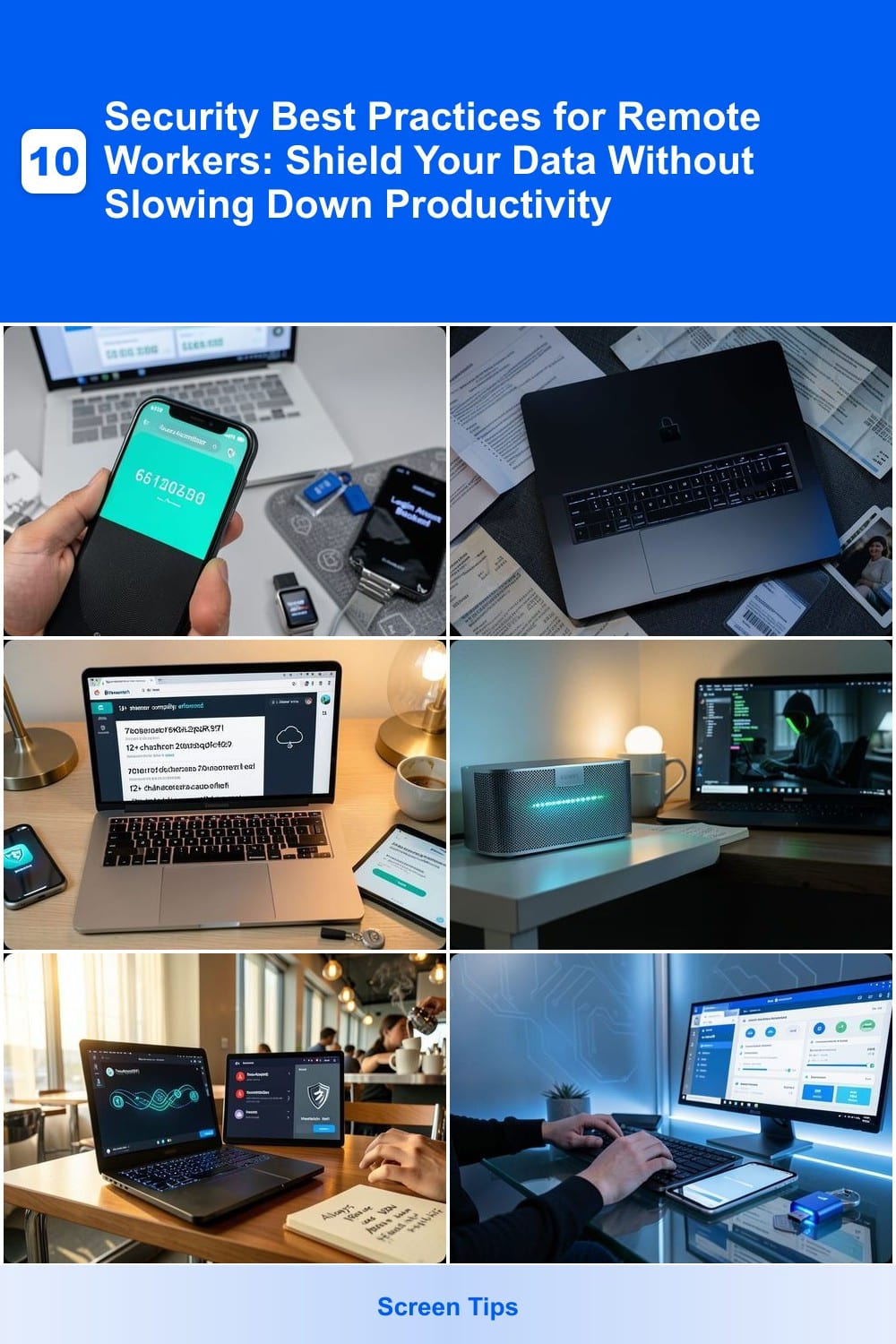
Credential theft is the #1 way hackers break into accounts—but multi-factor authentication (MFA) adds an extra layer of protection that’s shockingly easy to set up. Most people assume MFA is complicated, but modern apps like Google Authenticator, Microsoft Authenticator, or even SMS codes turn on in minutes with no tech degree required.
MFA works by requiring two verification methods (like a password + a code from an app) before granting access. This blocks 99.9% of automated attacks and even stops many phishing attempts, since attackers can’t steal both your password and your phone. Best of all, it’s available for every major platform—email, banking, cloud services, and even gaming accounts—without slowing down your workflow.
Whether you’re checking emails from a café or accessing company files remotely, MFA is the zero-effort upgrade that protects your digital life without sacrificing convenience. ⚡
Enable Full-Disk Encryption on Devices
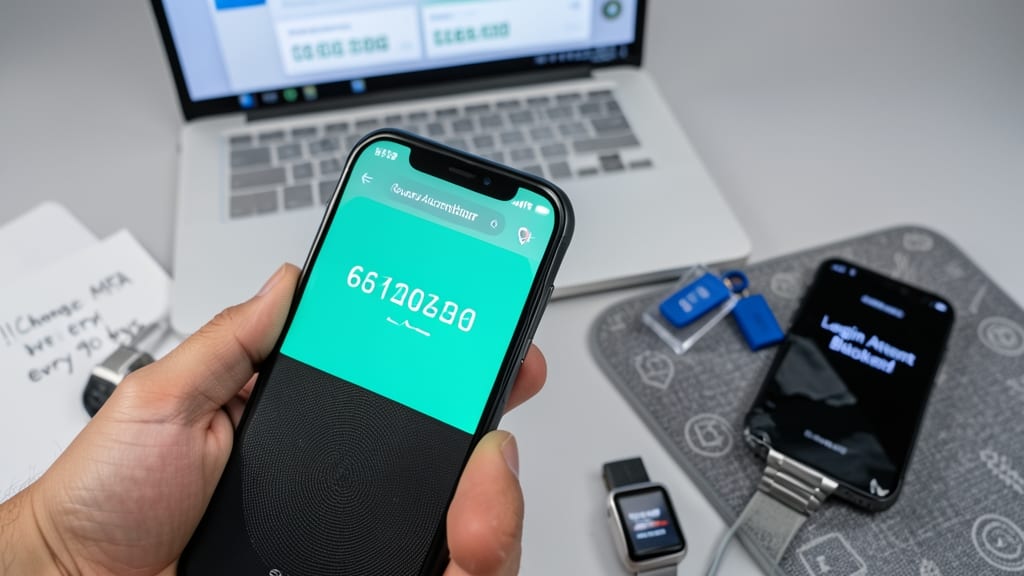
Your laptop contains years of sensitive work emails, financial records, and personal files—all vulnerable if lost or stolen. Full-disk encryption transforms your device into a digital vault, rendering data unreadable without your password, while running seamlessly in the background.
Modern operating systems make this effortless: Windows BitLocker (Pro/Enterprise editions) encrypts entire drives with AES-256-bit encryption, while macOS FileVault offers similar protection with zero noticeable slowdown. Both activate in minutes during setup or via system preferences, with recovery keys stored securely in your account.
This is non-negotiable for freelancers handling client data, remote employees with company laptops, or anyone who’s ever misplaced a device. The best part? It’s invisible once enabled—your files stay fast and secure. ✨
Create Strong Passwords with a Manager
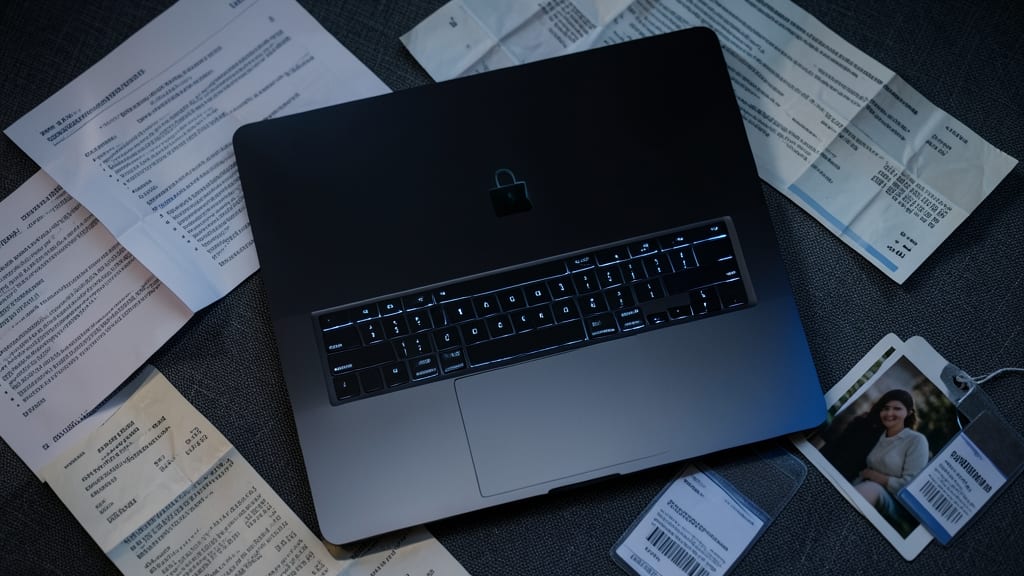
Tired of resetting passwords every time you forget one? A password manager like Bitwarden or 1Password eliminates that headache while enforcing 12+ character complexity by default—no guesswork required.
These tools auto-generate and store complex passwords, sync across devices, and even share credentials securely with team members. Bitwarden’s open-source model adds an extra layer of trust, while 1Password’s Travel Mode lets you wipe sensitive data from your device before crossing borders. Both support biometric logins for instant access.
Perfect for teams juggling Slack, email, and CRM accounts, password managers reduce breaches caused by weak passwords—the #1 attack vector for remote workers. ✨
Secure Your Home Wi-Fi Network
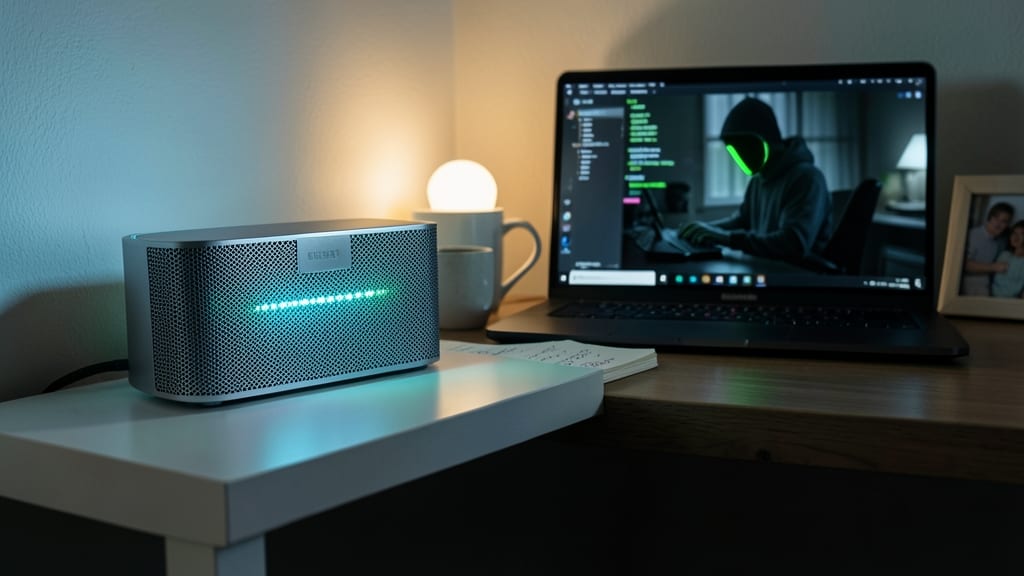
Your home Wi-Fi isn’t just a convenience—it’s the gateway to your work files, bank accounts, and personal data. Without proper security, hackers can intercept your traffic or even take control of your router, turning your network into a spy’s playground.
Start by upgrading to WPA3 encryption (instead of WPA2) to block man-in-the-middle attacks. Most modern routers support it—just check the settings under Wireless Security. Next, change the default admin credentials (yes, even if you’ve never shared them). Use a 16+ character passphrase with numbers/symbols, and disable WPS (it’s outdated and easily hacked).
Remote workers, freelancers, and anyone handling sensitive data should prioritize this—it takes 10 minutes but stops 90% of basic Wi-Fi exploits. 💻
Use a Virtual Private Network
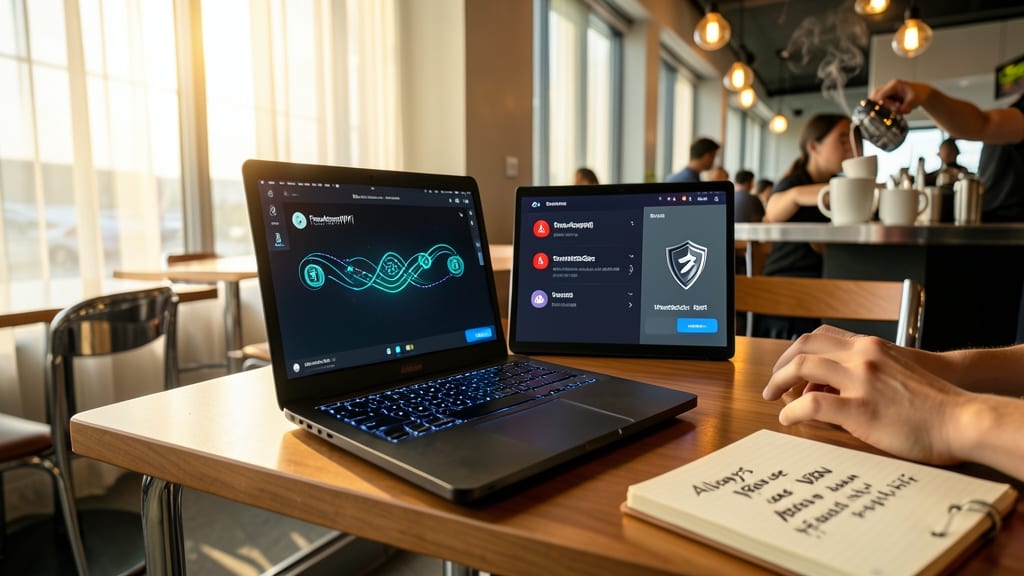
Public Wi-Fi networks—like those at coffee shops or airports—are convenient but notorious for exposing your data. A Virtual Private Network (VPN) creates a secure tunnel for all your online traffic, masking your IP address and encrypting sensitive information, whether you're checking emails or accessing company files.
Top-tier VPNs like NordVPN or ExpressVPN offer military-grade encryption, no-logs policies, and servers in multiple countries to bypass geo-restrictions. They’re designed to work seamlessly across devices, with minimal speed impact—ideal for remote workers who need both security and reliability. Many even include ad-blocking and malware protection as added layers of defense.
This is a must-have for freelancers, digital nomads, or anyone who frequently connects to unsecured networks. A solid VPN ensures your browsing stays private, even when sharing bandwidth with strangers. ✨
Implement Zero-Trust Network Access
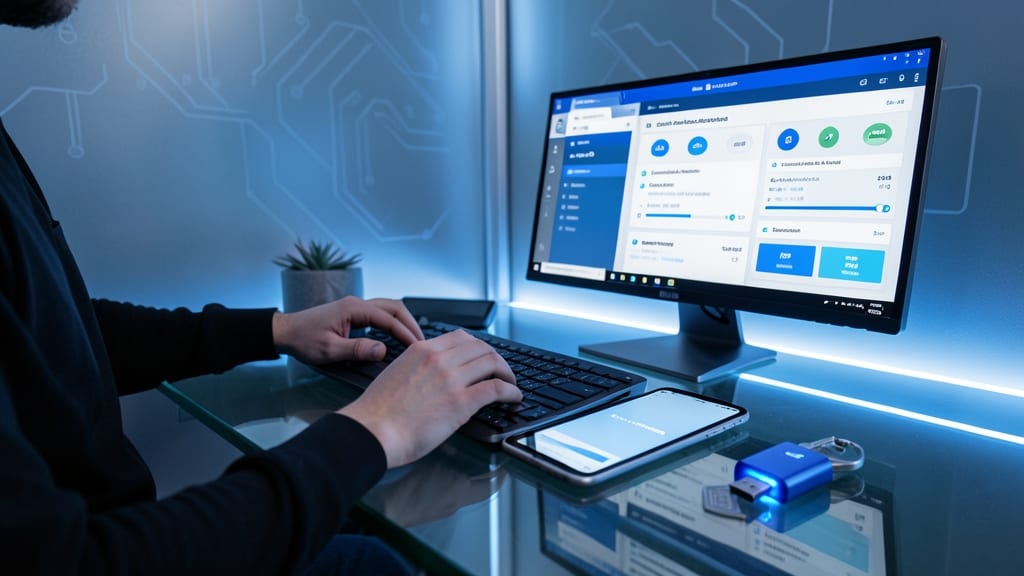
Tired of relying on VPNs that only encrypt your connection but leave your devices vulnerable? Zero-trust network access flips the script by treating every access request—whether from your laptop or a cloud app—as a potential threat until proven otherwise.
Solutions like Microsoft Azure AD Conditional Access or Google BeyondCorp require continuous authentication (not just logins) and device compliance checks before granting access. This means even if your credentials are stolen, attackers can’t move laterally through your network. It’s perfect for remote teams using cloud-based tools like Slack, Google Workspace, or Salesforce, where traditional VPNs fall short.
Ideal for businesses migrating to cloud workflows or individuals handling sensitive client data, zero-trust eliminates the "trust but verify" weakness of older security models. 🌟
Regularly Update All Software
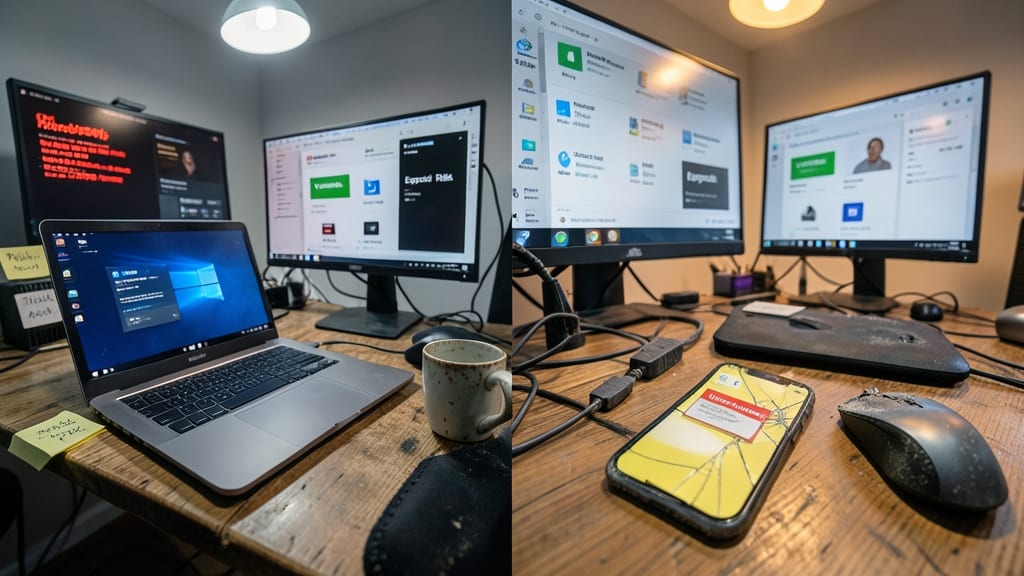
Most remote workers juggle work and personal devices—each with outdated apps, unpatched software, and hidden vulnerabilities. Automated updates aren’t just about new features; they’re your first line of defense against exploits targeting unsecured systems.
Enable automatic updates for your OS (Windows, macOS, or Linux) and critical apps like browsers, email clients, and security tools. Modern systems now default to background updates, reducing downtime to mere seconds. For mixed environments, tools like Microsoft Endpoint Manager or Jamf centralize patch management across devices—ideal for teams with diverse hardware.
This is especially critical if you’re using personal devices for work—70% of breaches exploit unpatched software, per Verizon’s 2023 DBIR. Set aside 10 minutes weekly to verify updates across all devices, and prioritize security-focused patches over feature updates. 💻
Secure Your Webcam and Microphone
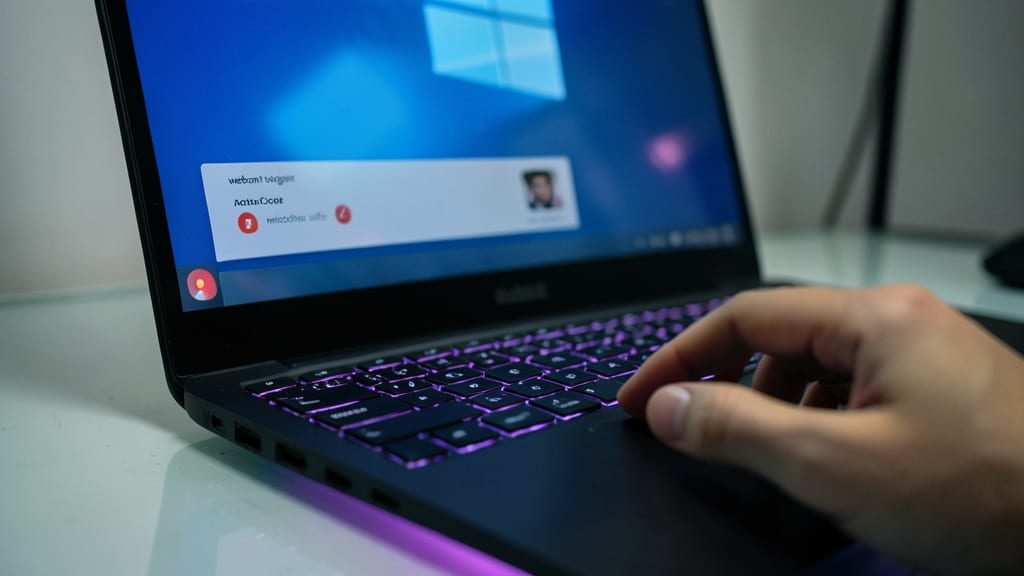
Ever joined a meeting only to realize your webcam was left on accidentally? Modern operating systems make it effortless to prevent this with built-in toggle controls for webcam and microphone access—no extra software required.
On Windows, press Win + A to open the Action Center, then click the camera or mic icon to disable them instantly. macOS users can mute the mic via the Control Center or toggle the webcam in System Preferences under Security & Privacy. For Chrome OS, the quick settings panel offers one-tap access. These controls ensure your devices stay off when not in use, blocking unauthorized access during calls.
This is especially useful for freelancers, educators, and remote teams who frequently host video meetings. A quick toggle keeps your privacy intact without sacrificing convenience. ✨
Use Secure File Sharing Methods
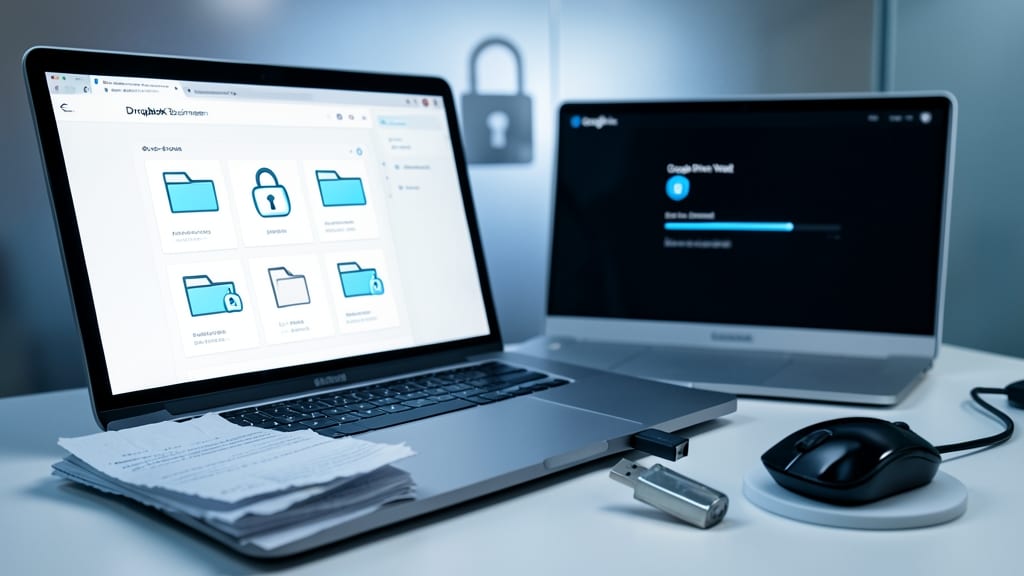
Tired of sending sensitive documents via unencrypted email attachments that could land anywhere? Secure file-sharing services like Dropbox Business or Google Drive (with Vault) encrypt files at rest and in transit, ensuring only authorized recipients can access them.
These platforms offer end-to-end encryption, meaning files are locked with military-grade security before leaving your device. Features like expiration links (auto-delete after viewing) and access controls (revoke permissions instantly) add layers of protection. For legal or financial docs, Box Enterprise even includes HIPAA and GDPR compliance out of the box.
Perfect for freelancers, consultants, or teams handling client contracts—no tech skills needed. Just upload, share, and rest easy knowing your data stays private. ✨
Train Employees on Phishing Awareness
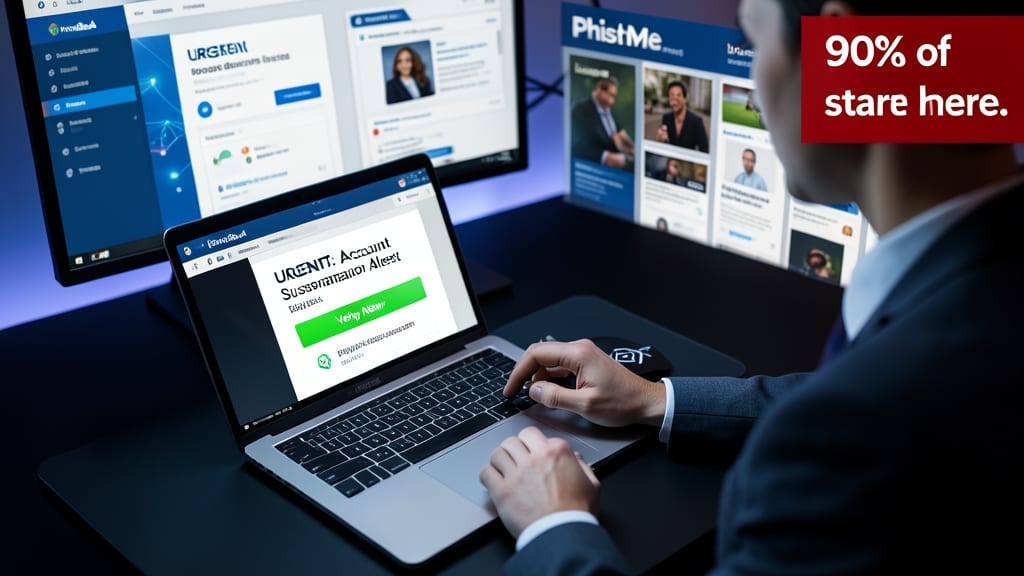
Even the most secure systems fail when employees click on malicious links—90% of breaches start with a phishing attack. The solution? Regular, interactive training that mimics real-world threats without disrupting workflows.
Platforms like KnowBe4 or PhishMe deliver customizable phishing simulations (e.g., fake login pages, urgent invoice scams) followed by instant feedback and training modules. These tools track employee progress, identify weak spots, and even simulate CEO fraud emails to test vigilance. Most offer monthly campaigns with analytics to show improvement over time.
This isn’t just for IT teams—everyone benefits, from executives to interns. Remote workers, especially, should prioritize this as their first line of defense against social engineering. 💡