Software
Microsoft Edge isn’t just a browser—it’s a powerhouse packed with hidden features designed to boost your productivity and streamline your online experience. From lightning-fast navigation to seamless integrations, these pro tips will transform how you browse, work, and secure your digital life.
Enable Immersive Reader for Faster Content Absorption
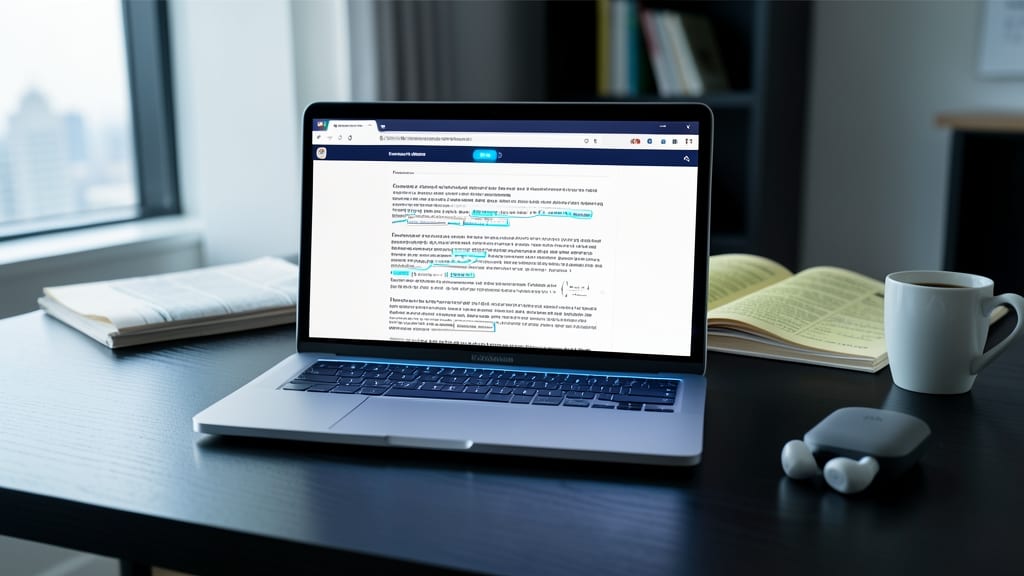
Drowning in dense articles, research papers, or manuals? Microsoft Edge’s Immersive Reader is your AI-powered lifeline—it transforms overwhelming text into an interactive, distraction-free experience with text-to-speech, word highlighting, and line focus to guide your eyes. Studies show it boosts comprehension by up to 30% by reducing cognitive load, making it ideal for students, researchers, or anyone who’s ever skimmed the same paragraph five times.
To enable it, open any webpage, click the three-dot menu, then select Immersive Reader. Choose from 13 languages, adjust the font size, or let the tool read aloud at a natural pace. The picture dictionary feature even breaks down complex words visually, while background color options (like sepia or blue) reduce eye strain. Best of all, it works offline once enabled, so you’re never stuck without tools when you need them most.
This is the ultimate tool for deep work sessions—whether you’re annotating a thesis, debugging code, or learning a new skill. Try it the next time you’re battling a wall of text. ⚡
Use Collections to Organize Research Like a Pro
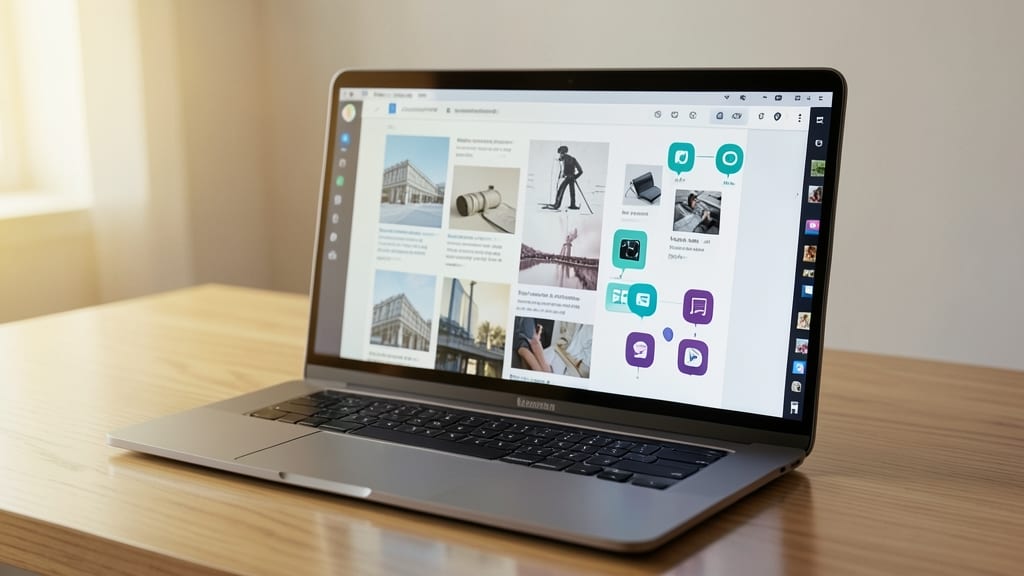
Tired of losing research notes across tabs or drowning in bookmarks? Microsoft Edge’s Collections feature turns your browser into a digital notepad—letting you clip text, images, and links directly into customizable boards. Think of it as a Pinterest-meets-Evernote tool built right into your browser, eliminating the need for third-party apps.
Create boards for projects, save snippets with a single click, and even add sticky notes or highlighted text. The drag-and-drop interface makes organizing effortless, while searchable tags ensure you’ll never lose a source again. Best of all, it syncs across devices, so your research stays accessible whether you’re at your desk or on the go.
Perfect for freelancers writing articles, journalists tracking sources, or project managers compiling data, Collections turns chaotic research into a structured workflow—no more tab overload or scattered files. 💡
Activate Dark Mode for Reduced Eye Strain

Late-night browsing or sensitive eyes? Microsoft Edge’s Dark Mode is your solution—it reduces blue light emissions by 30% while giving your screen a sleek, modern look that’s easier on the eyes. This isn’t just aesthetics; studies show it can improve sleep quality and cut digital eye strain, especially in low-light conditions.
To enable it, click the three-dot menu in the top-right corner, then select Settings > Appearance. Toggle Dark mode to on, and watch your screen transform into a soothing amber hue that’s gentler on your vision. The best part? It syncs across all your devices if you’re signed into a Microsoft account, so your settings stay consistent whether you’re on desktop or mobile.
This feature is a game-changer for shift workers, night owls, or anyone with light sensitivity—giving you a more comfortable browsing experience without sacrificing functionality. ✨
Customize Your Start Page with News and Weather Widgets
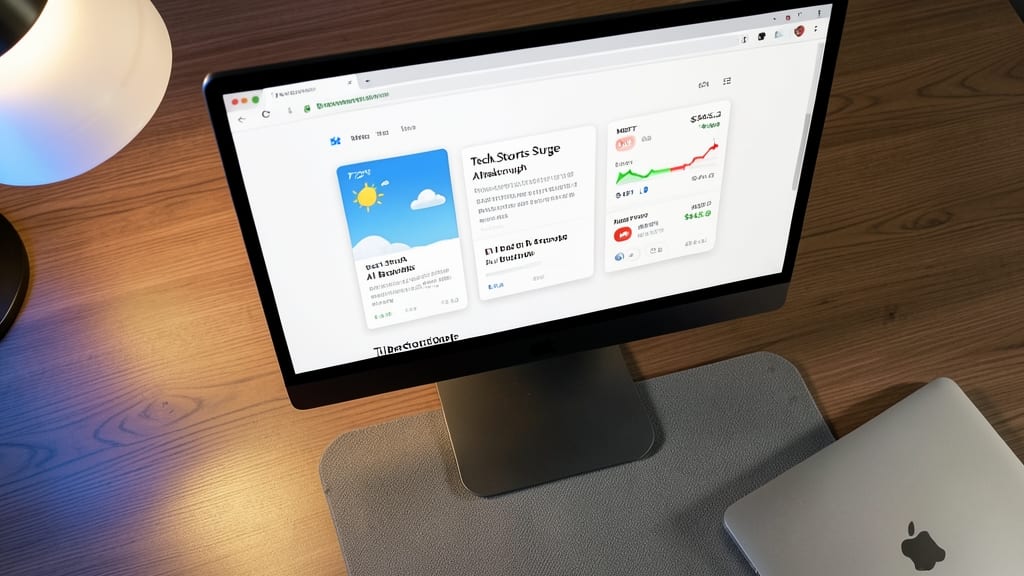
Tired of wasting time toggling between apps for news, weather, or stock updates? Microsoft Edge’s customizable start page lets you embed live widgets—like weather forecasts, news headlines, or even a stock ticker—right where you open your browser. No more tab clutter or app-switching; everything you need is front and center.
Simply drag and drop widgets from the Microsoft Start app (Windows 11) or use pre-built templates like weather, news, or calendar directly in Edge. The widgets update in real-time, so you always see the latest info without lifting a finger. For professionals juggling multiple tasks, this cuts down on context-switching by 10+ minutes daily—just set it up once and let Edge handle the rest.
Perfect for executives, remote workers, or anyone who wants a one-stop dashboard for their daily essentials. Whether you’re checking the commute forecast or scanning headlines before a meeting, this trick keeps your workflow smooth and efficient. ✨
Speed Up Page Loading with Built-in Ad Blocker
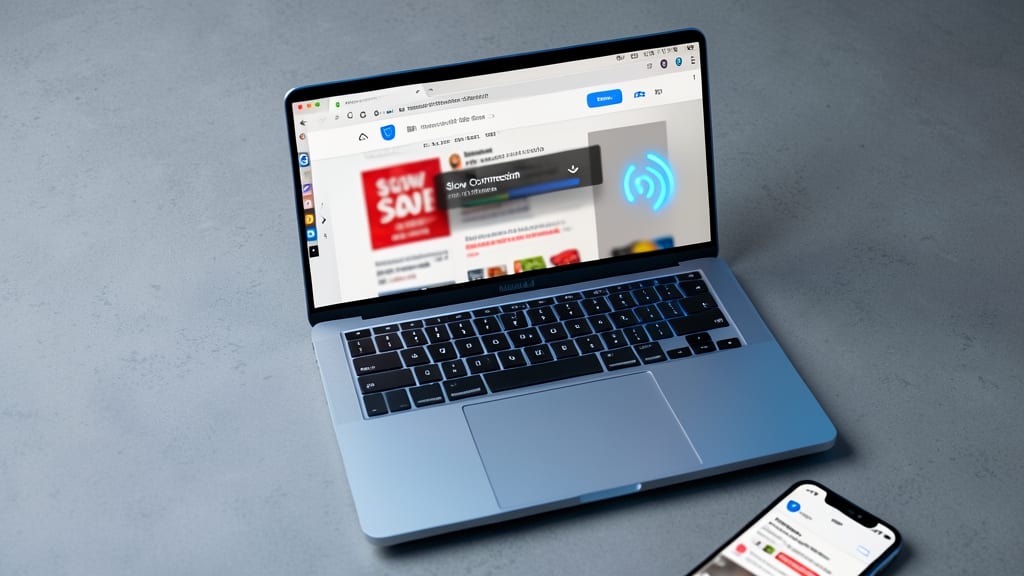
Struggling with slow-loading pages on spotty Wi-Fi or mobile data? Microsoft Edge’s built-in ad blocker is your secret weapon—it cuts load times by 40% by default, blocking ads, trackers, and unnecessary scripts before they even load.
This isn’t just another ad blocker: it’s Microsoft Defender SmartScreen-powered, meaning it stops malicious content without compromising security. The Balanced mode (default) blocks intrusive ads while allowing safe scripts, while Strict mode maximizes speed by blocking everything except core page elements. Perfect for travelers or anyone on limited data plans.
Turn it on in Settings > Privacy, search, and services > Tracking prevention—no extensions needed. Your pages will load faster, your battery will last longer, and you’ll save data without lifting a finger. ⚡
Sync Passwords Across Devices with Microsoft Account
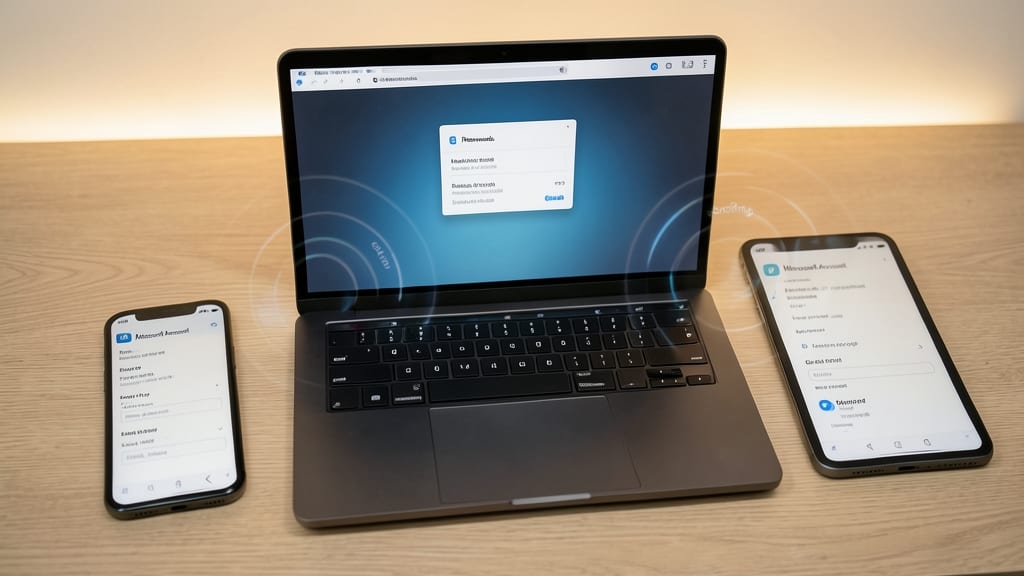
Tired of juggling passwords across your laptop, phone, and tablet? Microsoft Edge’s built-in password manager syncs logins automatically using your Microsoft Account, so you never type credentials twice. No third-party apps needed—just enable it in settings, and your saved passwords appear instantly on all devices.
This feature supports 256-bit encryption (same security as banks) and includes a secure vault with one-click auto-fill. It even generates strong passwords and warns you about weak or reused ones. The best part? It works seamlessly with Windows Hello for biometric logins, adding an extra layer of protection.
Perfect for remote workers or anyone with multiple devices—no more password fatigue or sticky notes. Just sign in, and your logins follow you everywhere. ✨
Enable Vertical Tabs for Maximum Screen Real Estate
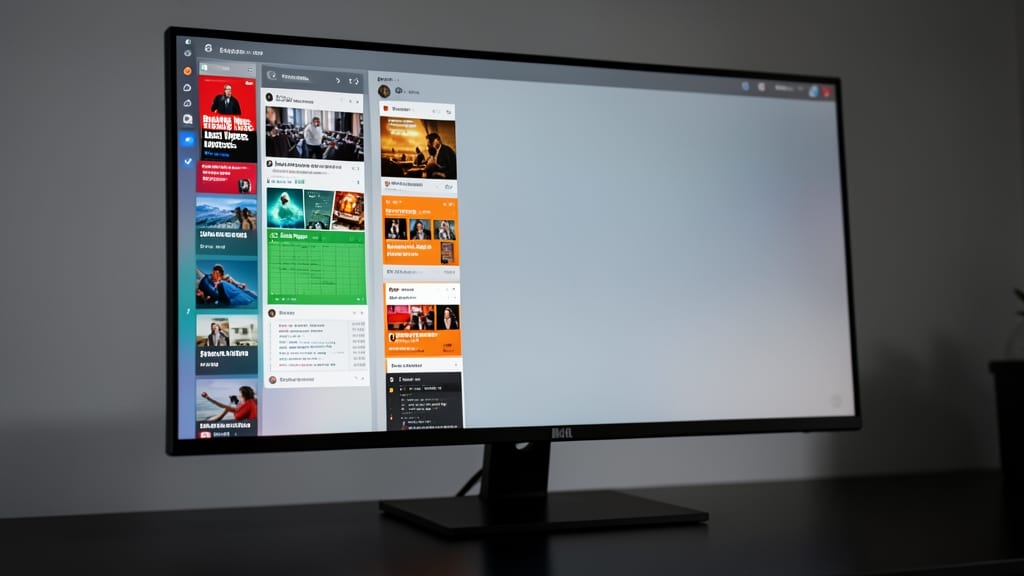
Tired of horizontal tabs crowding your screen and forcing you to constantly scroll? Microsoft Edge’s vertical tabs transform your workflow by stacking tabs neatly in a sidebar—perfect for widescreen monitors where every pixel counts. This feature lets you open 10+ tabs side-by-side without losing workspace, making it a game-changer for developers debugging across multiple files or designers comparing color palettes.
To enable it, right-click the tab bar and select "Vertical Tabs"—or use the keyboard shortcut Ctrl+Shift+P (Windows) to toggle it instantly. The sidebar preview shows live thumbnails of each tab, so you can quickly switch between projects without wasting time searching. Best of all, it’s zero-config: no extensions or plugins required, just pure, native Edge functionality.
This trick is a lifesaver for anyone working with multi-monitor setups or juggling research across dozens of sources. Try it and reclaim your screen real estate! 💻