
Tip & Trick
Struggling to get started with SharePoint? These eight beginner-friendly tips will help you master the basics quickly, boost productivity, and avoid common pitfalls—even if you're new to Microsoft's collaboration platform.
Understand SharePoint Site Structure Basics

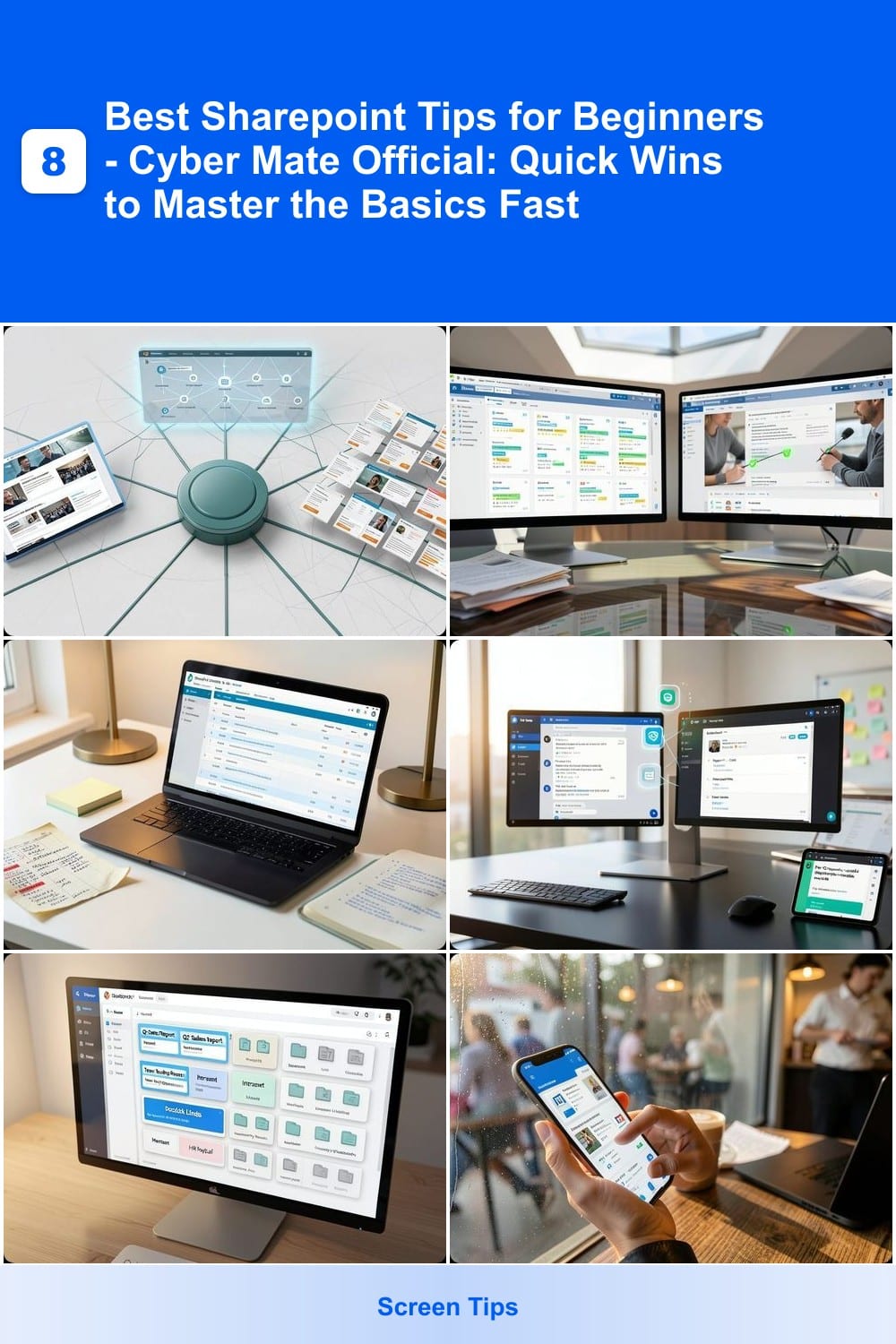
Ever feel lost in SharePoint’s maze of sites and subsites? Understanding the three core site types—hub sites, communication sites, and team sites—is your first step to organizing content like a pro. Each serves a distinct purpose: hub sites act as navigation hubs for related sites, communication sites shine for company-wide announcements, and team sites power collaborative projects.
Start by identifying your primary hub site—this is where you’ll find links to all connected sites. For teams, a team site provides document libraries, lists, and OneNote integration, while communication sites excel at showcasing news and company updates. Use the Site Contents menu to explore subsites and libraries, and leverage the global navigation bar to jump between them effortlessly.
This foundation is perfect for new admins, project managers, or team leads who need to structure content without technical headaches. Mastering these basics ensures your SharePoint experience is intuitive from day one. 💻
Master Document Libraries for Easy File Sharing
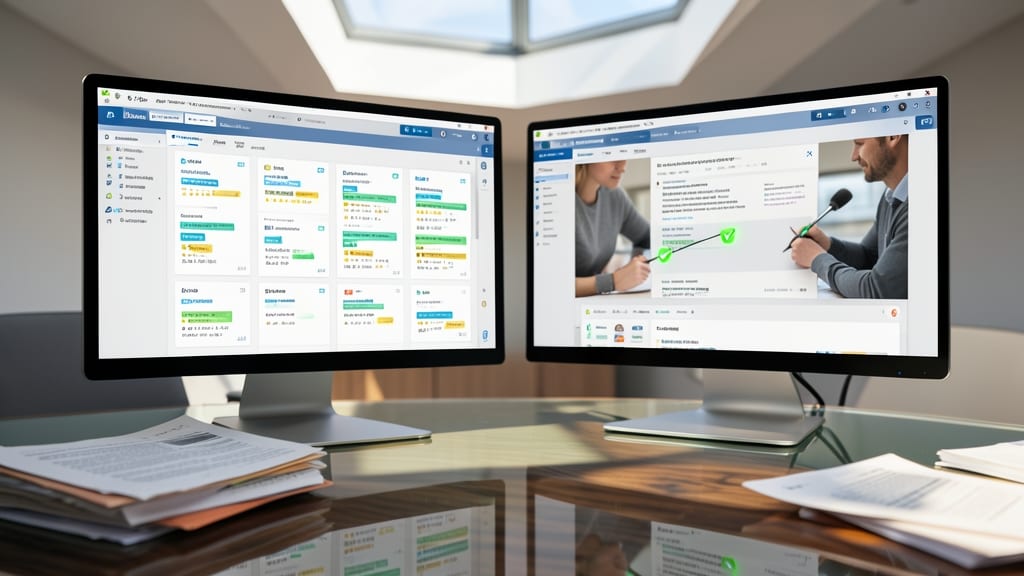
Frustrated by lost files or version chaos in shared drives? SharePoint’s document libraries solve this with version control, metadata tagging, and real-time co-authoring—features most beginners miss. Unlike generic folders, these libraries track changes automatically, so you always access the latest draft while keeping old versions safely archived.
Start by creating a library from your site’s Site Contents menu, then enable metadata columns (like "Project," "Owner," or "Status") to sort files instantly. The preview pane lets you edit documents directly without downloading, while co-authoring lets multiple team members work on the same Word or Excel file simultaneously—no more "save-as" conflicts. For extra security, set retention policies to auto-delete old files after a set period.
This is your go-to for teams managing contracts, creative projects, or HR documents—where organization and collaboration are critical. Say goodbye to email attachments and hello to streamlined workflows. 💻
Use Lists to Track Tasks and Information
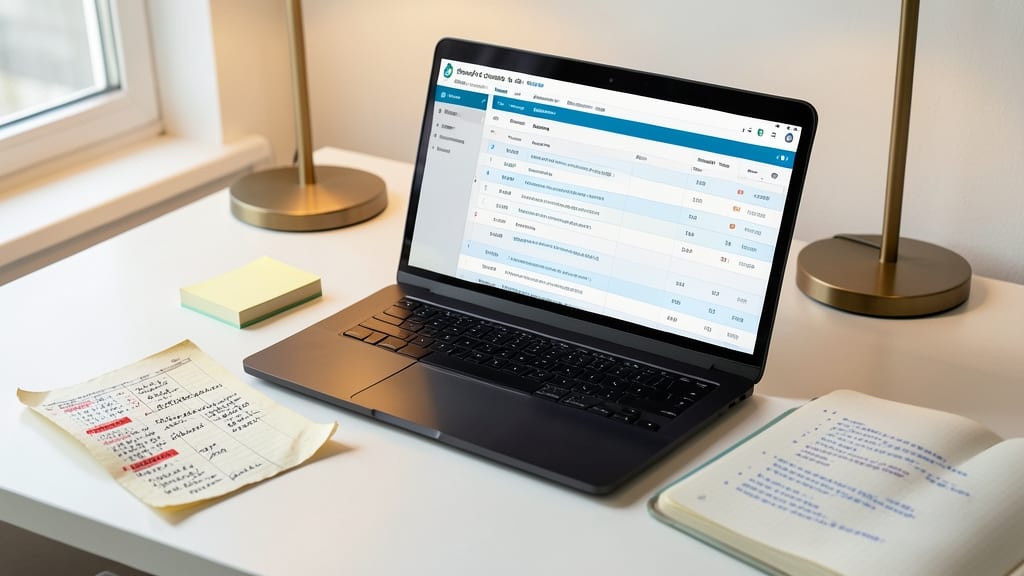
Tired of scattered sticky notes and messy spreadsheets? SharePoint’s custom lists turn simple data into dynamic tools—no coding required. Whether you’re tracking project tasks, managing contacts, or planning events, lists adapt to your workflow with just a few clicks.
Start by creating a list from the Site Contents menu, then add columns for priority levels, due dates, or status updates. Filter views to show only high-priority tasks or overdue items, and sync with Outlook for email reminders. The calendar view even lets you visualize deadlines at a glance—perfect for visual learners.
This is your secret weapon for organization without complexity. Teams new to SharePoint will love how lists replace disjointed tools, while managers appreciate the built-in reporting. ✨
Leverage Microsoft Teams Integration Seamlessly

Tired of bouncing between apps to share files or track project updates? Microsoft Teams and SharePoint were built to work together—so why not use them that way? By connecting the two, you can turn chats into instant file hubs, eliminate version confusion, and keep all collaboration in one place.
When you link a SharePoint document library to a Teams channel, files appear directly in chat threads with a SharePoint preview pane—no more "where did I save that?" moments. The @mention feature lets you tag teammates in files, while co-authoring ensures everyone edits the same version in real time. For remote teams, this means faster approvals and fewer lost updates.
This integration is a game-changer for hybrid teams juggling office and remote work. Start by pinning your most-used SharePoint files to a Teams tab, and watch how much smoother your workflow becomes. ✨
Customize Homepages with Modern Web Parts
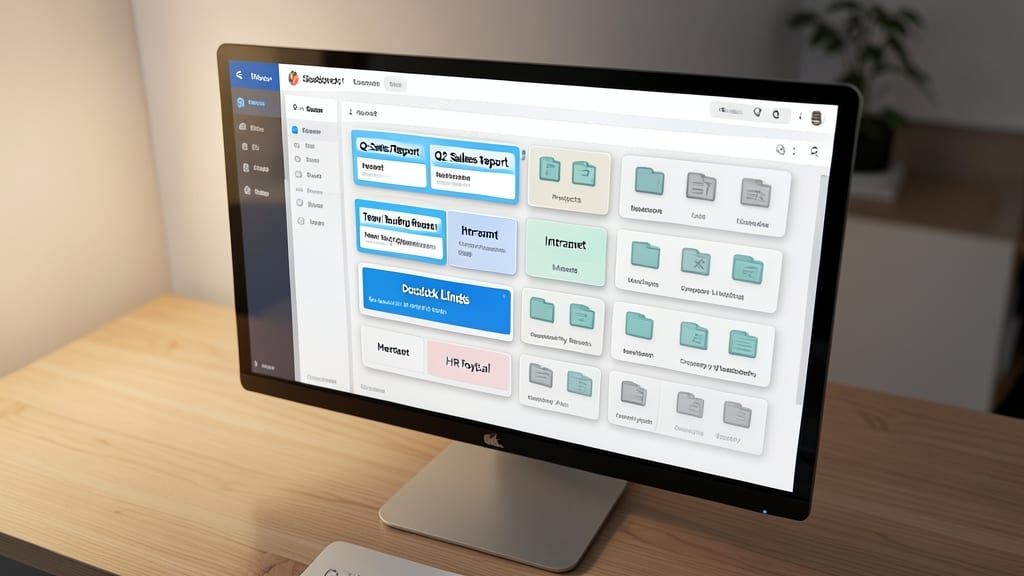
Tired of staring at a generic SharePoint homepage that doesn’t reflect your actual work? Modern web parts let you turn your dashboard into a powerhouse—without needing IT help. Drag-and-drop components like News, Quick Links, and Document Libraries transform your site into a personalized hub for your daily tasks.
Start by adding the News web part to highlight key updates, then embed Quick Links for shortcuts to your most-used sites. Need quick file access? The Document Library web part lets you preview files directly on your homepage. With mobile-optimized layouts, your dashboard stays useful whether you're at your desk or on the go.
This tip is perfect for project managers, team leads, or anyone drowning in tabs—turn clutter into clarity with a few clicks. ✨
Enable Mobile Access for On-the-Go Productivity

Tired of being tied to your desk when working with SharePoint? The SharePoint mobile app lets you access files, lists, and sites from anywhere—whether you're commuting, waiting in a meeting, or working from a café.
With the app, you can edit documents on the go, view and update lists, and even work offline with changes syncing automatically when you reconnect. The intuitive interface mirrors the desktop experience, so navigating sites and libraries feels familiar. Plus, it integrates seamlessly with Microsoft 365 apps, letting you open files in Word, Excel, or PowerPoint directly from your phone.
This tip is a game-changer for remote workers, sales teams, or anyone who needs real-time access to SharePoint data without sacrificing productivity. ⚡
Use Power Automate for Automated Workflows
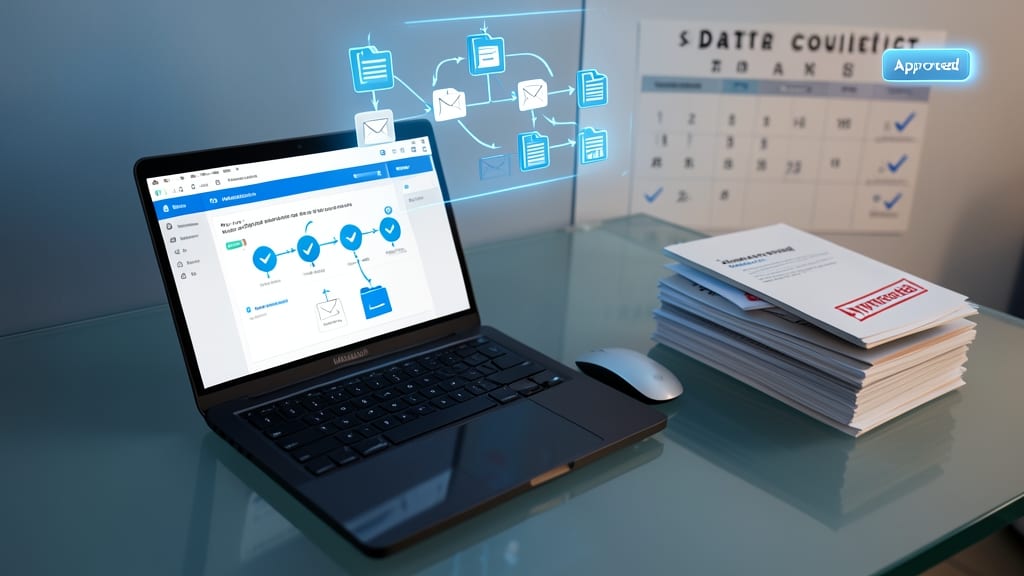
Tired of manually approving files or chasing down missing data? Power Automate turns repetitive SharePoint tasks into effortless workflows—no coding required. With pre-built templates for approvals, notifications, and data collection, you can automate everything from document routing to sending reminders.
Start with zero-config templates like "Get approval for a SharePoint file" or "Send a notification when a new item is added." The drag-and-drop interface lets you connect SharePoint lists, document libraries, and even Outlook—all while keeping your workflows auditable and reusable. For example, auto-generate reports when new data enters a list or trigger alerts for overdue tasks.
This is your secret weapon if you manage projects, HR records, or customer feedback—save hours weekly without writing a single line of code. ✨
Learn Basic Permissions for Secure Sharing

Worried about accidentally sharing sensitive files with the wrong people? SharePoint’s permissions system lets you control access with precision—no guesswork required. Assign view-only, edit, or full control permissions to users or groups, ensuring only the right people see or modify your content.
Start by navigating to Site Permissions in your SharePoint site settings. Here, you can grant access to individual users (like team members) or entire groups (such as "Marketing Team") for efficiency. Use inheritance to apply permissions across subsites or break it for granular control. For extra security, enable audit logs to track who accessed what—and when.
This tip is a game-changer for project managers, HR teams, or anyone handling confidential data. Mastering permissions ensures your SharePoint site stays secure and collaborative—without the chaos. ✨