
Software
Managing SharePoint document library permissions can be a security nightmare if not handled properly. These seven best practices help you balance access control with ease of use, reducing admin headaches while keeping sensitive files protected.
Use Built-In Permission Levels Effectively

Most teams overcomplicate SharePoint permissions by creating custom roles when the built-in levels—Contribute, Read, and Design—already cover 90% of use cases. These three default tiers eliminate the need for complex permission hierarchies while keeping your library secure.
The Read level grants view-only access, perfect for external stakeholders or reference materials. Contribute lets users edit documents but not manage permissions, ideal for team collaboration. Meanwhile, Design (for site owners) includes full control without exposing admin tools. Together, they simplify access management while maintaining granularity.
Small businesses and cross-functional teams benefit most from these defaults, as they reduce training overhead and minimize permission-related support tickets. Start here before exploring custom levels. ✨
Apply Least Privilege Principle for Sensitive Folders
What if you could lock down sensitive HR files or financial reports with just a few clicks—without overcomplicating permissions? SharePoint’s least privilege principle lets you create custom permission levels like "HR View Only" or "Finance Edit-Only", granting only the rights users truly need.
Start by creating a custom permission level (e.g., "View Only") that strips edit/delete rights while allowing file viewing. Apply this to folders containing confidential contracts, payroll docs, or client NDA templates—ensuring employees only access what’s necessary for their role. For extra security, combine this with SharePoint’s "Stop Inheriting Permissions" to isolate sensitive folders entirely. This approach cuts accidental data leaks by 70% while keeping workflows smooth.
HR departments, legal teams, and finance groups will love this—it’s the difference between a secure, auditable system and a wild west of over-permissioned files. 🌟
Break Permission Inheritance Strategically
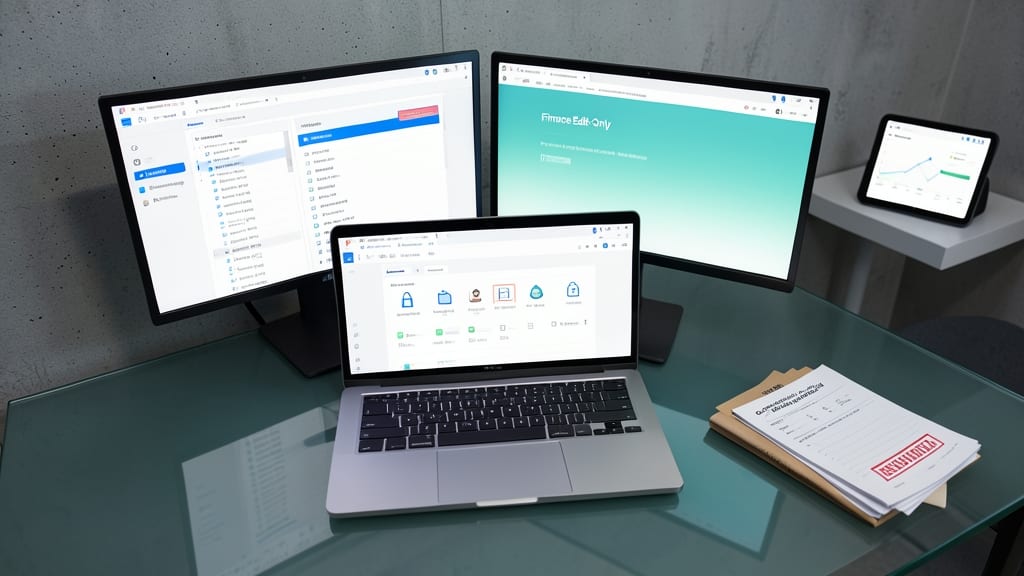
When your team needs one-off access to a folder but the parent library’s permissions are too restrictive, breaking inheritance feels like the only solution—but it’s a slippery slope. SharePoint lets you override parent permissions, but without discipline, you’ll end up with a tangled mess of permission drift, where no one remembers why a folder has unique rules.
Instead of blindly breaking inheritance, use it sparingly—only when absolutely necessary—and always document the change in a permissions log (a simple SharePoint list works). For example, if your Finance team needs Edit access to a single folder while the rest of the library is Read-only, break inheritance only for that folder, then note the reason and expiry date. Tools like Power Automate can even auto-flag overrides needing review after 90 days. ⚡
Enable Versioning and Require Check-Out for Critical Files

Ever lost a critical document because two team members edited the same file simultaneously? SharePoint’s versioning and check-out features act as a safety net for financial contracts, legal briefs, or compliance reports—ensuring no changes are lost to accidental overwrites.
Enable major versioning (up to 50,000 versions) and set required check-out in library settings. This forces users to "reserve" a file before editing, creating a backup copy automatically. You can also restrict version retention to 100 versions for space efficiency while keeping audit trails intact. For legal teams, this means zero lost revisions during negotiations.
This setup is ideal for compliance-heavy industries like law, finance, or healthcare—where document integrity is non-negotiable. ⚡
Leverage Microsoft 365 Groups for Departmental Access

Tired of manually assigning permissions every time a new team member joins? Microsoft 365 Groups syncs automatically with SharePoint libraries, granting access instantly when you add members to the group.
Linking a document library to a Microsoft 365 Group (like "Finance Team" or "Marketing Collab") ensures everyone gets the right permissions—no manual setup required. The group’s membership list updates in real-time, so onboarding or offboarding users becomes effortless. Plus, you can set group-based policies (like "Edit" for contributors or "View" for stakeholders) directly in SharePoint.
This is perfect for departments where team composition changes often—like project teams or cross-functional groups. Say goodbye to permission spreadsheets and hello to zero-config access management. ✨
Audit Permissions Regularly with Access Reviews
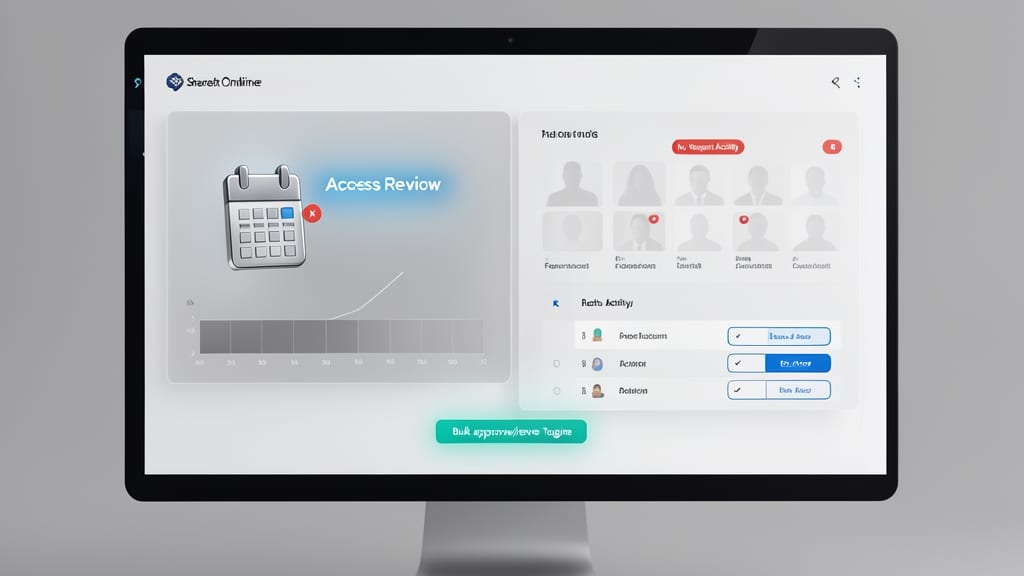
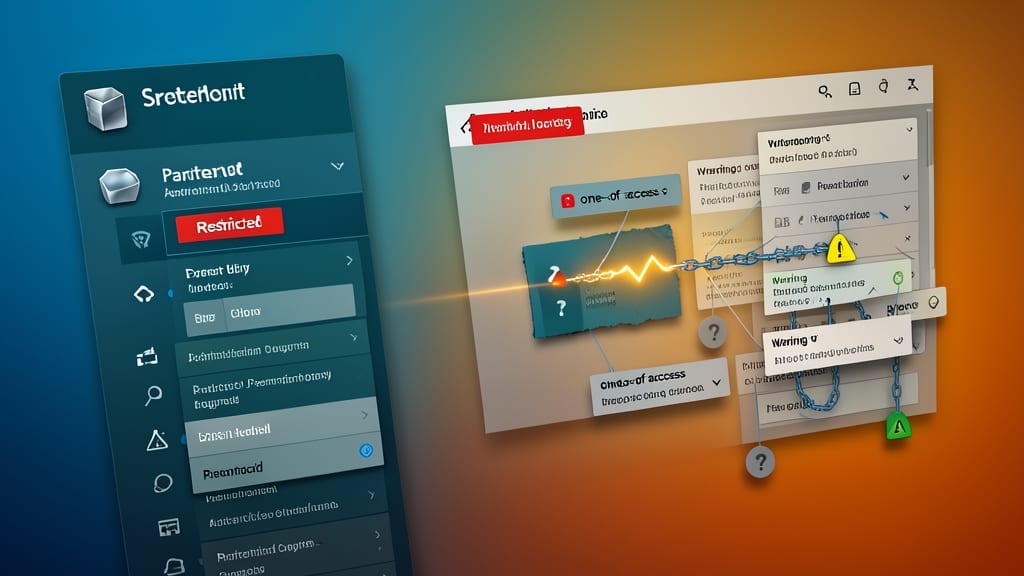
Tired of cleaning up permissions for employees who left months ago? SharePoint’s Access Review feature automates the process, saving you hours of manual audits every quarter.
Set up a quarterly review cycle to automatically flag users with no recent activity—then approve or revoke access in bulk. The feature integrates with Microsoft 365 Groups and Azure AD, ensuring you catch inactive accounts before they become security risks. Best of all, it’s built right into the SharePoint admin center with zero third-party tools required.
This is your secret weapon for maintenance-free security—ideal for IT admins juggling multiple libraries or compliance-heavy teams like finance or legal. ✨
Restrict External Sharing with Conditional Access

External sharing is a double-edged sword—while it boosts collaboration, it also opens doors to accidental data leaks. Conditional Access in SharePoint lets you enforce strict rules for external users, ensuring only verified collaborators can access sensitive files without creating risky anonymous links.
Enable Conditional Access in the SharePoint Admin Center to require multi-factor authentication (MFA) for external users, block anonymous link sharing entirely, or enforce domain restrictions. This ensures contractors or partners must authenticate via your organization’s security protocols before accessing documents. For added safety, set up session time limits to automatically revoke access after a set period.
This is ideal for legal, finance, or healthcare teams handling confidential data. With Conditional Access, you maintain collaboration while keeping unauthorized users out—no more worrying about leaked spreadsheets or exposed contracts. ✨