
Outlook
Mastering Outlook email can cut hours off your workweek. These 2023 productivity tips and keyboard shortcuts transform Outlook from a time-sink into your most powerful communication tool—whether you're using desktop or web versions.
Quick Part Keyboard Shortcuts for Faster Email Drafting
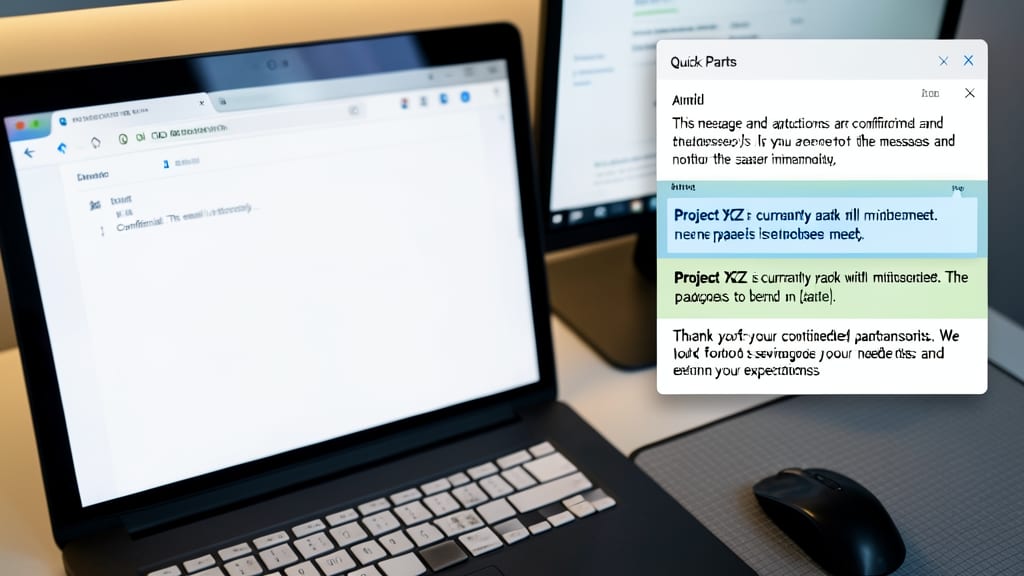
Tired of typing the same disclaimers or signatures in every email? Outlook’s Quick Parts feature lets you save frequently used text blocks—like legal disclaimers, project status updates, or client boilerplates—and insert them with a single keystroke. No more copy-pasting errors or wasted time reformatting text.
To get started, highlight the text you want to save, then click Insert > Quick Parts > Save Selection to Quick Parts Gallery. Assign a shortcut like Ctrl+F3 (or customize it in Options > Quick Access Toolbar) to insert your snippet instantly. The gallery supports multi-line text, tables, and even images, making it perfect for corporate templates or customer support responses.
This trick is a game-changer for customer service teams or professionals who send repetitive emails—cutting drafting time by up to 40% while keeping responses consistent. ⚡
Focused Inbox Rules to Prioritize Critical Emails
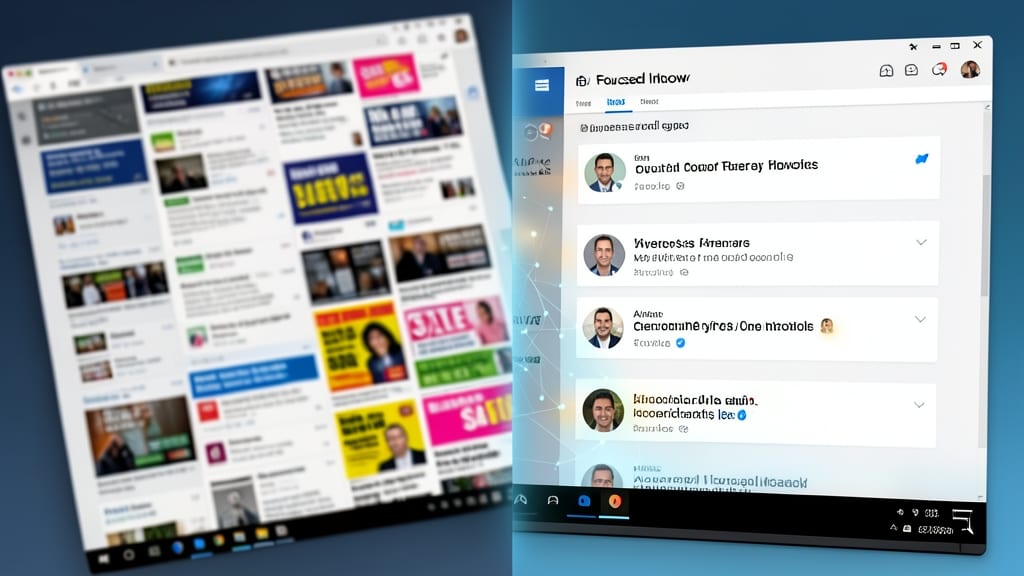
Drowning in a sea of emails where critical messages get buried under promotions and newsletters? Outlook’s Focused Inbox uses AI-powered prioritization to automatically surface the most important emails—so you can focus on what truly demands your attention. Unlike manual filters, this feature learns from your behavior, adjusting over time to highlight actionable messages from managers, clients, or urgent threads.
Enable it by clicking the Focused Inbox icon in your Outlook web or desktop app, then toggle "Focused Inbox" to On. Emails marked as "Focused" appear first, while promotional content gets tucked away. For extra control, use Quick Steps to create custom rules (e.g., flag emails from specific senders or with keywords like "urgent"). Works seamlessly across desktop, web, and mobile—no extra setup required.
This is a must-have for executives, project managers, or teams juggling high-stakes communications. Spend less time hunting for important emails and more time acting on them. ✨
Swipe Gestures for Mobile Outlook Navigation
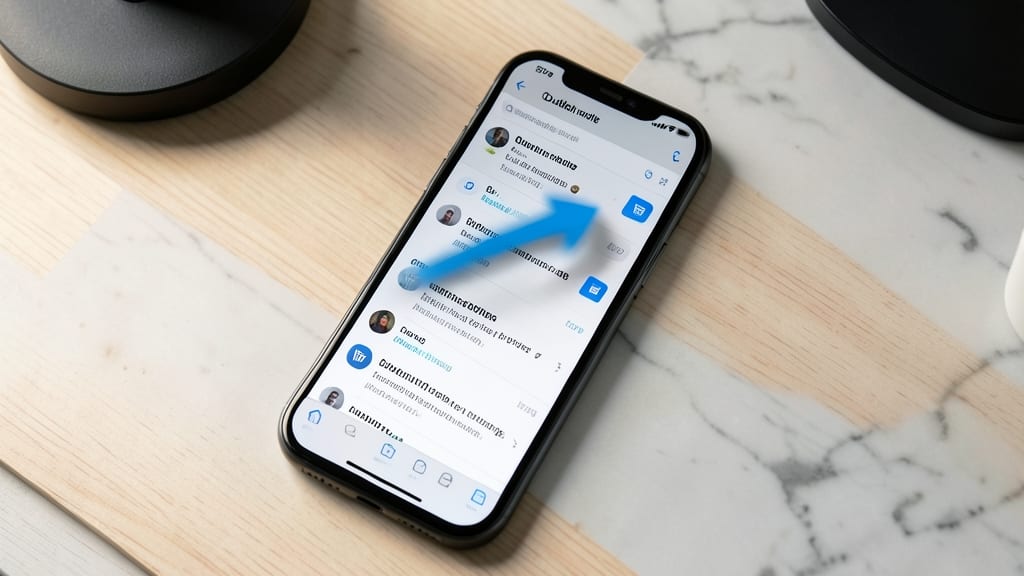
Tired of tapping through menus to archive or delete emails on your phone? The Outlook mobile app turns your smartphone into a lightning-fast email machine with swipe gestures—no extra taps required. A simple left swipe can archive, delete, or even flag emails instantly, while right swipes let you snooze or mark messages as unread with one smooth motion.
These gestures work seamlessly across iOS and Android, and you can customize them in Settings > Mail > Swipe Actions to match your workflow. For example, set a left swipe to archive + move to a custom folder, so client emails auto-sort while you’re on the go. The app even remembers your preferences across devices, so your gestures sync with your desktop setup.
Perfect for remote workers or sales professionals who juggle emails between calls, these swipes cut response time by up to 30%—no keyboard or mouse needed. ⚡
Keyboard Shortcuts to Flag and Follow Up
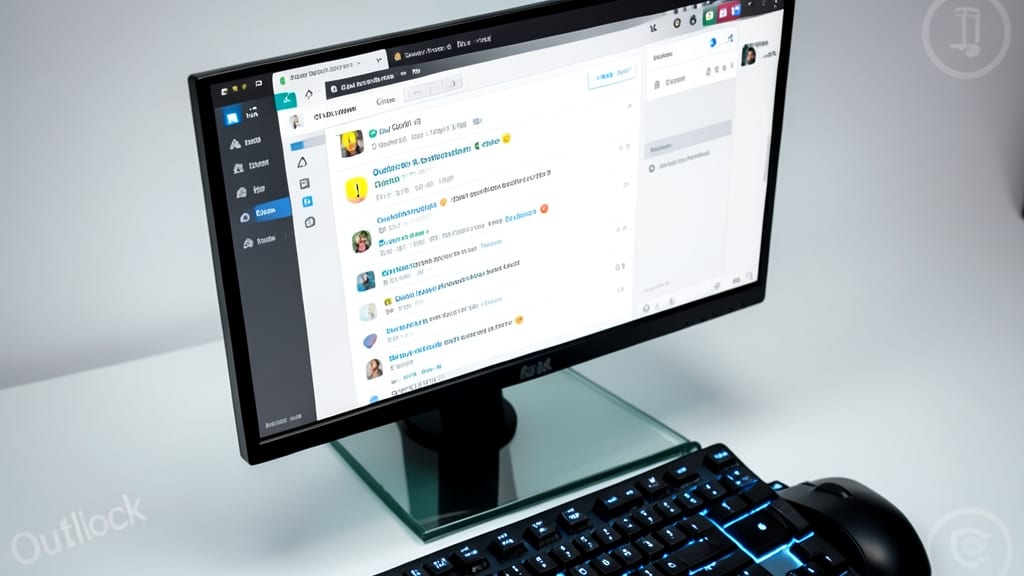
If you’re drowning in follow-ups but constantly forget to circle back, Outlook’s flagging and follow-up shortcuts are your secret weapon. These keystrokes turn passive emails into actionable tasks—no manual reminders needed.
Use Ctrl+Alt+1 to flag an email (or Ctrl+Alt+2-5 for custom flags), then press Ctrl+Shift+F to schedule a follow-up with a due date. For project managers, this means tracking client responses or internal deadlines without losing track. The Follow Up folder auto-sorts these emails, so you’ll never miss a beat. ⚡
Conditional Formatting for Highlighting Important Emails
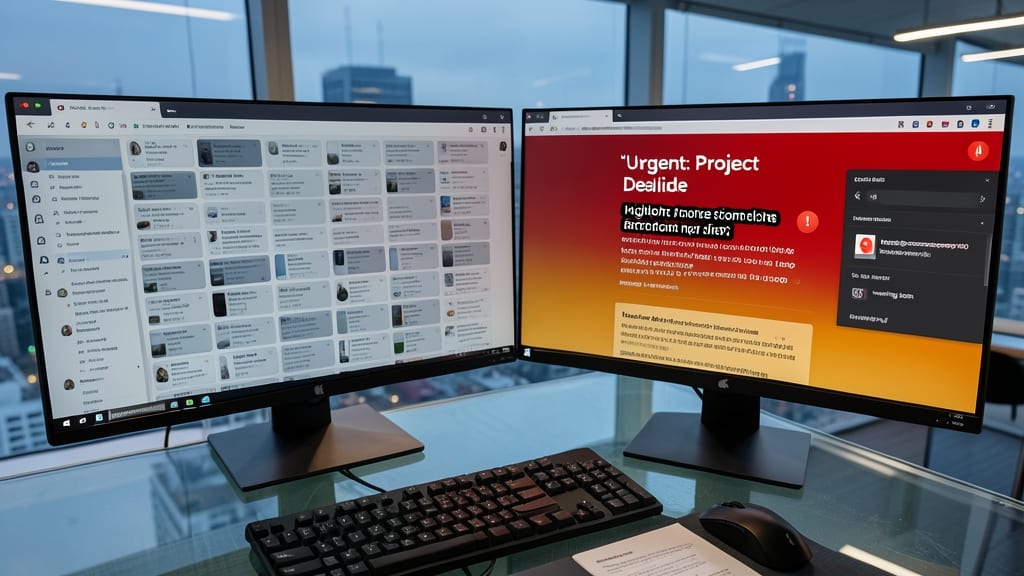
Drowning in a sea of emails where critical messages get lost in the shuffle? Outlook’s conditional formatting lets you customize colors, fonts, and even icons to instantly highlight urgent emails—no more scanning for red flags or missed deadlines.
Set rules to auto-highlight emails from specific senders (e.g., clients or managers) in bold red, or flag messages with keywords like "urgent" or "action required" in yellow. You can even adjust font size or add custom icons (like a ⏰ clock) for time-sensitive threads. Works seamlessly in both desktop and web versions of Outlook.
Perfect for legal teams reviewing contracts or HR professionals managing sensitive communications—this trick turns your inbox into a visual command center. ⚡
One-Click Email Templates for Repetitive Responses
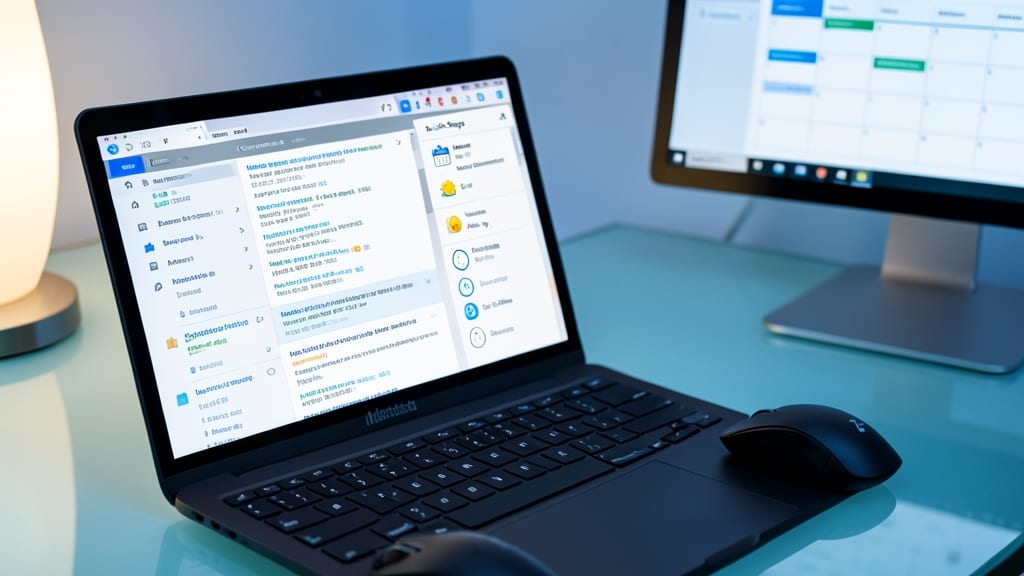
Tired of typing the same meeting confirmations or vacation replies over and over? Outlook’s Quick Steps feature lets you create one-click email templates for repetitive responses—saving minutes (or hours) every week.
Set up templates like "Meeting Confirmation" or "Vacation Auto-Reply" in seconds using the Quick Steps panel. Each template can include placeholders (e.g., [Date], [Name]) for dynamic details, and you can even schedule follow-ups directly from the template. Works seamlessly across desktop and web versions of Outlook.
Perfect for small business owners, administrative assistants, or anyone drowning in repetitive emails. Stop retyping—automate it instead. ✨
Search Operators to Find Emails Instantly
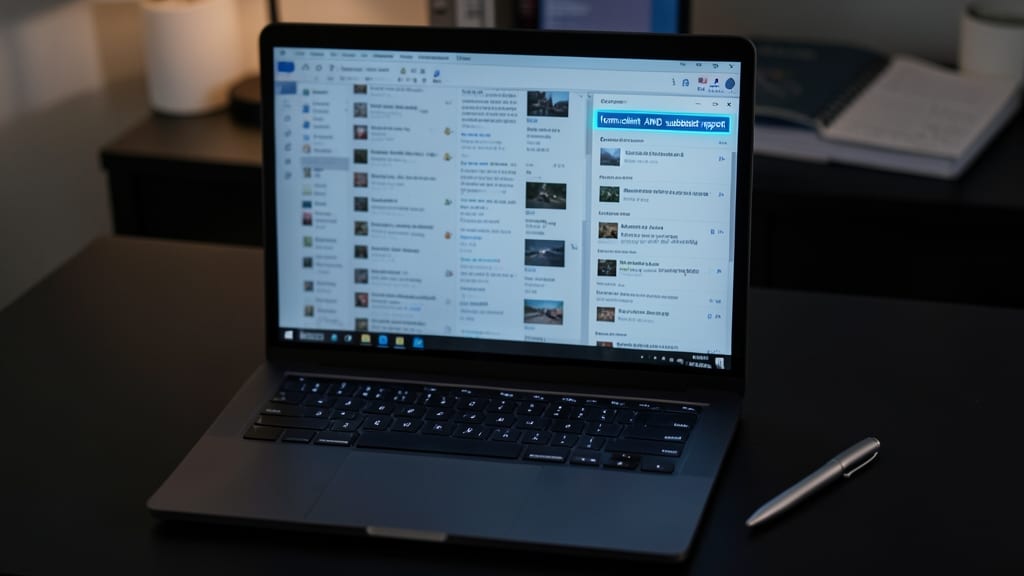
Drowning in years of emails? Outlook’s search operators act like a GPS for your inbox, pinpointing messages in seconds. Instead of scrolling through thousands of emails, use syntax like from:client AND subject:report to instantly find what you need—no more guesswork or wasted time.
Try these powerhouse operators: from:manager, has:attachment, before:2023-01-01, or category:work. Combine them (e.g., from:team subject:meeting AND after:2023-05-01) for laser-focused results. Works in both desktop and web versions, so you’re covered whether you’re at your desk or on the go.
Journalists digging for sources, researchers tracking old correspondence, or anyone buried under years of email history will love this. Master these operators, and you’ll reclaim hours every month. ⚡
Focused Inbox Cleanup with 'Ignore' Feature
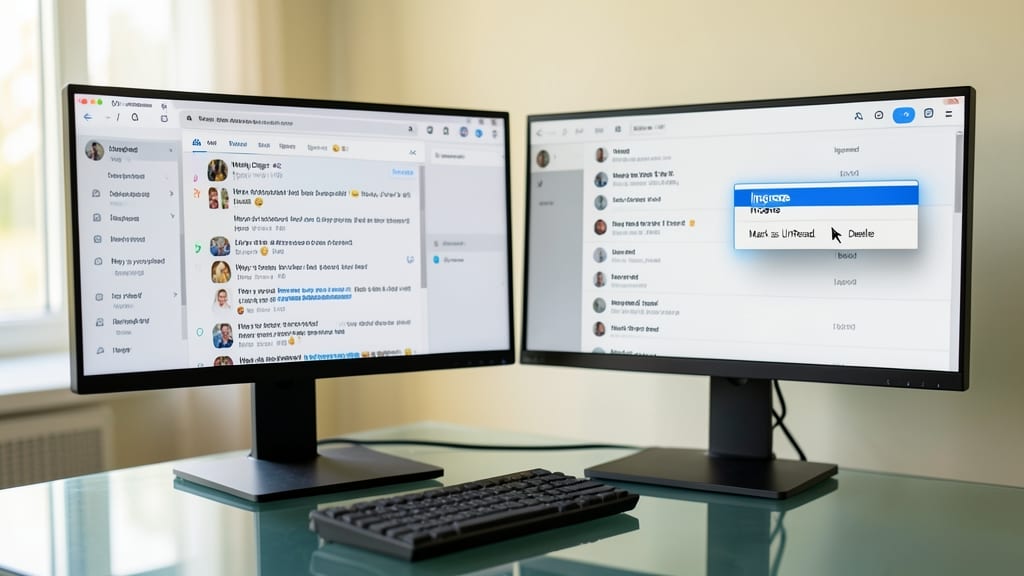
Tired of endless email threads from newsletters or casual conversations cluttering your inbox? Outlook’s ‘Ignore’ feature lets you silence entire conversations without unsubscribing—keeping your inbox clean while staying connected to potential updates.
Right-click any email in a thread, select ‘Ignore’, and Outlook will hide all future messages from that conversation. Unlike unsubscribing, you’ll still receive critical replies if someone responds later. This works seamlessly on desktop and web versions, and you can even undo the ignore anytime by searching for the sender.
Freelancers juggling client emails and students drowning in university updates will love this—it’s the perfect middle ground between total silence and overwhelming clutter. ✨
Keyboard Shortcuts for Attachment Handling
If you spend hours daily attaching or downloading files, Outlook’s attachment handling shortcuts can shave minutes off every email—no mouse required. Developers and designers will love how these commands streamline workflows for large files, keeping your hands on the keyboard where they belong.
Use Ctrl+Shift+A to instantly attach files (no clicking through menus), then Ctrl+S to save attachments directly to your desktop or project folder. For power users, Ctrl+Shift+E opens the attachment pane, letting you preview or extract files without opening them. These shortcuts work seamlessly with multi-file attachments and even support drag-and-drop for bulk operations.
Perfect for teams collaborating on code, designs, or documents—where every second counts. Master these, and you’ll never reach for the mouse again. 💻
Outlook Rules to Auto-Organize Incoming Emails
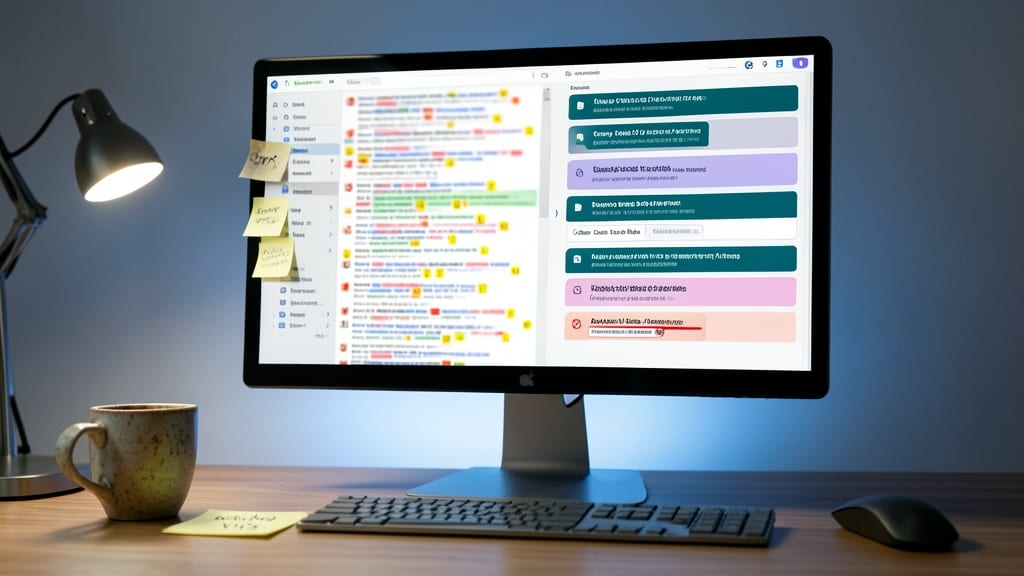
Shared mailboxes and customer support inboxes can quickly turn into chaotic messes—but Outlook Rules turn the tide by automating sorting, labeling, and forwarding based on your exact needs. Unlike generic filters, these rules let you create custom workflows (e.g., auto-flagging high-priority clients or archiving newsletters) with just a few clicks.
Set up rules to move emails from specific senders (like @client.com) to dedicated folders, apply custom labels (e.g., "Urgent" or "Follow-Up"), or even forward repetitive queries to the right team. The Rules Wizard guides you through conditions (sender, keywords, size) and actions (move, copy, delete) in minutes—no coding required.
Perfect for customer support teams, shared inboxes, or anyone drowning in overflowing folders. With rules in place, your inbox runs itself—freeing you to focus on what matters. ✨