
Tip & Trick
Microsoft Teams is the backbone of modern remote work, yet most users miss out on powerful features that can save hours weekly. These 10 underutilized tips and tricks will transform how you collaborate, communicate, and stay productive in 2023—whether you're managing teams or just trying to get your work done.
Master the Three-Dot Menu for Hidden Actions
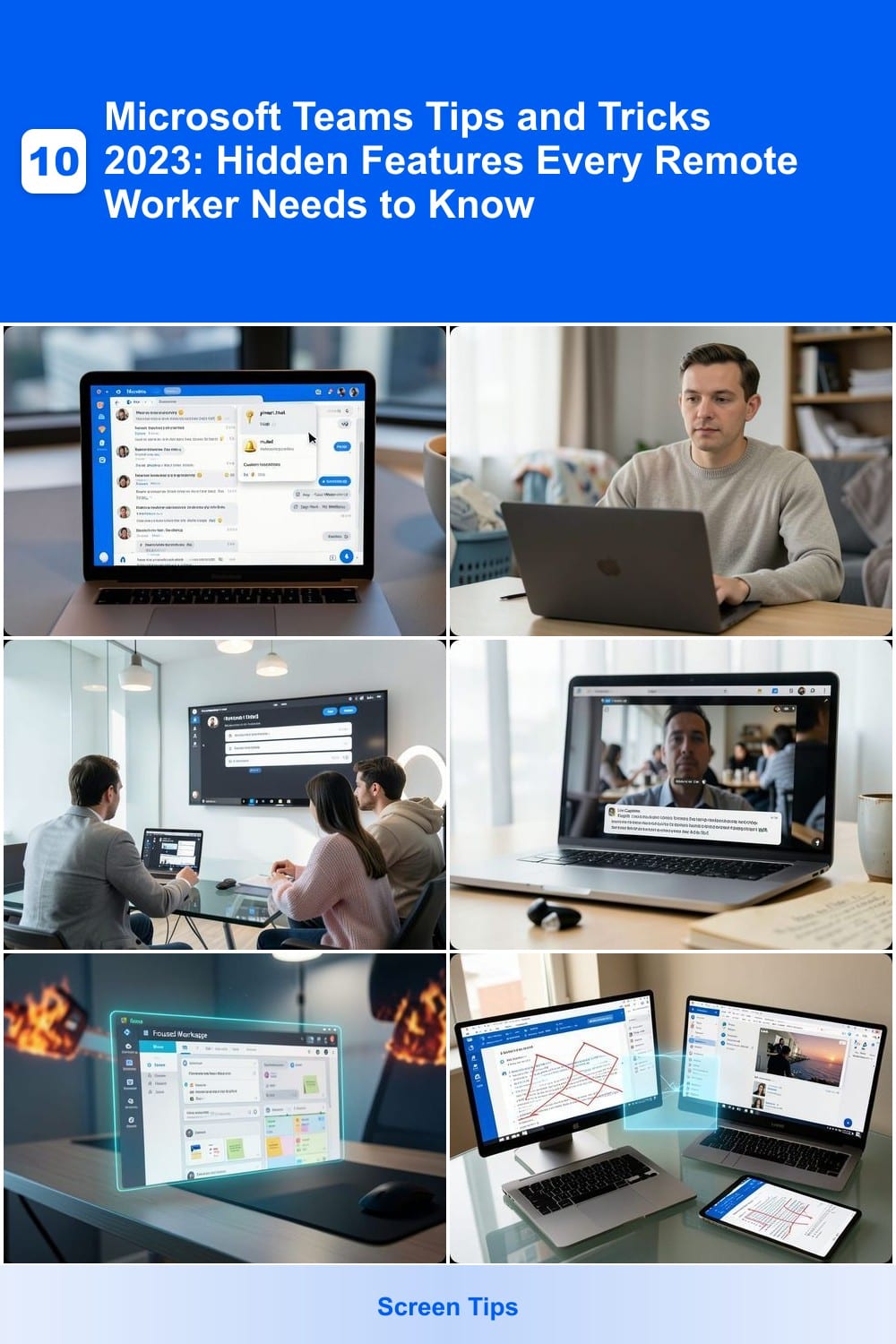
Your Microsoft Teams chat list is a digital landfill of irrelevant messages—until you discover the three-dot menu’s hidden superpowers. This tiny icon unlocks pinning critical chats, muting distracting notifications, and even custom statuses that tell colleagues exactly how to engage with you (or not).
Click the three dots in any chat to reveal options like \"Pin to top\" (keeping important conversations visible), \"Mute notifications\" (silencing chatter without leaving the thread), or \"Set custom status\" (e.g., \"Focused: No interruptions\"). Pro tip: Use \"Change topic\" to rename group chats (e.g., \"Client X – Urgent\") for instant organization. These tweaks transform chaos into a decluttered, priority-driven workspace in seconds.
Perfect for remote managers juggling client communications, developers deep in code, or anyone drowning in notifications. Master this menu, and your Teams experience will feel like a battle-tested setup. ⚡
Use Spotlight Mode for Focused Video Calls

Tired of explaining why your home office looks like a laundry room during calls? Spotlight Mode in Microsoft Teams is your secret weapon—it blurs your background while keeping you razor-sharp, no fancy equipment required. This AI-powered feature uses your device’s camera to detect edges, ensuring your face and upper body stay in focus while distractions melt into a soft, professional blur.
To enable it, join a call, click the three-dot menu in the video controls, and select Spotlight Mode. The magic happens automatically: your background fades into a bokeh effect while your presence remains crystal clear. Works seamlessly on Windows, macOS, and mobile, and pairs perfectly with virtual backgrounds for extra polish. Need to switch between a cluttered desk and a clean look? Just toggle it on—no setup needed.
Perfect for freelancers, managers, or anyone balancing work-from-home chaos, this trick ensures your message stays the focus—no excuses about "bad lighting" or "distractions." Your colleagues will only see what matters: you. ✨
Schedule Meetings with Custom Polls and Q&A
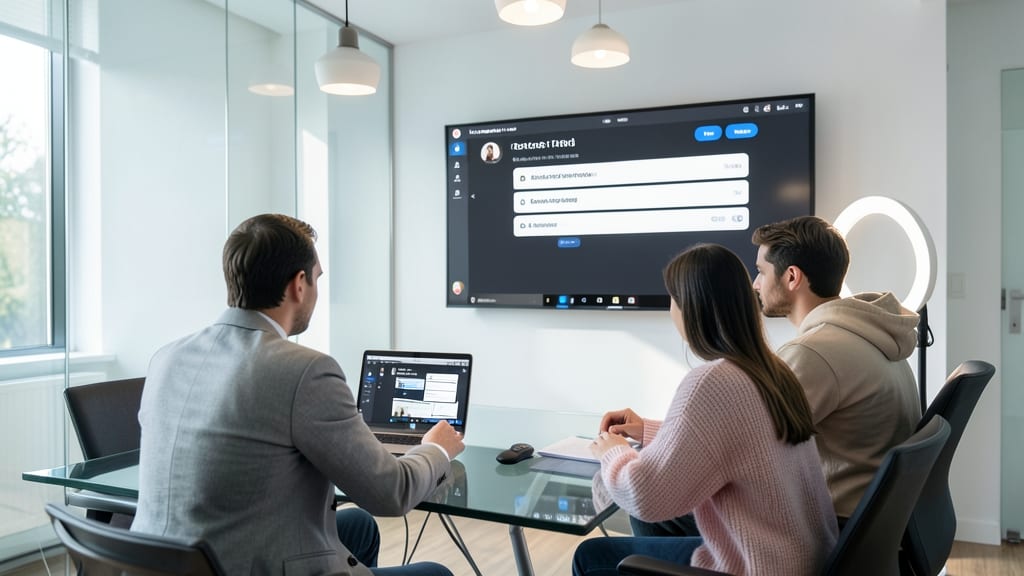
Turn passive meeting attendees into active participants with pre-meeting polls and Q&A topics—a game-changer for brainstorming or gathering input from remote teams. This feature lets you embed interactive elements directly into meeting invites, ensuring everyone arrives ready to contribute.
Create multiple-choice polls (e.g., "Which topic should we prioritize?") or open-ended Q&A prompts to collect feedback before the call even starts. The results sync automatically, so you can reference them during the meeting—no manual note-taking required. Works seamlessly with Teams for desktop and mobile, and supports up to 10 questions per poll for deeper engagement.
Ideal for project kickoffs, client check-ins, or team brainstorming sessions, this trick cuts down on meeting prep time while making remote collaboration feel more dynamic. Give it a try next time you schedule a meeting—your team will thank you! ✨
Enable Live Captions for Real-Time Transcripts
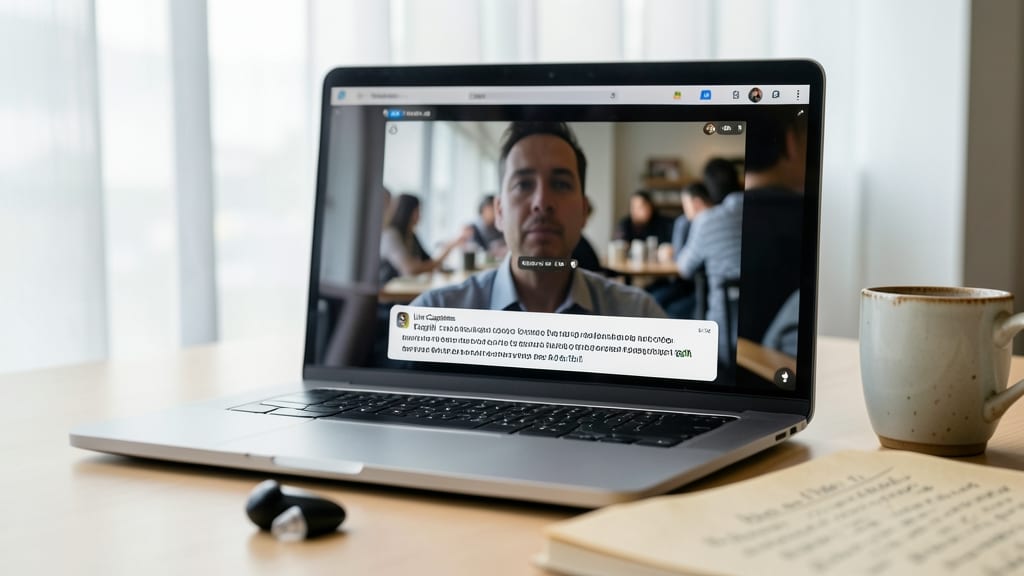
Struggling to follow meetings with background noise or when joining from noisy environments? Microsoft Teams’ Live Captions feature generates real-time transcripts in 40+ languages, turning spoken words into text on the fly—no extra apps required.
To enable it, start or join a meeting, then click the three-dot menu → Turn on live captions. The captions appear at the bottom of your screen, with speaker identification. This tool isn’t just for accessibility—it’s a lifesaver when dialing in from coffee shops, airports, or busy offices. The AI-powered accuracy improves with each update, handling accents and technical jargon surprisingly well.
Perfect for teams with hearing-impaired colleagues, non-native speakers, or anyone who wants to review meeting notes later. Give it a try—your future self (and your teammates) will thank you. ✨
Create Focused Workspaces with Tabs and Apps
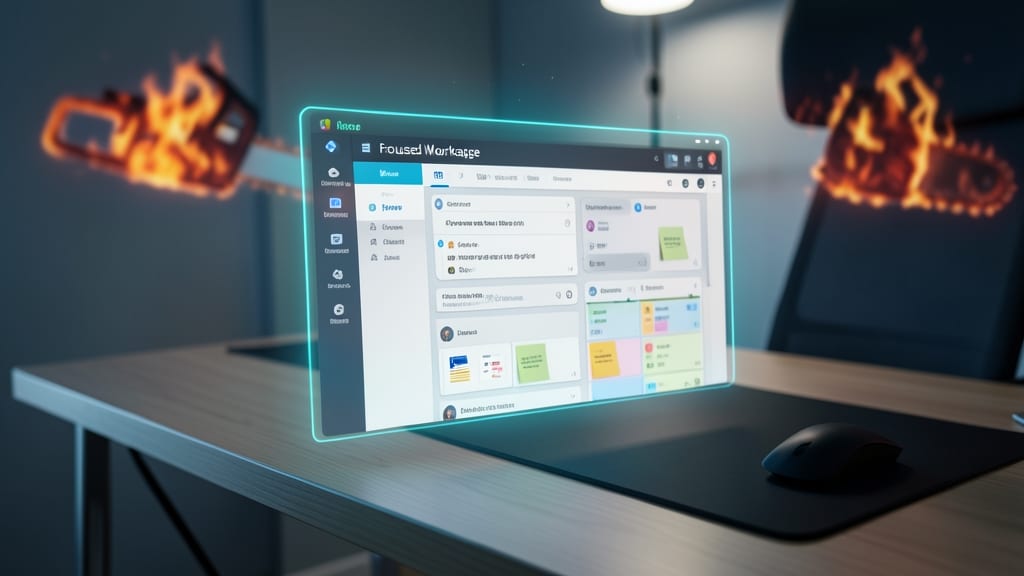
Juggling multiple projects in Teams can feel like juggling flaming chainsaws—until you discover Focused Workspaces. This underrated feature lets you group related tabs (like project files, tools, and chats) into a single, distraction-free container, keeping your workflow streamlined.
To create one, simply right-click any tab and select "Add to new workspace". You can name it (e.g., "Marketing Campaign" or "Client X Onboarding") and rearrange tabs with drag-and-drop. The magic? Workspaces auto-save and sync across devices, so your project-focused layout follows you seamlessly. Perfect for developers juggling code repos, designers managing assets, or managers tracking client communications.
This is the ultimate fix for the "too many tabs" problem—ideal for anyone who wants to switch between projects without losing their place. Say goodbye to tab overload! ✨
Use PowerPoint Live in Presentations
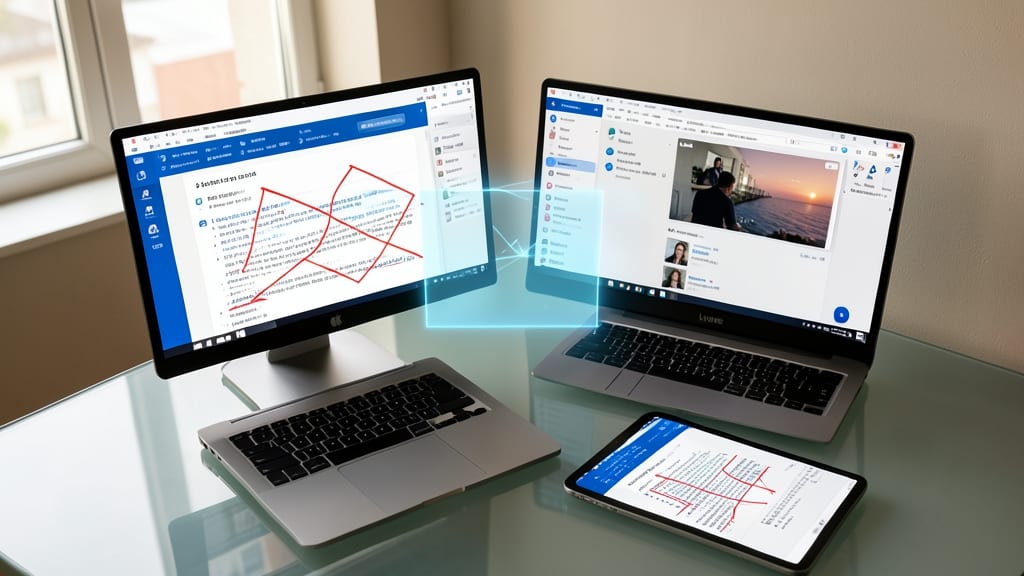
Tired of fumbling between PowerPoint and Teams during presentations? PowerPoint Live lets you share and annotate slides directly from your deck—no app-switching required. This feature syncs your slides in real-time, so every attendee sees exactly what you’re highlighting, even if they’re on mobile.
With PowerPoint Live, you can use the laser pointer tool to draw attention to key points, annotate slides with text or shapes, and even control slide transitions from Teams. The best part? It works with PowerPoint Online or Desktop, and attendees get a seamless experience on any device. For trainers or sales teams, this means smoother demos and fewer interruptions.
Perfect for client walkthroughs, training sessions, or internal updates, PowerPoint Live keeps your presentation dynamic and engaging without the tech hassle. ⚡
Set Up Custom Statuses for Contextual Communication
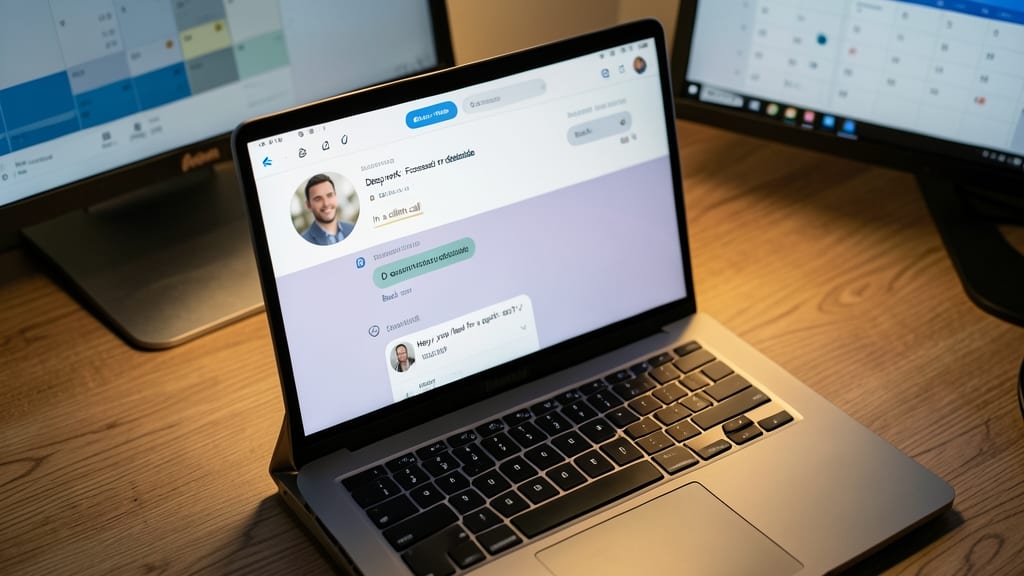
Tired of leaving colleagues guessing whether you’re available or swamped? Custom statuses in Microsoft Teams let you set precise messages like "Deep work: Focused on deadline" or "In a client call"—far more useful than the default "Available" or "Busy" options.
To set one, click your profile picture, select "Set status message", and choose from pre-built options (like "Out to lunch" or "In a meeting") or type a custom note. You can even add emojis (🚀📚💼) to reinforce the tone. These statuses sync across all your devices, so your team always knows how to engage with you—without the guesswork.
Perfect for project managers juggling deadlines, developers in flow states, or anyone who hates interruptions during critical tasks. ⚡
Record Meetings Automatically with Transcripts
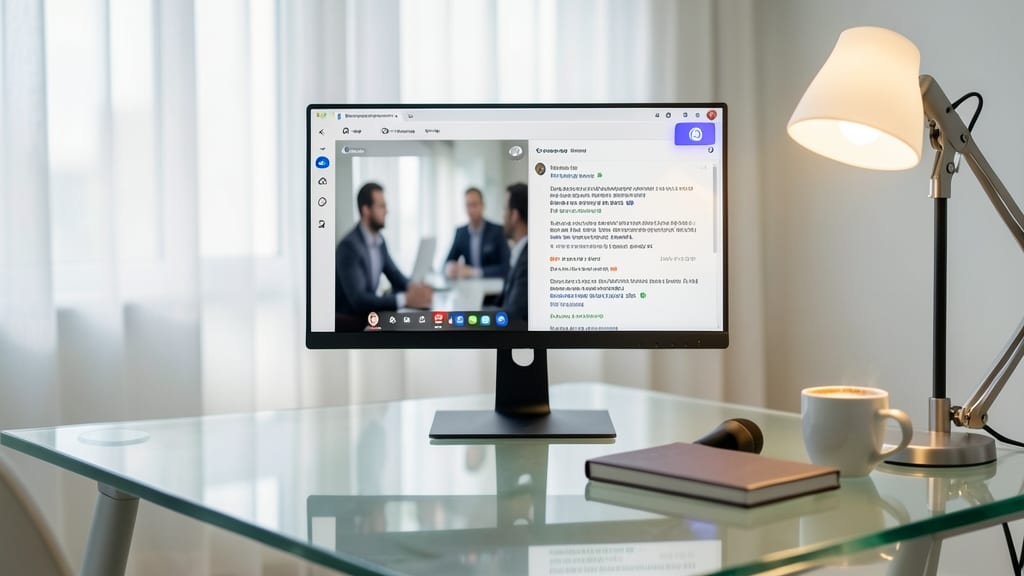
Forget scrambling to take notes during meetings—Microsoft Teams now auto-records calls and generates searchable transcripts in real time. This game-changer ensures you never miss critical details, whether it’s a client discussion or team brainstorming session.
With a single click, you can start recording, and Teams will transcribe the entire conversation with timestamps, speaker labels, and even keyword highlights. The transcripts sync to OneDrive or SharePoint, making them easy to share or reference later. Plus, the AI-powered search lets you quickly find specific topics—no more flipping through notes or replaying recordings.
Perfect for compliance teams, trainers, or anyone who needs a reliable record, this feature turns passive meetings into actionable insights. No extra tools or setup required—just hit record and let Teams handle the rest. ✨
Use Background Filters for Professional Appearances

Tired of explaining why your home office looks like a laundry room during calls? Microsoft Teams’ background filters let you instantly upgrade your appearance with zero setup—no green screen or fancy equipment needed.
Simply enable virtual backgrounds (like "Blurry" or "Simulated studio") in your video settings, and Teams will automatically apply them during calls. The Blurry filter softens distractions while keeping you sharp, while premium templates (like "Office" or "Cityscape") add instant professionalism. Best of all, these filters adapt to lighting conditions in real time.
Perfect for freelancers, managers, or anyone juggling work-from-home chaos, this trick ensures you look polished—no matter what’s happening behind you. ✨
Integrate Third-Party Apps for Extended Functionality
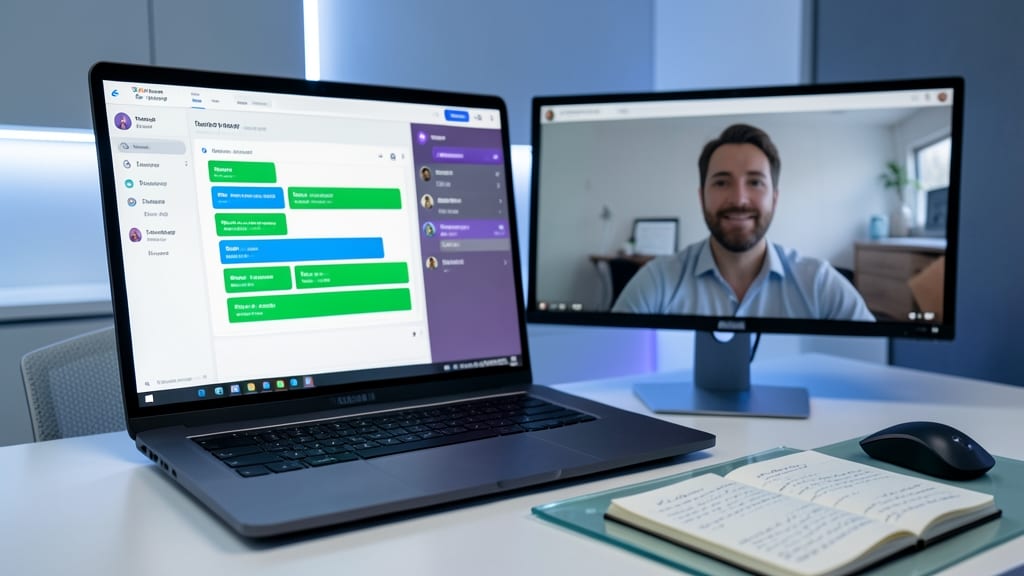
Tired of bouncing between apps during workdays? Microsoft Teams now lets you embed third-party tools like Trello, Slack, or Zoom directly into your workspace—eliminating the need to switch tabs constantly.
With native integrations (including 100+ apps in the Teams App Store), you can embed Trello boards to track tasks without leaving a chat, schedule Zoom meetings from Teams, or even pull Slack channels into your workflow. The deep linking feature ensures seamless transitions, while real-time updates sync across platforms. For example, when a Trello card is completed, Teams can notify your team instantly.
This is a game-changer for teams using multiple productivity tools—especially those juggling project management, communication, and video conferencing. Say goodbye to context-switching and hello to a unified, efficient workflow. ✨