
Tip & Trick
Microsoft OneNote 2013 is a powerhouse for note-taking, but most users only scratch the surface. These seven hidden features will transform how you organize ideas, collaborate, and streamline workflows—unlocking productivity you didn’t know was possible.
Quick Notes with Handwriting Recognition
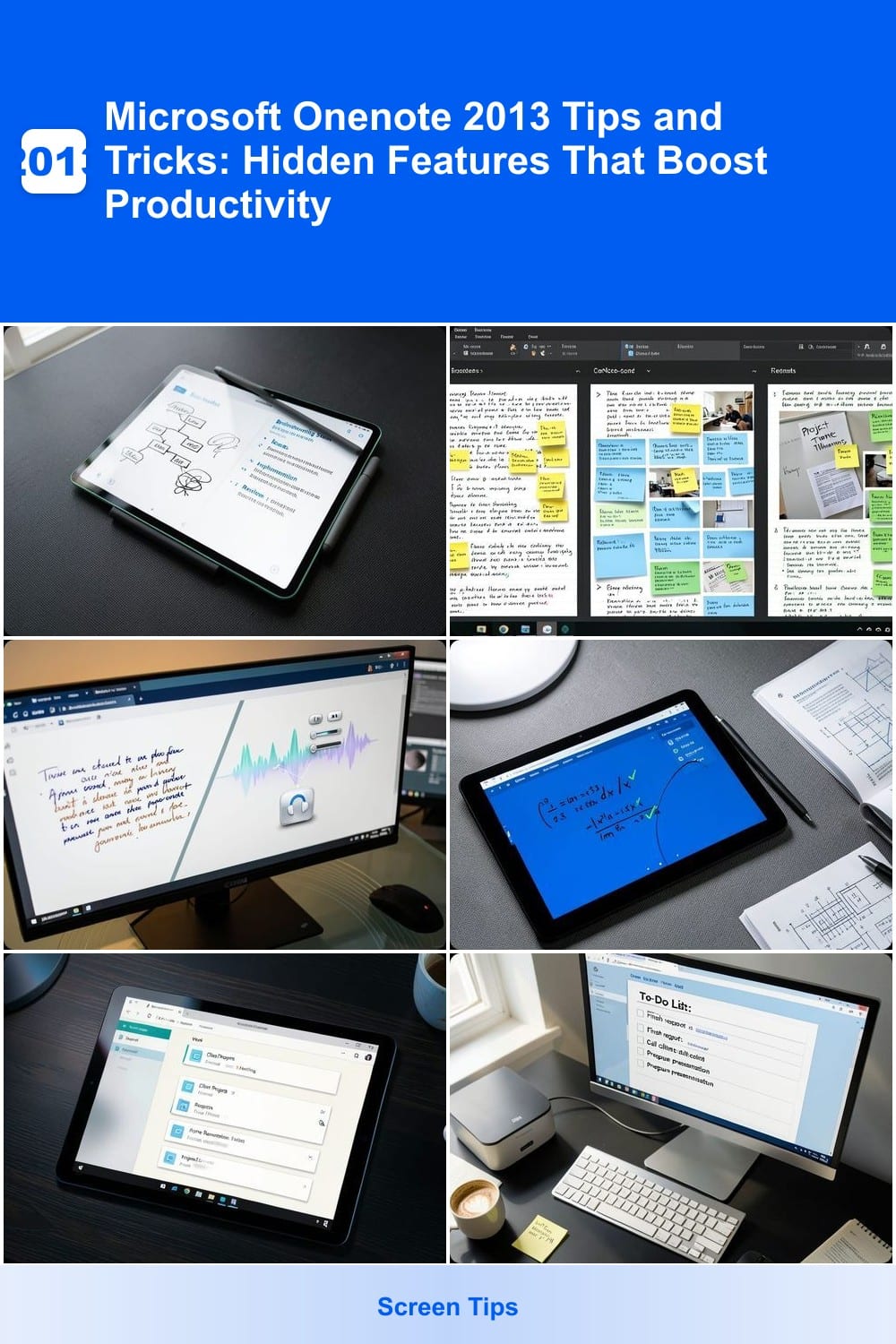
Skip the keyboard and unlock the speed of thought with OneNote 2013’s handwriting recognition—your tablet or touchscreen just became a digital whiteboard. Whether you're sketching diagrams, jotting meeting notes, or brainstorming ideas mid-flight, OneNote converts your handwriting into searchable, editable text in real time. No more typing fatigue or lost scribbles; just write naturally and let the app handle the rest.
The magic happens with ink-to-text conversion, which works seamlessly with both stylus and finger input. You can even mix handwritten notes with typed text in the same page—perfect for annotating documents or combining visuals with key points. The recognition engine handles everything from printed letters to mathematical symbols, making it ideal for students, engineers, or anyone who prefers sketching over typing.
This feature shines for quick thinkers—designers drafting wireframes, researchers capturing lecture notes, or managers summarizing meeting highlights. Grab a stylus (or your finger) and transform passive note-taking into an active, creative process. ⚡
Tagging System for Instant Search
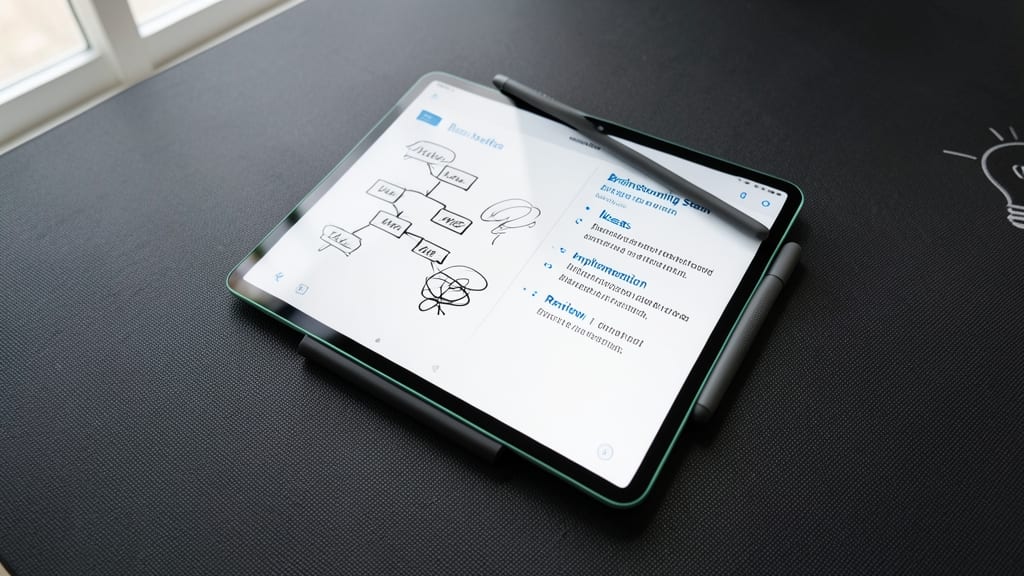
Drowning in digital clutter but craving a visual way to organize your notes? OneNote 2013’s tagging system turns your notebook into a color-coded command center. Assign yellow for ideas, blue for tasks, or green for references—then watch how OneNote instantly filters your entire workspace to show only what you need.
To get started, highlight any text, right-click, and select a tag from the predefined palette (or create custom ones). The system even syncs tags across devices, so your categorized notes stay consistent whether you’re working on a desktop, tablet, or phone. Pro tip: Combine tags with search filters to drill down into specific categories—like finding all "research" notes tagged in red from the past month.
This feature is a game-changer for researchers cross-referencing sources, students tracking assignments, or project managers prioritizing tasks. Spend less time searching and more time creating—your future self will thank you for the instant organization. ⚡
Embedding Audio and Video Clips
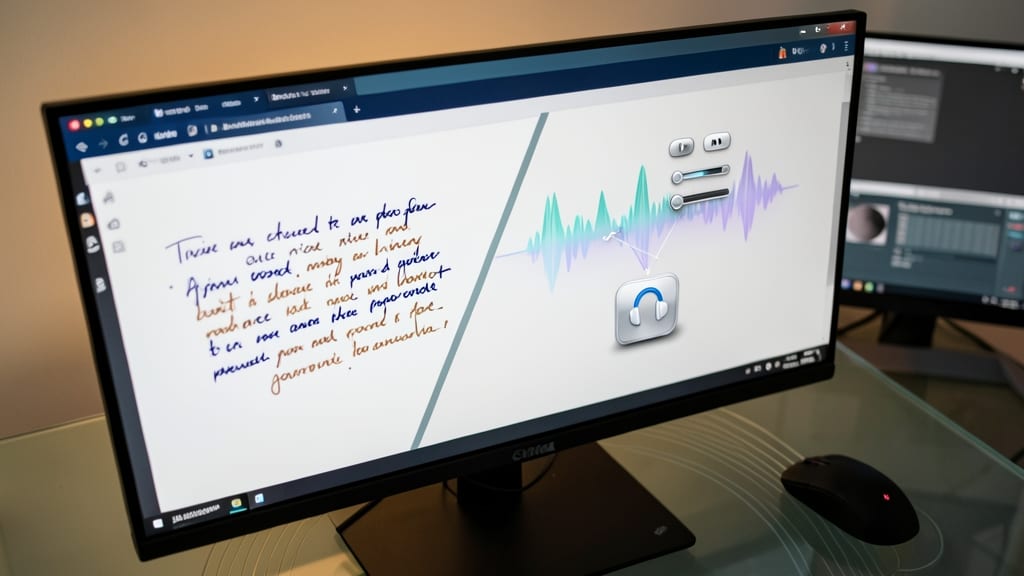
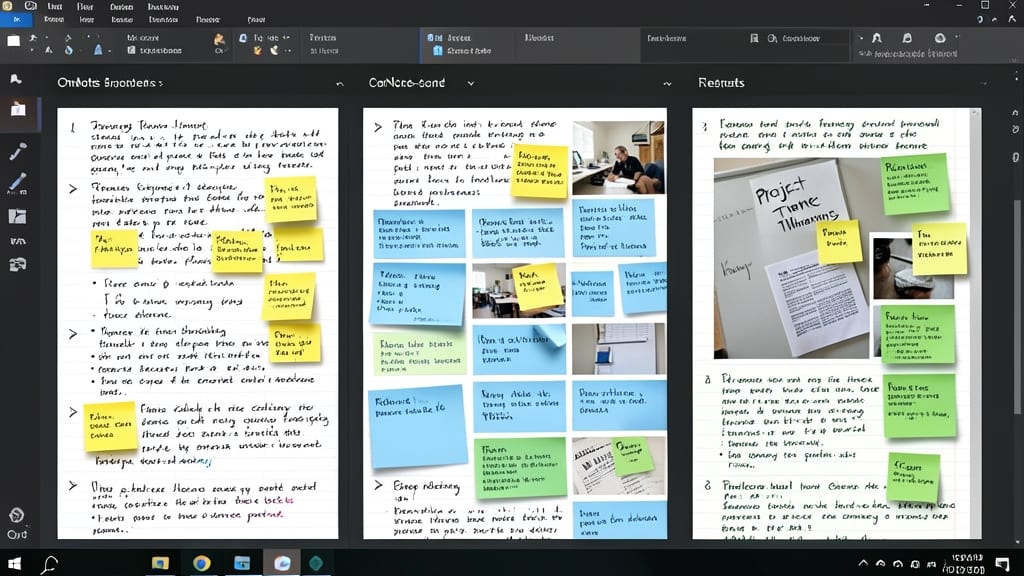
Tired of juggling separate apps to record and review audio or video? OneNote 2013 lets you embed media files directly into your notes, complete with inline playback controls—no app-switching required.
Simply drag and drop audio or video files into your notebook, and OneNote automatically generates a media player with play/pause, volume, and timeline controls. This is perfect for recording lectures, interviews, or brainstorming sessions while keeping everything organized in one place. The embedded clips even support fast-forwarding and bookmarking specific moments, making it easier to revisit key details later.
Ideal for educators, interviewers, or anyone who needs to document verbal discussions—no technical setup required. ✨
Math Equation Solver Tool
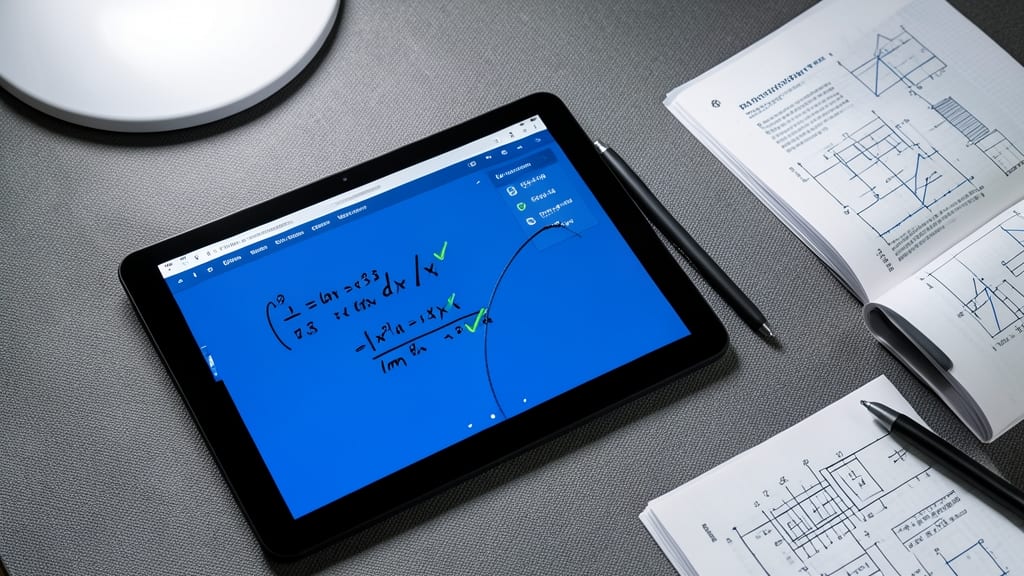
Struggling with calculus homework or engineering formulas? OneNote 2013’s built-in Math Equation Solver turns your notebook into a digital math lab. Whether you handwrite equations with a stylus or type them out, OneNote instantly recognizes symbols and provides step-by-step solutions—no separate software required.
Simply write or input an equation (like x² + 5x + 6 = 0), and OneNote displays the solution alongside the original problem. It supports everything from basic algebra to advanced calculus, including fractions, integrals, and matrices. The solver even converts handwritten equations into editable text for further refinement.
This feature is a lifesaver for students, engineers, or data analysts who need quick verification without flipping through textbooks or firing up specialized apps. Just sketch your problem, and OneNote does the heavy lifting. ✨
Section Groups for Hierarchical Organization
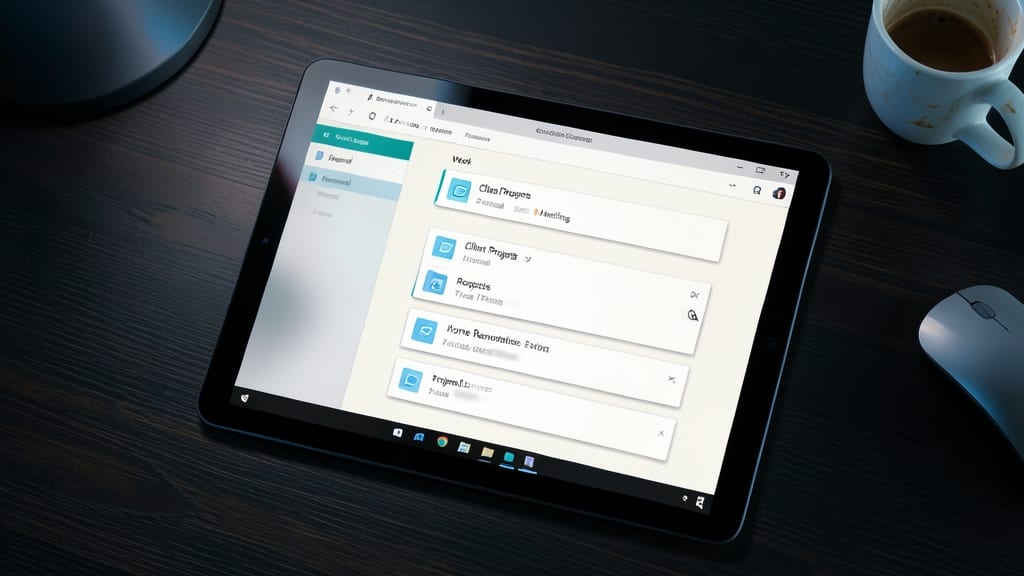
Tired of scrolling through endless notebooks to find that one note? Section Groups in OneNote 2013 let you organize your workspace like a digital filing cabinet—nesting related notebooks under custom folders like "Work," "Personal," or "Projects." This feature turns chaos into clarity, especially when managing multiple notebooks.
To create a section group, simply right-click any notebook in your list, select "Create Section Group," and name it. Drag notebooks into the group to instantly group them together. You can even collapse groups to declutter your sidebar, keeping only what you need visible. This hierarchical approach mirrors how you’d organize physical files, making it easier to locate notes without digging through layers of content.
Perfect for students juggling coursework, professionals tracking multiple projects, or creatives managing diverse ideas, section groups eliminate the guesswork. Try it today and reclaim control over your digital workspace. ✨
Printable Checklists with Templates
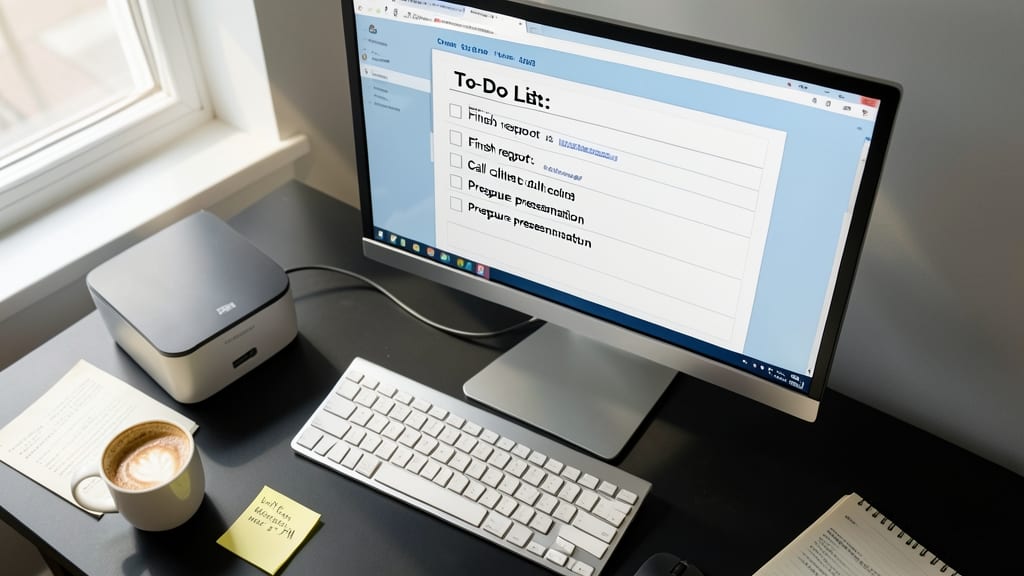
Tired of juggling sticky notes and scattered digital reminders? OneNote 2013’s printable checklist templates bridge the gap between digital organization and tactile task management—letting you create, customize, and print checklists directly from your notes.
Start by inserting a pre-built checklist template from the "Insert" tab, then tweak the layout with checkboxes, bullet points, or priority flags. The best part? Your printed checklist stays linked to the original digital version—update one, and the other syncs automatically. Perfect for grocery lists, project milestones, or meeting agendas, this feature turns OneNote into your all-in-one task hub.
Ideal for project managers, parents, or anyone who loves the satisfaction of checking off tasks, this trick keeps your workflow seamless whether you’re working on-screen or with pen and paper. ✨
Offline Access and Auto-Sync
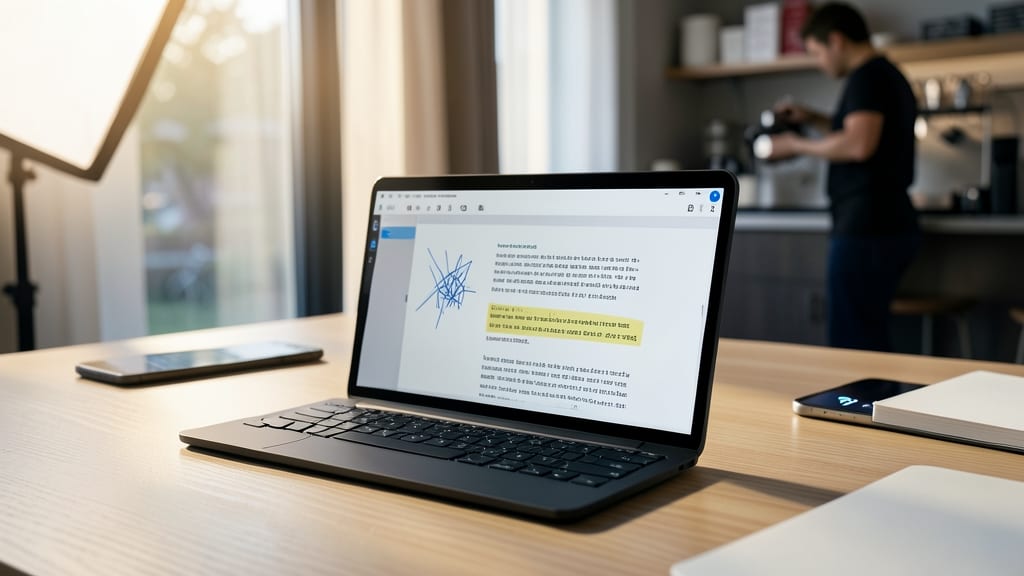
Forget the frustration of losing notes when Wi-Fi cuts out—OneNote 2013’s offline mode lets you work seamlessly without an internet connection. Whether you're on a flight, in a meeting with spotty signal, or working from a café, your notes stay accessible and editable until you reconnect.
Enable offline access by clicking File > Info > Make Available Offline, and OneNote automatically syncs all changes the next time you connect. The system handles conflicts by merging edits intelligently, so you never lose progress. This feature is a lifesaver for remote workers, students, or travelers who need reliable note-taking regardless of connectivity.
No more waiting for downloads or worrying about lost data—just focus on capturing ideas. Once back online, your notes update instantly, keeping everything in sync across devices. ⚡