
Software
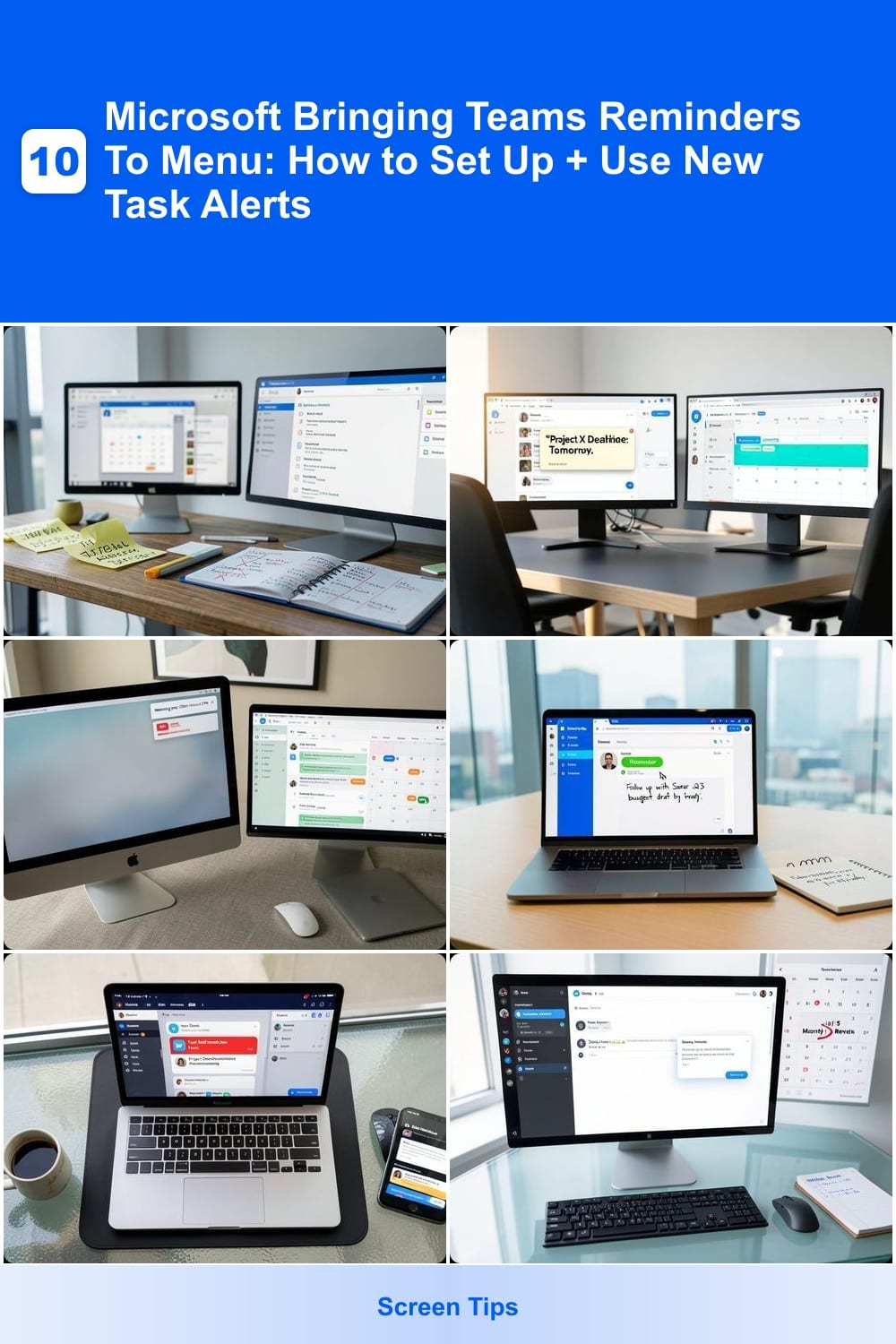
Microsoft Teams is rolling out a game-changing update that brings reminders directly into your workflow. This feature helps you stay on top of deadlines, meetings, and tasks without switching apps. Here’s how to set up and use these new task alerts to boost your productivity.
Setting Up Personal Reminders in Teams
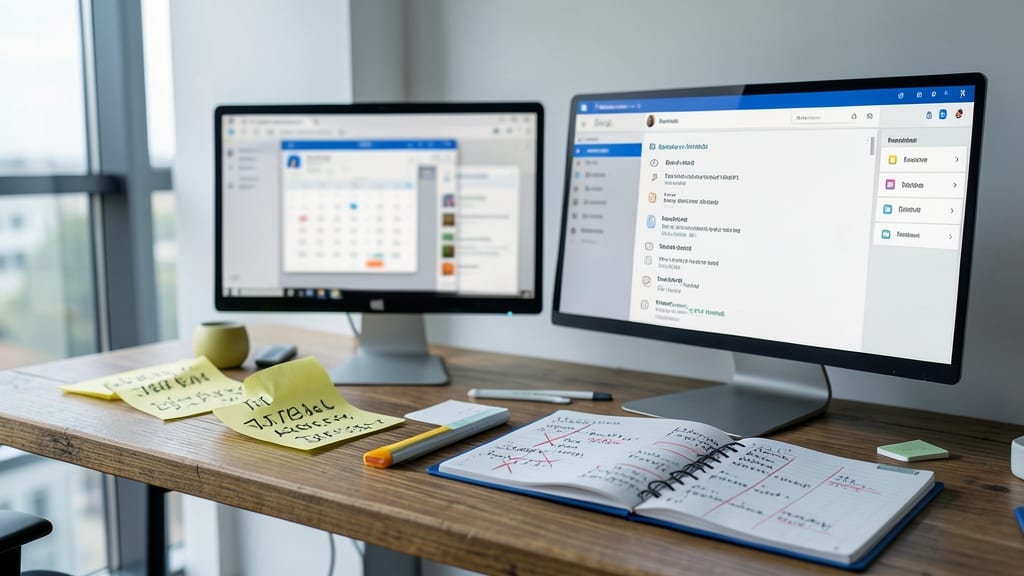
Tired of juggling sticky notes, browser tabs, or separate apps for personal tasks? Microsoft Teams now lets you manage reminders natively—right where you already spend your workday. This integration turns your Teams dashboard into a centralized hub for deadlines, meetings, and to-dos, all while syncing seamlessly with your Outlook calendar for zero context-switching.
To get started, open the Reminders tab in Teams (accessible via the left-hand menu) and click “Create a reminder.” Add a title, set a date/time, and choose between email alerts, app notifications, or desktop pop-ups. The real magic happens when you sync with Outlook: toggle “Sync with Outlook” in the reminder settings, and your tasks will appear in both apps—updating in real time. You can even assign priority labels (low, medium, high) to ensure urgent items stand out.
This setup is perfect for freelancers, remote workers, or anyone drowning in digital clutter. Whether you’re tracking personal deadlines or coordinating side projects, Teams’ reminders keep everything visible—without the chaos of scattered tools. ⚡
Creating Team Channel Reminders for Group Tasks
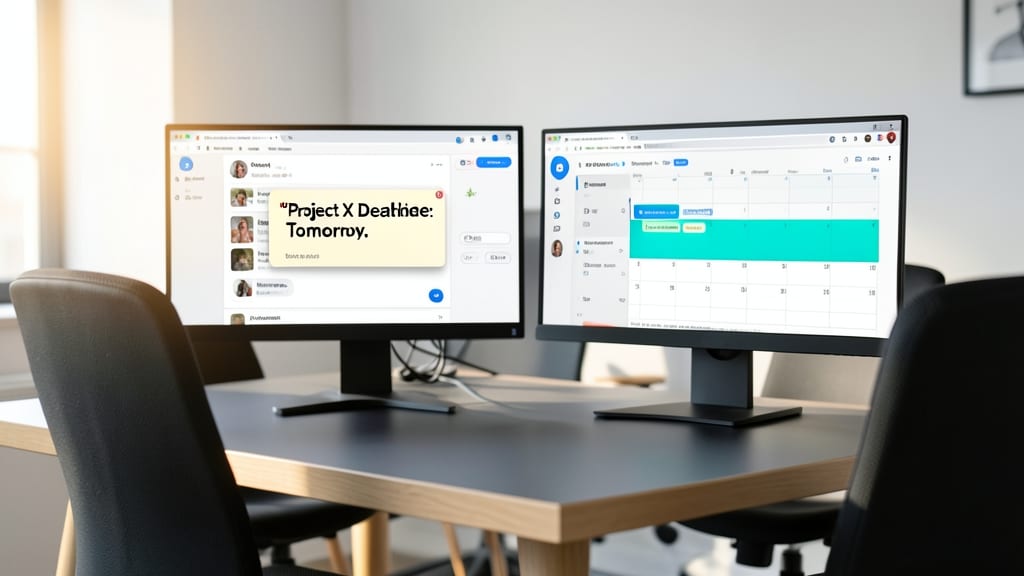
Struggling to keep your team on track with shared deadlines? Microsoft Teams now lets you pin critical group tasks directly in team channels, turning passive chats into actionable hubs for accountability. Unlike personal reminders, these channel-wide alerts appear for the entire team—no need to hunt through emails or individual notifications.
To set one up, open your team channel, click the three-dot menu in the message bar, and select "Add reminder." Assign a due date, priority level (low/medium/high), and even attach files for context. Teams will automatically notify every channel member via app alerts, email, or desktop pop-ups, with the reminder visibly pinned at the top of the channel. You can also tag specific team members for direct follow-ups, ensuring no one misses their part of the project.
This feature is a lifesaver for project managers, Agile teams, or anyone coordinating cross-functional work—like marketing collabs with IT or client deliverables with sales. No more fragmented Slack threads or lost emails; just a single source of truth for your team’s priorities. 💻
Syncing Reminders with Outlook Calendar
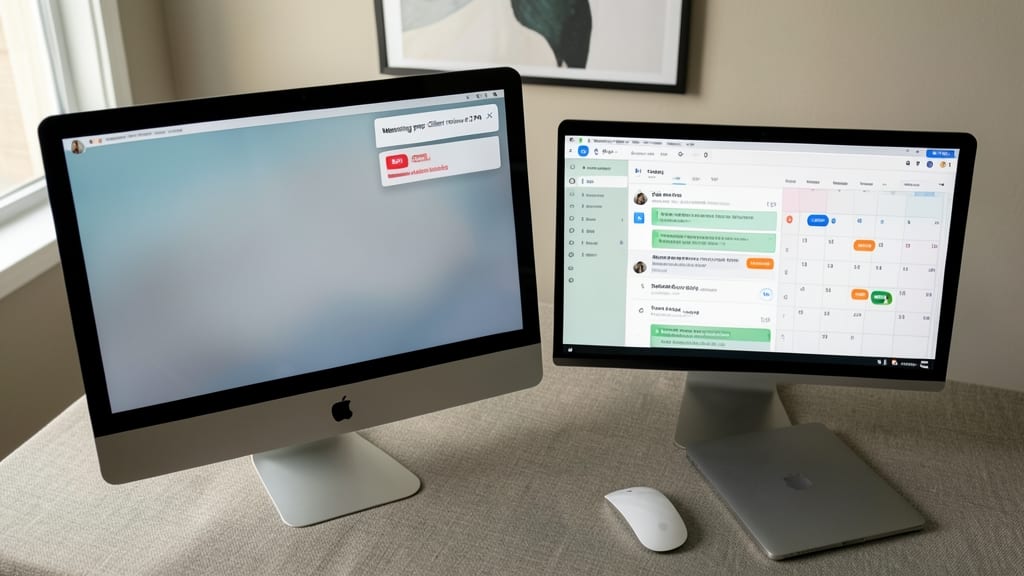
If you’re juggling Outlook’s calendar but hate toggling between apps, Microsoft Teams now bridges that gap seamlessly. The Outlook Calendar sync feature in Teams ensures your reminders—whether personal deadlines or meeting prep—appear in both platforms, cutting down on missed alerts and manual updates.
To enable this, open Teams, navigate to Calendar, then click the three-dot menu on any event or reminder. Select "Sync with Outlook" to mirror deadlines instantly. The feature supports recurring events, time zones, and priority labels, so urgent tasks stand out. Best of all, changes in Outlook auto-update in Teams and vice versa, keeping everything in sync without extra clicks.
This is a game-changer for professionals who rely on Outlook’s depth but prefer Teams’ collaborative environment. No more context-switching—just unified reminders across your workflow. ✨
Using Reminders for Meeting Follow-Ups
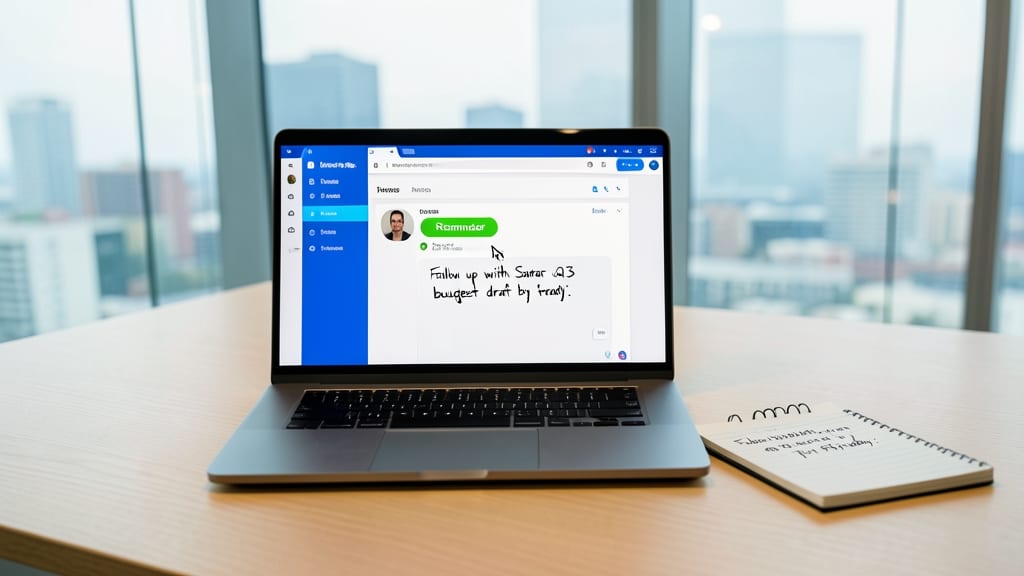
Ever left a meeting and forgotten who was responsible for what? Teams’ meeting follow-up reminders turn vague discussions into actionable tasks—automatically. During or after a meeting, simply note action items directly in the chat or meeting recap, and Teams will generate a reminder with assignees, deadlines, and context—no sticky notes required.
To set it up, open the meeting chat, click the three-dot menu, and select "Add reminder." Assign tasks to team members, set due dates, and even attach files for reference. Teams will notify assignees via email, app alerts, or desktop pop-ups, ensuring nothing slips through the cracks. The best part? These reminders appear in the meeting recap, so you can review progress later without digging through emails.
This feature is a game-changer for project managers, sales teams, or anyone coordinating cross-functional work. No more post-meeting chaos—just clear accountability and fewer follow-up emails. ✨
Customizing Reminder Notifications in Teams
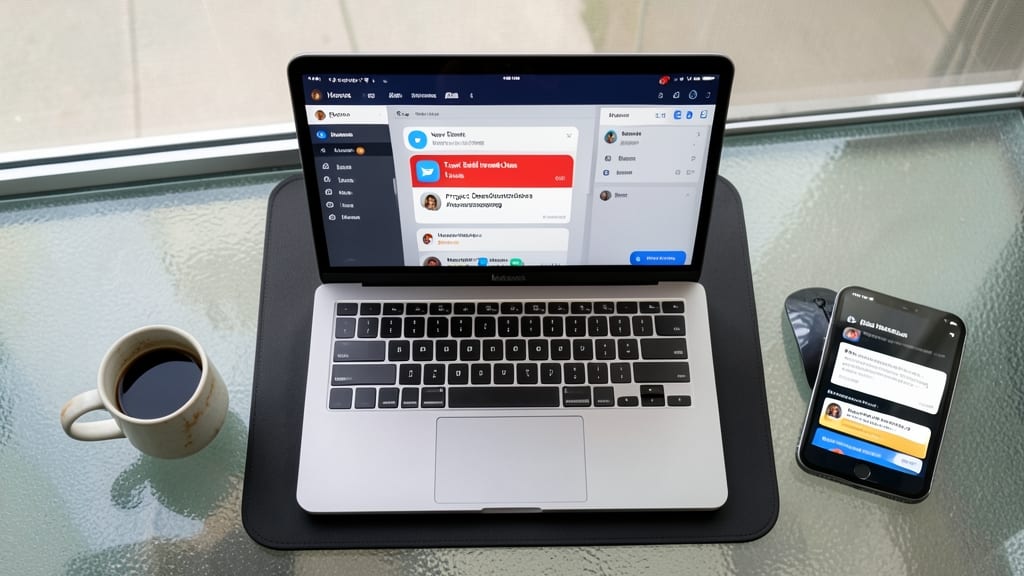
Tired of notifications overwhelming you or missing important alerts? Teams now lets you customize reminder notifications to fit your workflow—whether you prefer email alerts, app pop-ups, or desktop notifications. This flexibility ensures you stay productive without distractions.
Navigate to Teams Settings > Notifications to adjust reminder preferences. Choose between instant alerts (for urgent tasks) or scheduled notifications (to avoid interruptions). You can even toggle sound alerts or priority badges in the app. For developers or remote workers, desktop pop-ups keep tasks visible without checking your phone.
This feature is ideal for freelancers juggling multiple deadlines or remote teams who need visibility without clutter. Tailor your alerts to match your focus—whether deep work or collaborative projects. ✨
Setting Recurring Reminders for Regular Tasks
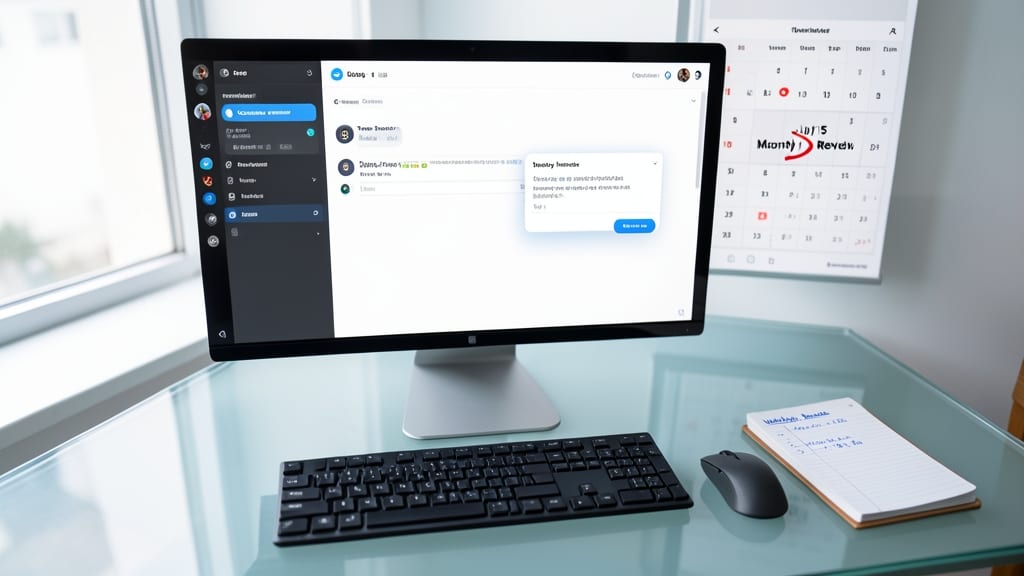
Tired of manually tracking tasks like weekly reports or monthly reviews? Microsoft Teams’ recurring reminders let you automate repetitive deadlines with just a few clicks, ensuring nothing slips through the cracks.
To set one up, navigate to the Reminders tab in Teams, click "Create a reminder," and toggle the "Recurring" option. Choose from daily, weekly, or monthly intervals, then set an end date if needed. The system will handle the rest—no more missed deadlines or last-minute scrambles. You can even add due dates, descriptions, and priority levels for extra clarity.
This feature is a lifesaver for managers, freelancers, or anyone juggling routine tasks. Say goodbye to oversight and hello to automated efficiency. ✨
Sharing Reminders Across Teams and Channels
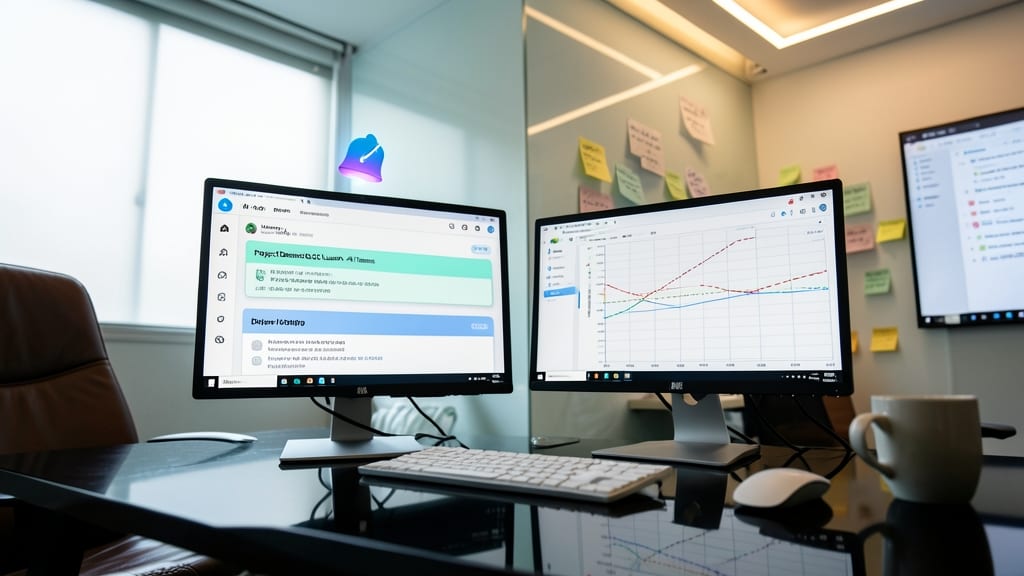
Cross-functional projects often stall when teams operate in silos—until now. Microsoft Teams’ shared reminders feature lets you post critical deadlines or action items in multiple channels at once, keeping everyone aligned without flooding personal inboxes with duplicates.
To share a reminder, create it in a channel, then use the "Share" option to push it to other relevant spaces (e.g., marketing and dev teams collaborating on a launch). Each team sees the reminder in their own channel feed, with real-time updates if deadlines change. You can even tag specific team members for direct accountability, ensuring no one slips through the cracks.
This is a game-changer for product managers, project leads, or anyone bridging departments—like IT coordinating with HR on system rollouts. No more fragmented Slack threads or lost emails. ✨
Integrating Reminders with Planner Tasks
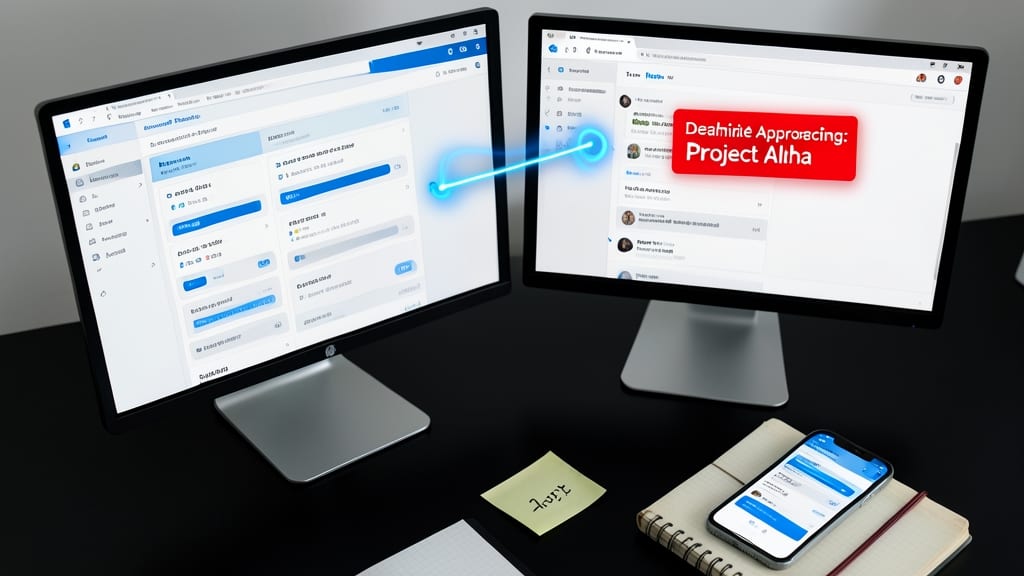
If your team relies on Microsoft Planner for project tracking but still juggles reminders across multiple apps, this integration is a game-changer. By linking Planner tasks directly to Teams reminders, you eliminate the need to manually track deadlines—everything stays in one place, with real-time updates and alerts.
The process is seamless: open a Planner task in Teams, click the "..." menu, and select "Add reminder". Choose your preferred notification type (email, app alert, or desktop pop-up) and set a date/time. The reminder will now sync with your task, so when it’s due, Teams will notify you—whether you’re in the Planner tab or a channel. This works for both individual and shared tasks, ensuring everyone stays on the same page.
This feature is ideal for project managers, Agile teams, or anyone using Planner to streamline workflows. No more missed deadlines or scattered tools—just a unified, automated system that keeps your projects moving forward. ✨
Troubleshooting Reminder Alerts in Teams
When your Teams reminders vanish into thin air or arrive late, productivity grinds to a halt. Whether it’s notification delays, sync errors with Outlook, or reminders simply not appearing, these issues can disrupt workflows—especially for IT admins managing team-wide setups.
Start by checking your notification settings in Teams (click your profile → Settings → Notifications). Ensure reminders are toggled on for both email and app alerts. If sync issues persist, sign out and back in or restart the Teams app—this often resolves cache-related glitches. For deeper problems, clear Teams’ data cache via the app’s advanced settings or reinstall the latest version to ensure zero config conflicts.
IT admins should verify organization-wide policies in the Microsoft 365 admin center, where reminder sync settings might be restricted. For users, a quick device restart or checking Do Not Disturb mode can also fix missed alerts. ⚡
Advanced Reminder Features for Power Users
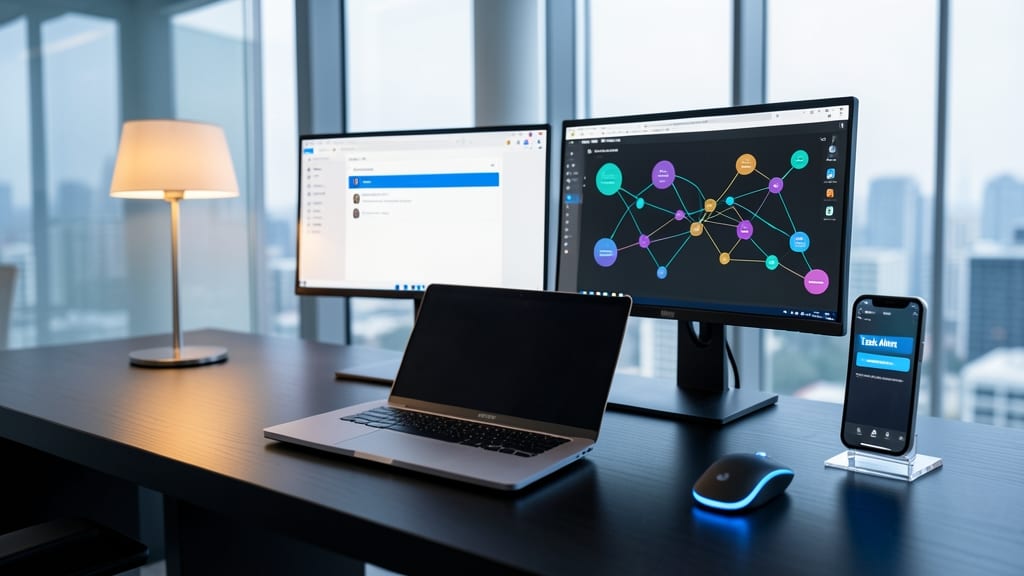
Ready to turn Teams reminders into a fully automated powerhouse? Microsoft’s latest updates unlock advanced features like conditional reminders and Microsoft Graph API integrations, letting you build custom workflows that respond to real-time data.
With the Microsoft Graph API, you can trigger reminders based on events like file updates, SharePoint changes, or even third-party app statuses. For example, set a reminder to notify your team when a project file is updated in OneDrive—or automate follow-ups when a CRM lead status changes. Meanwhile, conditional logic lets you create reminders that only fire under specific conditions, like "remind me when this task is marked as high priority in Planner."
This level of automation is perfect for developers, IT admins, or power users who want to bridge Teams with other tools. Dive into the Microsoft Graph Explorer to start building your custom triggers today. ✨