
PowerPoint
PowerPoint transitions can transform a dull presentation into a dynamic experience—but choosing the right ones matters. These seven transition effects enhance storytelling, maintain audience focus, and align with professional presentation standards, whether for business or education.
Fade Transition for Professional Elegance
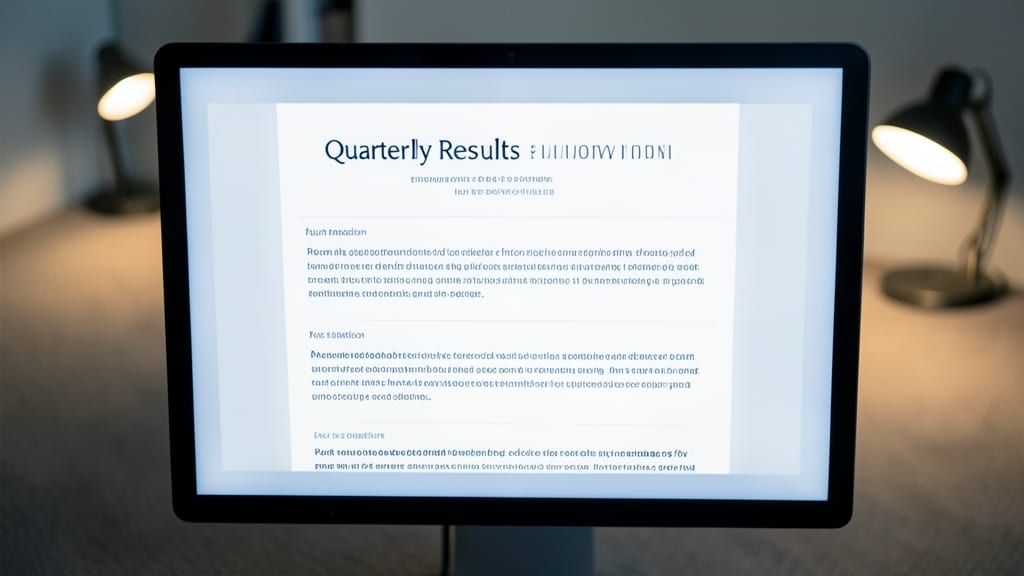
When your presentation demands polished professionalism, the Fade transition delivers a timeless, distraction-free experience that keeps the focus squarely on your message. Unlike flashy animations, this effect dissolves one slide into the next with a smooth, zero-disruption flow—ideal for boardrooms, client pitches, or academic lectures where subtlety speaks volumes.
Available in all PowerPoint versions (2010 and later), the Fade transition offers customizable timing (from 0.5 to 5 seconds) and sound integration for added sophistication. Pair it with a solid background and minimal text to amplify its sleek aesthetic, or use it with gradient overlays for a modern touch. The effect’s simplicity ensures compatibility across devices, from high-res projectors to mobile displays.
Perfect for executives, educators, or trainers who prioritize clarity and refinement, this transition elevates even the most straightforward content into a high-end visual experience. ✨
Slide Morph for Creative Data Visualization
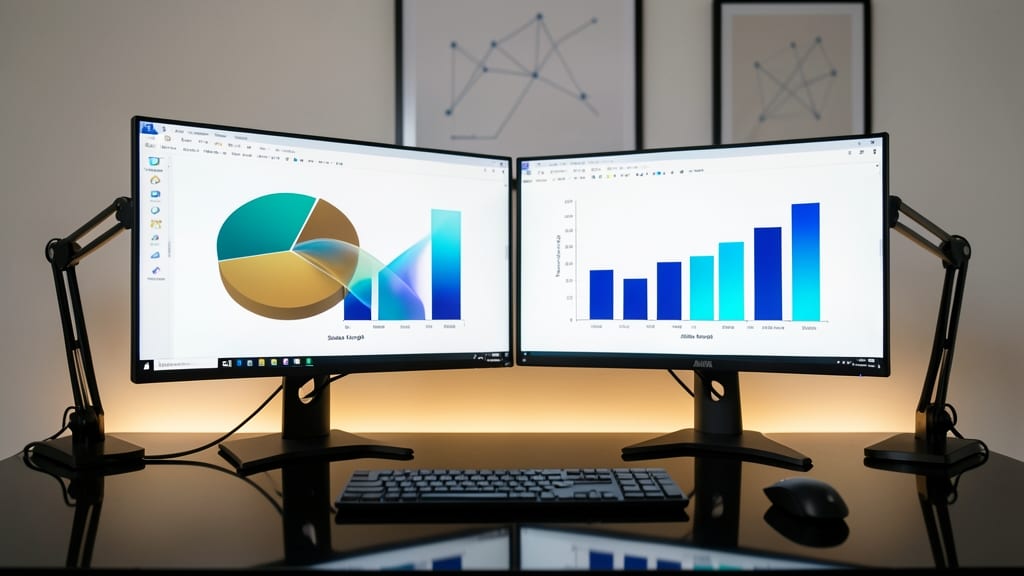
When your data tells a story that needs to visually transform—like shifting from a pie chart to a bar graph—Slide Morph is the secret weapon. Unlike static transitions, this effect lets shapes, colors, and even layouts fluidly evolve between slides, making complex data feel intuitive and engaging.
Available in PowerPoint 2016 and later (with full polish in Office 365), Morph works best with vector-based objects (shapes, charts, icons) and supports smooth color gradients and size scaling. The transition speed is customizable, and you can even preview changes in real-time—ideal for refining visual narratives before the big presentation.
Data analysts, marketers, and educators will love Morph for its ability to turn static slides into dynamic storytelling tools. Just pair it with Office 365’s latest design templates for a polished, modern look. ✨
Push Transition for Emphatic Storytelling
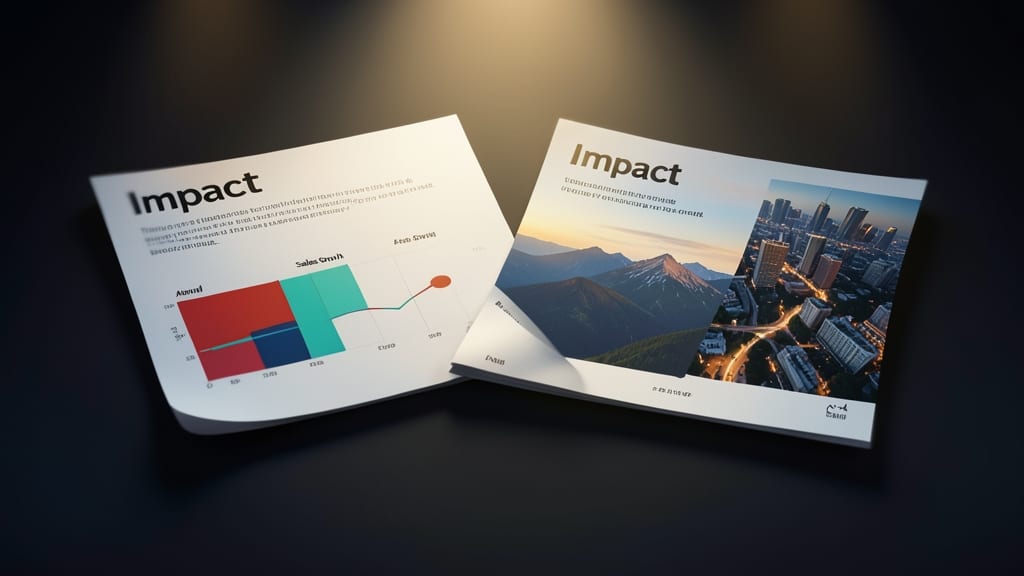
When your presentation needs to feel like a cinematic journey—where each slide naturally leads into the next—the Push Transition delivers that physical momentum. Unlike fades or morphs, this effect mimics real-world movement, sliding one slide out while the next glides into place, creating a sense of progression that’s both intuitive and engaging.
Available in all PowerPoint versions (including 2010 and later), the Push Transition supports horizontal, vertical, and diagonal directions, letting you control the flow direction to match your narrative. Pair it with timing adjustments (e.g., 1.5-second duration) to fine-tune pacing, ensuring your audience stays locked in without distraction. For maximum impact, use it in story-driven decks where sequence matters—think product launches, case studies, or educational modules.
Ideal for speakers who want to guide attention effortlessly, this transition works best when paired with minimal on-slide animations. Storytellers, trainers, and marketers will appreciate how it turns passive slides into an active experience. ✨
Zoom Transition for High-Impact Reveals

Need to make your closing slide or big announcement unforgettable? The Zoom transition delivers that cinematic "wow" factor by scaling a slide into view from a tiny center point—perfect for keynote moments or when you want to command attention.
Available in all PowerPoint versions (including 2010+), this transition works best with full-screen slides and pairs well with bold typography or high-contrast visuals. The speed control lets you adjust the drama—slow for impact, fast for pacing—while the direction options (zoom in/out) add flexibility. Pro tip: Pair it with a sound effect (like a subtle chime) for extra engagement.
Ideal for product launches, conference conclusions, or award reveals, this transition ensures your audience lingers on the right slide. Just don’t overuse it—save it for moments that deserve the spotlight! ✨
Wipe Transition for Clean Segment Breaks

Need a clean, structured break between presentation sections without distracting from your content? The Wipe transition delivers exactly that—think of it as a digital page turn for your slides.
Available in horizontal, vertical, or diagonal directions, this transition works across all PowerPoint versions (including PowerPoint 2010+) and lets you control the wipe direction and speed for precision. Unlike flashy effects, it subtly signals transitions between topics—ideal for agenda shifts, chapter breaks, or workflow steps—while keeping the focus on your message.
Perfect for trainers, educators, or project managers presenting structured content where clarity matters most. Use it sparingly to maintain professionalism, but consistently to guide your audience through complex topics. ✨
3D Rotate Transition for Interactive Demos
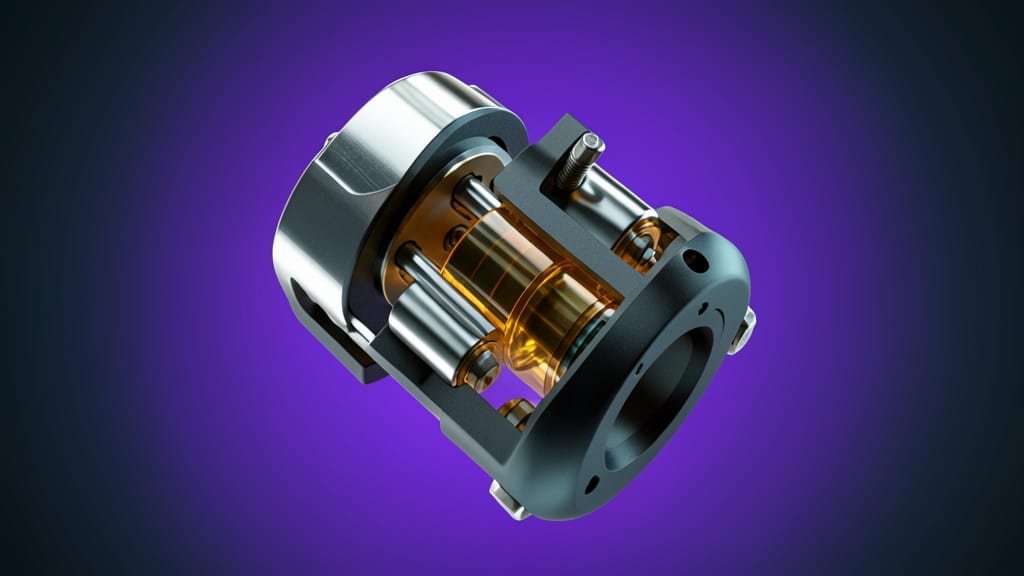
When your demo hinges on spatial relationships—like showcasing a 3D model or explaining how components fit together—the 3D Rotate Transition adds a layer of realism. This effect spins slides around the X, Y, or Z axis, making complex structures feel tangible without requiring external tools.
Available in PowerPoint 2013 and later, it’s customizable with 180° or 360° rotations and adjustable speed. The depth effect works best when paired with isometric diagrams or product mockups, but avoid overusing it—too many rotations can feel gimmicky. For technical audiences, this transition bridges the gap between flat slides and interactive 3D demos.
Engineers, architects, and product designers will appreciate how this transition visually connects spatial concepts, but keep it to key moments to maintain professionalism. ✨
Custom Path Transition for Tailored Visuals

When standard transitions feel too generic, Custom Path Transition lets you design slide movements that match your brand’s identity or artistic vision. Unlike fixed effects, this feature lets you draw your own trajectory—whether it’s a smooth curve, zigzag, or even a logo-shaped route—using PowerPoint’s built-in path tools.
To use it, simply select the transition, then choose "Custom Path" in the animation pane. You’ll unlock freeform drawing tools to sketch the exact route, with options to adjust speed and easing for polished results. Works best in PowerPoint 2016+ and Office 365, where you can also pair it with morph animations for layered effects. Perfect for designers crafting branded decks or educators building interactive lessons.
Ideal for presentations where visual storytelling matters most—think creative agencies, art educators, or anyone who wants to break free from cookie-cutter slide shows. ✨