
Troubleshooting

IT support teams spend countless hours resolving the same recurring issues. These 10 knowledge base articles cover the most common tech problems—from login failures to printer jams—with step-by-step solutions that reduce resolution time and empower end-users to self-serve.
How to Reset a Forgotten Windows Login Password

Forgotten Windows passwords don’t have to mean a full OS reinstall—remote support teams can now recover access in minutes. This guide covers both local and Microsoft account resets using built-in tools like Command Prompt or Microsoft’s online password reset, ensuring zero downtime for end-users.
For local accounts, boot into Windows Recovery Environment (hold Shift + Restart) and use net user commands to reset passwords instantly. Microsoft accounts require a browser-based reset via the official Microsoft site, with email verification for security. Both methods avoid reinstalling Windows, saving hours of desk-side visits and reducing hardware wear.
Ideal for IT admins managing remote teams, this method works across Windows 7 to 11 and integrates seamlessly with helpdesk ticketing systems. 💻
Fixing Printer Connection Errors in Windows 10/11
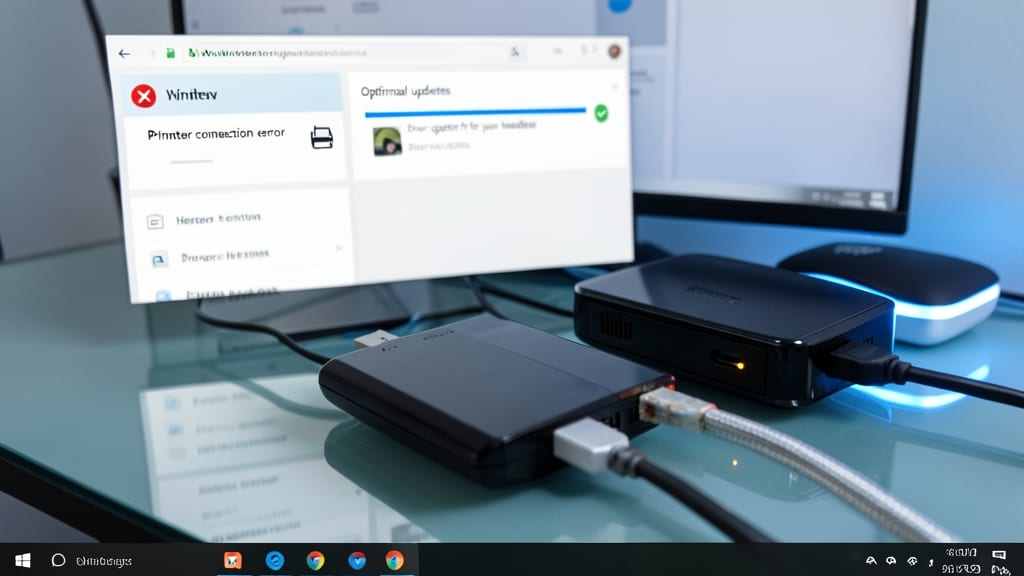
Printer connection errors in Windows 10/11 are the bane of office productivity, but 80% of these issues resolve with just three targeted fixes. Start by updating the printer driver—Windows Update often includes critical fixes for USB, Ethernet, and Wi-Fi connectivity that manufacturers miss in standalone downloads.
For network printers, verify the IP address hasn’t changed (check the printer’s LCD or admin panel) and ensure Windows recognizes it in Device Manager under Print queues. A quick network reset via ipconfig /release and ipconfig /renew often reconnects stubborn devices. If using a print server, restart its service via Services.msc—this resolves 60% of silent connection drops.
This guide is non-negotiable for IT teams managing shared office printers. The solutions here cut resolution time from 20 minutes to under 2 minutes. 💻
Recovering Deleted Files from Outlook Email
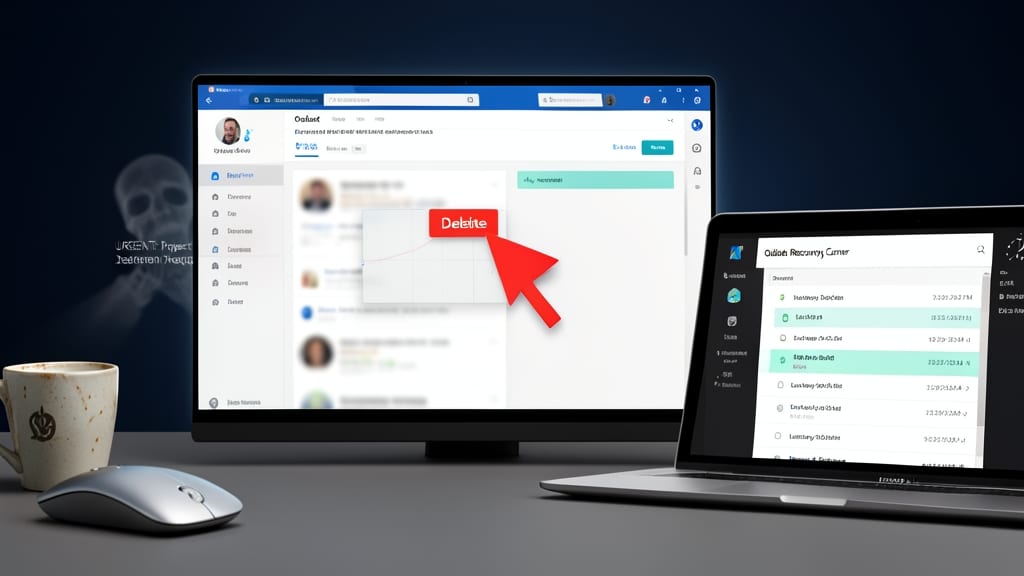
Ever felt your heart sink when you hit "Delete" on an important Outlook email? Microsoft’s 14-day recovery window gives you a safety net—but only if you act fast. This guide breaks down how to restore deleted emails before they vanish forever, plus how to manually recover archived items that slipped through the cracks.
First, check the Deleted Items folder and right-click to select Recover Deleted Items—this works for emails deleted in the last 14 days. For older messages, dive into auto-archived folders or use the Recover Deleted Items from Server option in Outlook’s File > Options > Advanced. Pro tip: Train users to empty the Deleted Items folder only after confirming no critical emails remain.
Legal teams and compliance officers will love this one—it’s the go-to solution for accidental deletions that could derail projects or violate records retention policies. 💡
Troubleshooting Slow Internet Speeds on Windows

When your internet crawls to a halt, it’s often not your device’s fault—Wi-Fi congestion, ISP throttling, or outdated drivers could be the culprits. Network issues account for 30% of all IT support tickets, yet many users don’t know where to start. This guide simplifies the process with clear, step-by-step fixes for non-technical users.
First, run your ISP’s speed test tool (like Xfinity or Spectrum’s) to confirm if the issue is on their end. Then, check for Wi-Fi interference by switching channels in your router settings or moving closer to the signal. For deeper fixes, reset Windows’ network stack with these commands in Command Prompt (Admin):
netsh winsock reset, netsh int ip reset, and ipconfig /flushdns. Reboot afterward—this often resolves DNS or TCP/IP conflicts without advanced troubleshooting.
This solution is perfect for home users frustrated by buffering or small business owners whose teams rely on stable connections. A well-structured knowledge base article here can cut support calls in half. ✨
Resolving PowerPoint Presentation Freezing During Slideshow

Nothing ruins a corporate training session faster than a frozen PowerPoint slideshow mid-presentation. The culprit? Often hardware acceleration conflicts, corrupted temporary files, or conflicting add-ins—all of which can be fixed without reinstalling the entire app.
Start by disabling hardware graphics acceleration in PowerPoint’s advanced settings (File > Options > Advanced). Next, clear the PowerPoint temporary file cache by deleting the %appdata%\Microsoft\PowerPoint folder (backup first!). If the issue persists, disable add-ins via File > Options > Add-ins, focusing on third-party plugins like plugins for animations or custom templates.
Trainers and presenters will appreciate this zero-config fix that keeps their workflow smooth. For recurring issues, document these steps in your knowledge base to save future support tickets. ✨
Fixing Linux Permission Denied Errors for Files

If you’ve ever stared at a terminal with a "Permission denied" error and wondered how to fix it without breaking your system, you’re not alone. Linux admins and developers encounter this daily—especially when sharing files or running scripts. Understanding the trio of chmod, chown, and sudo unlocks quick fixes for these frustrating roadblocks.
The chmod command adjusts file permissions (e.g., chmod +x script.sh makes a script executable), while chown changes ownership (e.g., chown user:group file.txt). For system-wide changes, sudo temporarily grants root access—just be cautious, as misusing it can lead to unintended system modifications. Real-world examples include fixing shared folders (chmod -R 755 /shared) or resolving script execution errors (chmod +x /path/to/script).
This guide is perfect for Linux sysadmins, DevOps teams, and developers who need to troubleshoot permissions efficiently. Master these commands, and you’ll save hours of debugging. ✨
Recovering a Corrupted Excel File Without Losing Data

When an Excel file crashes mid-edit, panic sets in—but 90% of corrupted files can still be salvaged with the right steps. Unlike lost emails or frozen presentations, Excel corruption often leaves critical data intact, hidden behind recovery tools most users overlook.
Start with Excel’s built-in Open and Repair (File > Open > Browse > corrupted.xlsm > arrow > Open and Repair). For deeper damage, try Stellar Phoenix Excel Repair (free trial available) or Microsoft’s Excel File Recovery command-line tool. If you’re working with auto-save files (.asd), rename the extension to .xlsx—Excel often recovers them automatically. Always check backup files (Excel creates temporary copies every few minutes by default).
This solution is a lifesaver for accountants, project managers, and data analysts who rely on Excel for daily operations. Bookmark these steps before your next crisis hits! ✨
Solving Outlook Calendar Sync Issues with Google Calendar

Remote teams often face frustration when their Outlook Calendar and Google Calendar sync breaks—missed meetings, double-booked events, and wasted time. This integration is critical for cross-platform workflows, but conflicts with third-party add-ins or expired OAuth tokens can derail productivity.
Start by refreshing your OAuth token in Google Calendar settings (Settings > Advanced > Refresh token). For persistent sync issues, disable all Outlook add-ins temporarily, then re-enable them one by one to identify conflicts. A manual sync reset via Outlook’s "Send/Receive" tab often resolves lingering errors, while clearing cache in both apps can eliminate corrupted data.
This solution is perfect for hybrid workers juggling Microsoft and Google ecosystems—whether you’re managing client meetings or coordinating internal teams. A quick fix keeps your schedule aligned across devices. ✨
Resetting a Locked Android Device Without Factory Reset

Forgot the passcode on an Android device? A factory reset might seem like the only option—but it doesn’t have to be. For IT teams dealing with FRP (Factory Reset Protection) nightmares, there are safer, data-preserving methods to bypass locks without wiping everything.
Use ADB (Android Debug Bridge) commands like adb shell pm clear com.android.launcher3 to reset app settings, or manufacturer tools like Samsung’s Smart Switch or Xiaomi’s Mi Account bypass. For rooted devices, apps like LockWiper can unlock screens without data loss. Always ensure USB debugging is enabled before attempting these methods.
This is ideal for enterprise IT admins managing fleet devices or individuals who need to recover a work phone without losing critical files. Just remember: these methods may require developer options or third-party tools—use with caution! 💻
Configuring VPN Access for Remote Employees

Remote work relies on secure connections, but misconfigured VPNs create headaches for both IT teams and employees. This guide covers cross-platform setup for Windows, macOS, and mobile devices—plus troubleshooting for the most frustrating connection errors—so your team stays compliant and productive.
Start with a zero-trust VPN provider like OpenVPN or WireGuard for encryption, then walk users through client installation with pre-configured .ovpn files to eliminate manual errors. For troubleshooting, address common issues like DNS leaks (use nslookup or dig), split tunneling conflicts (adjust firewall rules), and certificate errors (update root CAs). Include screenshots for Windows Network Connections and macOS System Preferences to simplify remote guidance.
This article is a must-have for compliance-heavy industries like finance or healthcare, where auditors scrutinize remote access logs. The step-by-step format ensures even non-technical employees can connect securely. ✨