
Tip & Trick
Struggling to find files in your Microsoft ecosystem? Consistent file naming saves time, reduces errors, and makes collaboration seamless. These seven best practices will transform your digital organization from chaotic to effortless.
Date-Based Prefix Format for Version Control

Legal teams drafting contracts, finance departments revising spreadsheets, or creative studios iterating on designs all share one frustration: losing track of document versions. A date-based prefix like YYYYMMDD (e.g., 20240515ContractDraft_v1.docx) solves this by embedding chronological order directly in filenames.
This format ensures instant visual sorting in Windows Explorer, SharePoint, or OneDrive—no manual filtering needed. Pair it with a version suffix (v1, v2) to distinguish edits within the same day. Microsoft’s Office Suite automatically preserves these prefixes when saving, making it seamless for collaborative workflows.
Perfect for industries where audit trails matter most, this method eliminates "Which version is final?" chaos. ⚡
Department-Specific Abbreviations for Team Collaboration
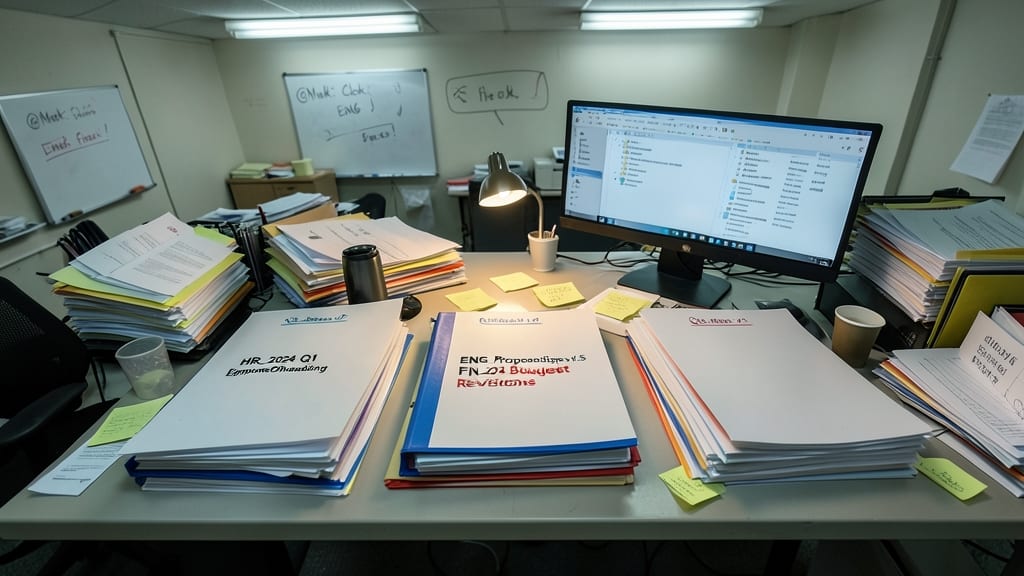
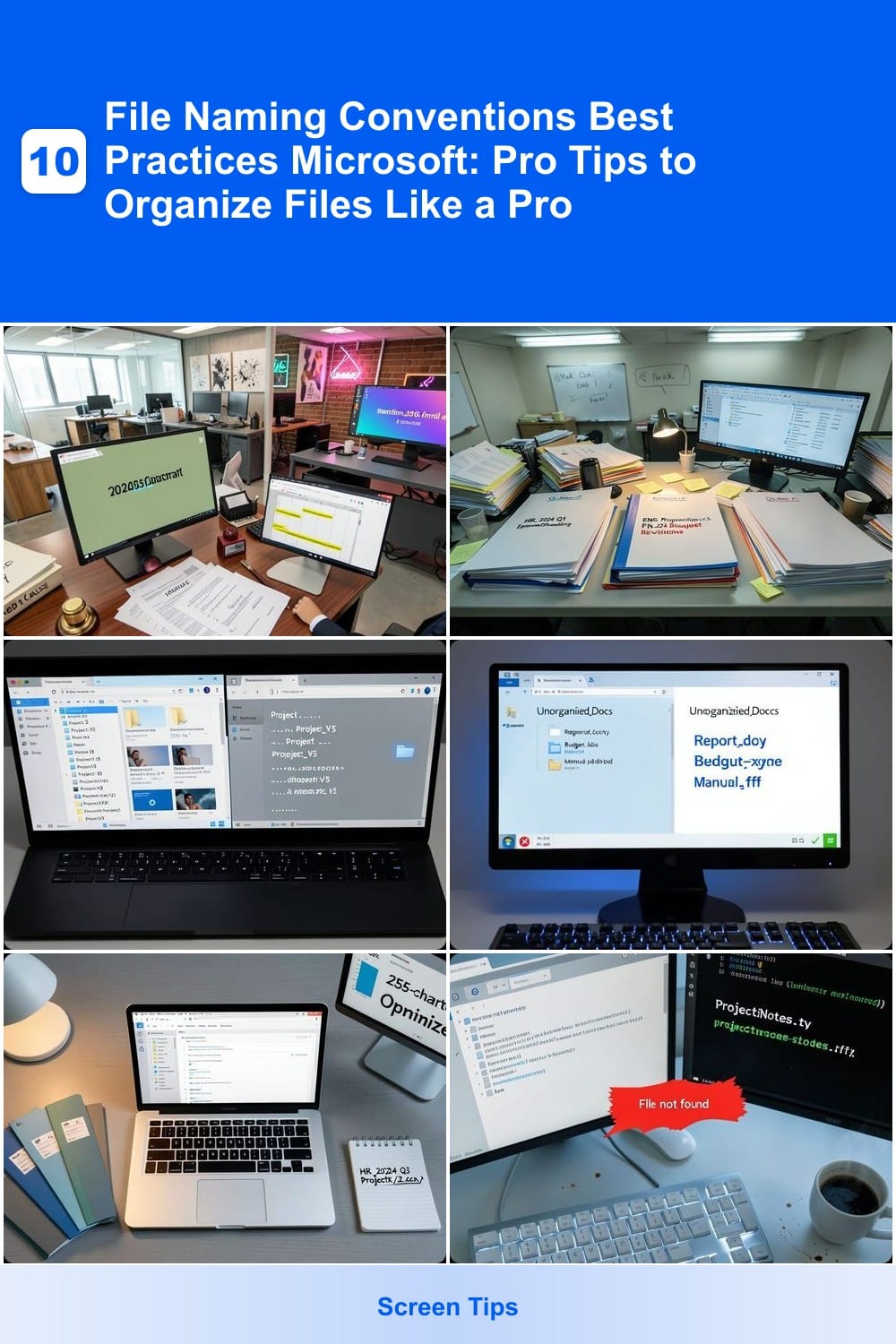
Cross-department projects often turn into a game of "Where's Waldo?" when filenames lack context. Using standardized department codes (like HR for Human Resources or ENG for Engineering) in every filename instantly clarifies ownership and purpose, saving hours of back-and-forth emails.
Start with a 3-letter prefix (e.g., MKT2024Q3Report.docx) to instantly identify the department. Pair this with underscores for readability and consistency. Microsoft Teams and SharePoint automatically sort these files logically, and the codes work seamlessly across OneDrive, Outlook attachments, and Slack shares—no extra tags needed.
This system shines for hybrid teams where Marketing, Finance, and IT collaborate on shared drives. A quick glance at FINInvoiceTemplate.xlsx tells everyone exactly who owns it and why it exists. ✨
Underscore Separators Over Spaces or Hyphens
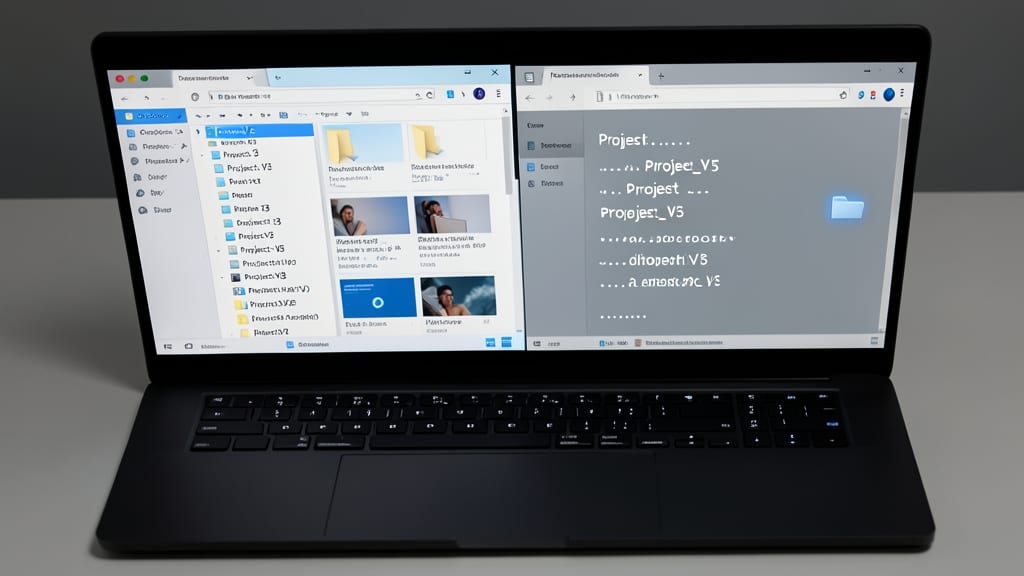
Windows File Explorer has a sneaky quirk: spaces and hyphens can scramble your file sorting, especially in shared drives like OneDrive or SharePoint. Swapping them for underscores fixes this instantly—no more alphabetical chaos when searching for "ProjectV3" vs. "Project-3."
Microsoft’s ecosystem (including Windows 10/11, Office 365, and SharePoint) treats underscores as a universal separator, avoiding glitches in metadata indexing. For example, "Q2SalesReport2024.xlsx" sorts correctly everywhere, while "Q2-Sales Report 2024.xlsx" might appear as two separate entries. This rule also prevents errors when files sync across devices.
Teams managing shared libraries—like marketing, HR, or IT—will see the biggest benefits. Underscores keep filenames clean, searchable, and future-proof across all Microsoft tools. ✨
File Type Extensions for Every Document
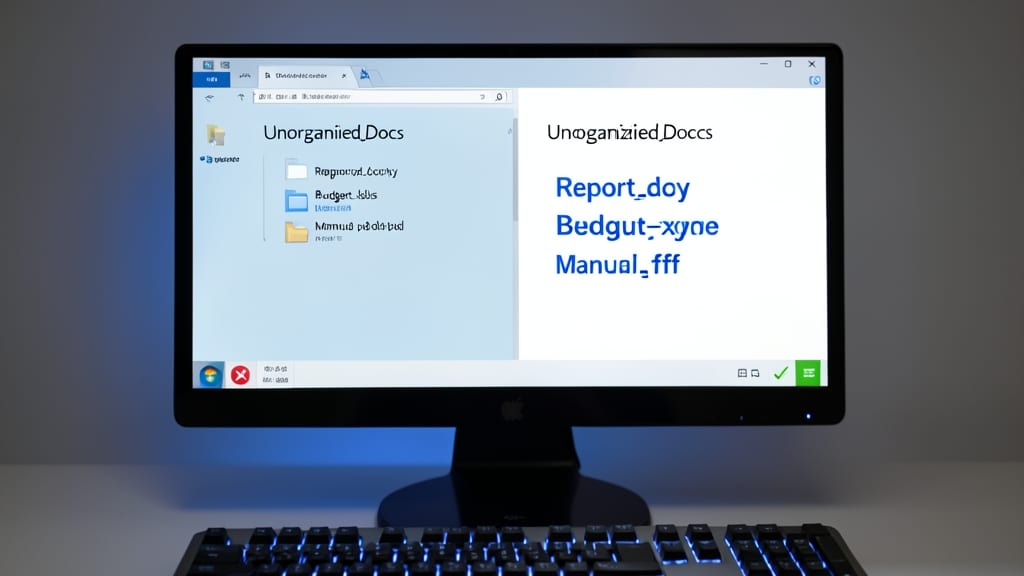
Ever double-clicked a file only to watch your system groan as it tries (and fails) to open it correctly? The fix is simpler than you think: always include the full file extension—like .docx, .pdf, or .xlsx—instead of relying on Windows to guess.
Microsoft applications default to hiding extensions for "known file types," but this creates risks. A missing .txt vs. .csv can corrupt data when opened in the wrong program. For IT pros, this rule is non-negotiable—it prevents security risks (malware often disguises itself as harmless files) and ensures compatibility across Windows, macOS, and Linux systems.
Developers and sysadmins should enforce this in team policies, while casual users benefit from the peace of mind of knowing every file opens as intended. ⚡
Maximize 255-Character Limit with Logical Structure
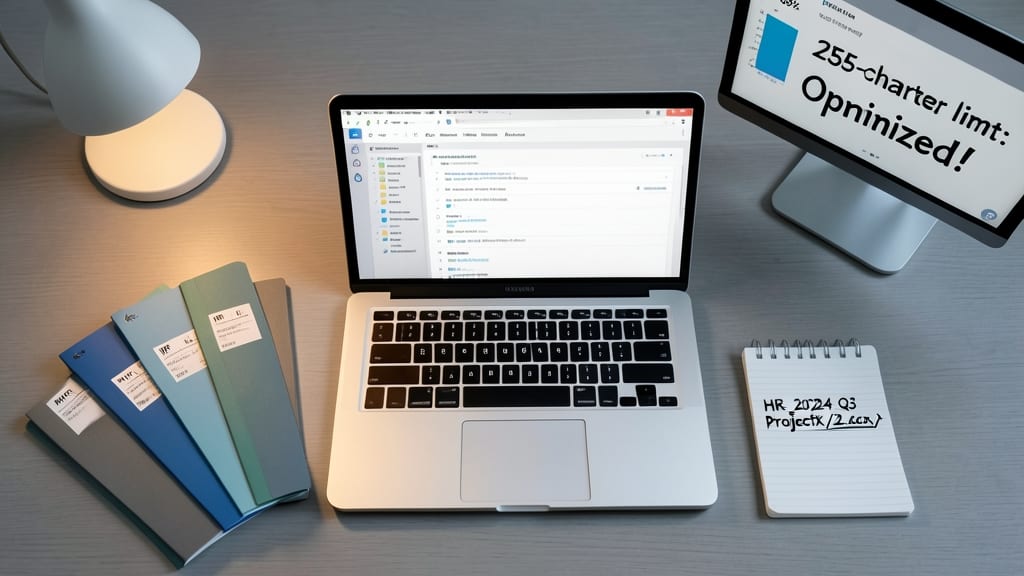
Microsoft’s 255-character limit isn’t just a technical constraint—it’s a chance to refine your file-naming strategy. Use this template to pack project details, dates, and versions into a structured, readable format without cutting corners.
Start with a 4-letter department code (e.g., HR), followed by a YYYYMMDD date (e.g., 20240615) and a concise project name (e.g., OnboardingTrainingModule). Add a version number (e.g., v1.2) and the file type (e.g., .pptx). This structure fits critical info while keeping filenames under 255 characters and easy to scan.
This approach is ideal for enterprise teams managing complex projects or agencies juggling client deliverables across multiple versions. ⚡
Consistent Capitalization Rules Across Teams
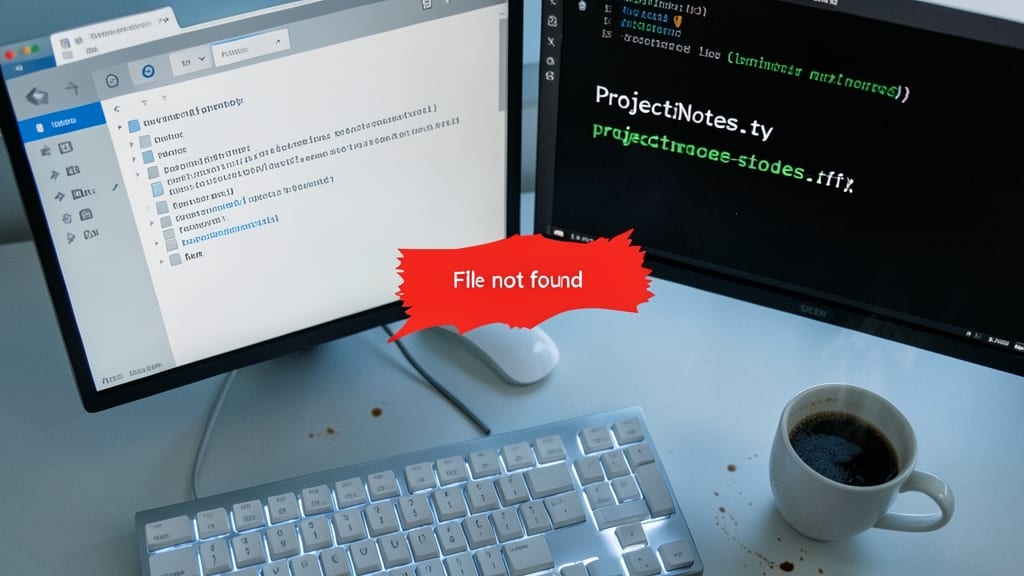
Ever accidentally created two files that look identical but fail to open because of a single uppercase letter? In case-sensitive systems (like Linux, WSL, or cloud storage), ProjectNotes.txt and projectnotes.txt are treated as entirely different files—leading to confusion and lost work.
To avoid this, enforce a team-wide capitalization standard, such as PascalCase (e.g., ClientOnboardingGuide.pdf) or snakecase (e.g., clientonboarding_guide.pdf). Tools like Git or PowerShell scripts can enforce these rules during file checks, ensuring consistency across repositories. For Windows users accessing shared drives, this prevents headaches when files sync with case-sensitive cloud storage like AWS S3 or Google Drive.
Developers, DevOps teams, and organizations using Linux subsystems will see the biggest benefits—no more "file not found" errors due to inconsistent casing. ✨
Metadata Tags Over Filename Clutter
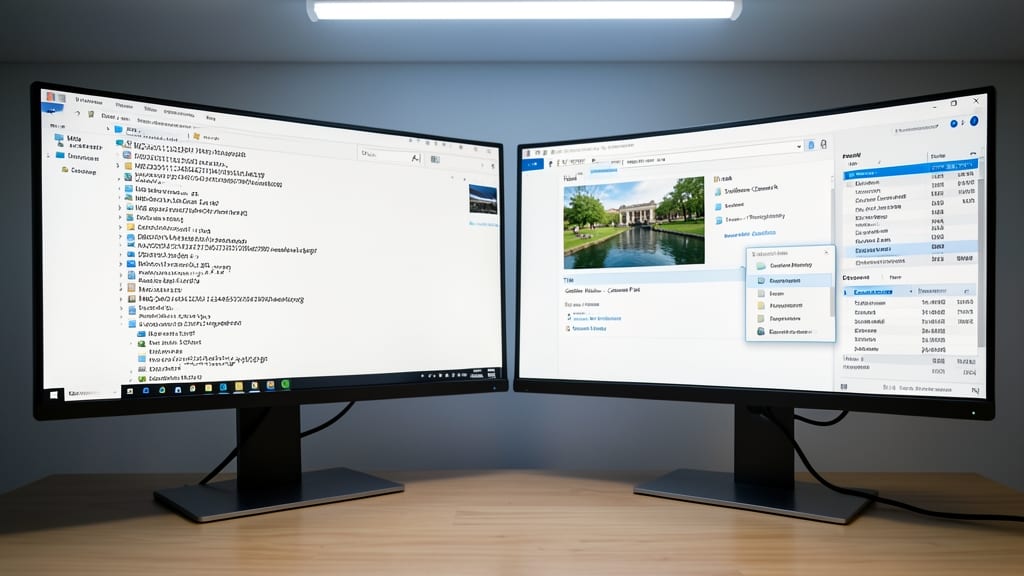
Tired of filenames stretching into unreadable strings? Microsoft’s built-in document properties (like Title, Subject, and Tags) let you store metadata without cluttering your filenames—ideal for photographers labeling hundreds of images or analysts tracking datasets.
Right-click any file in Windows Explorer, select Properties, and add custom tags (e.g., "Client: Acme," "Project: Q3"). These properties sync across OneDrive, SharePoint, and Office apps, making search and filtering effortless. Unlike filename tags (e.g., "Q3ReportFINAL_v2"), metadata stays hidden but accessible—no more 255-character limits or sorting headaches.
Photographers can tag locations or events, while data analysts can categorize datasets by source or date. It’s the zero-config way to keep files clean while adding search power. ✨