
Software
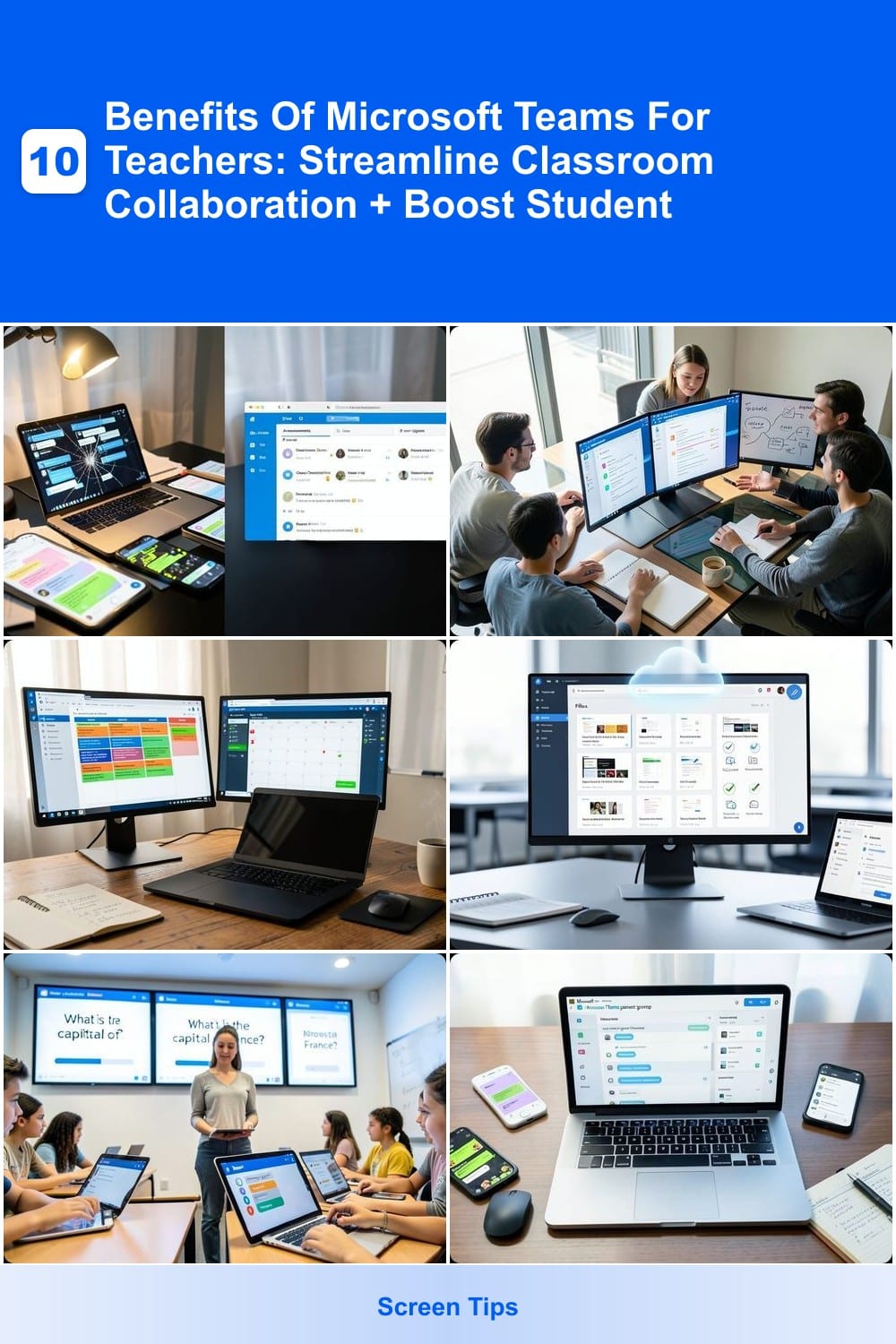
Microsoft Teams isn’t just for business—it’s a game-changer for educators. Discover how this powerful tool transforms classroom communication, simplifies lesson planning, and fosters student engagement with 10 game-changing benefits tailored for teachers.
Seamless Classroom Communication Hub
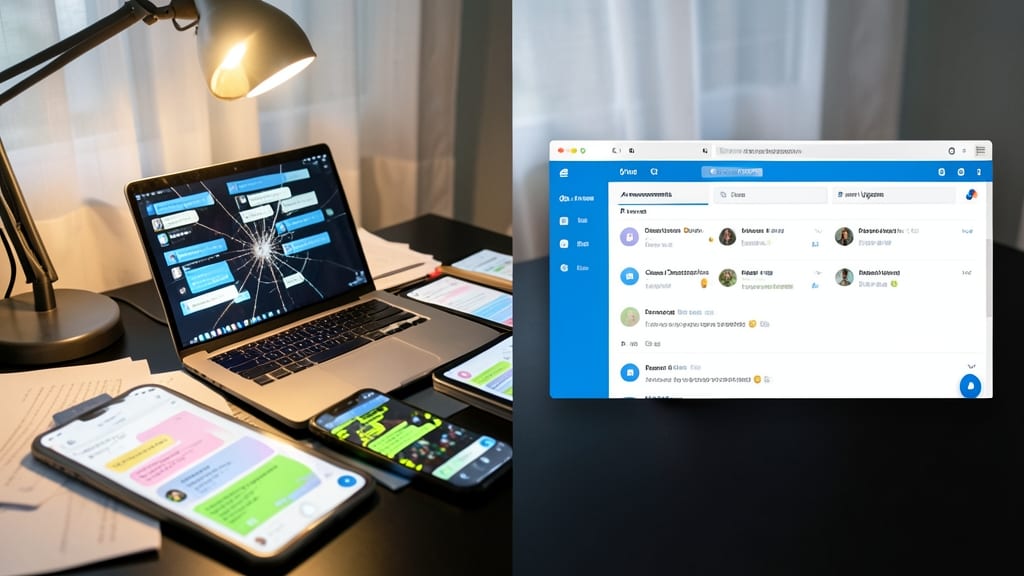
Say goodbye to the chaos of juggling email chains, group texts, and separate messaging apps—Microsoft Teams acts as your all-in-one classroom communication hub, where announcements, discussions, and parent interactions live in one organized space. No more digging through inboxes or missing critical updates buried in group chats; everything syncs in real time, so you’re always on the same page as students and parents.
The dedicated class channels let you post updates, share resources, and host discussions—all with read receipts to confirm who’s seen important messages. Use @mentions to tag specific students or parents, and the integrated calendar ensures no one misses deadlines or events. For hybrid or remote teaching, the video call integration lets you host live Q&A sessions or virtual office hours without switching platforms.
This is the perfect solution for teachers drowning in fragmented communication tools. Whether you're coordinating a project-based learning group or keeping parents updated on progress, Teams keeps everything secure, searchable, and streamlined—so you can focus on teaching, not tech troubleshooting. 💡
Real-Time Classroom Collaboration Tools

Transform passive learning into dynamic collaboration with Microsoft Teams’ real-time co-authoring tools, where students and teachers edit documents, brainstorm ideas, and solve problems together—all in the same space. Unlike static assignments, this feature turns lessons into interactive experiences, whether you're teaching in-person, hybrid, or fully remote.
With live Word docs, multiple students can contribute to essays, lab reports, or group projects simultaneously, while shared PowerPoint slides let teachers annotate in real time during lectures. The Whiteboard tool adds a tactile element for brainstorming sessions, and Teams Premium even includes collaborative sticky notes for mind-mapping activities. No more version conflicts or "I saved it as my copy" chaos—every change syncs instantly, and you can track contributions with the activity feed.
Perfect for project-based learning, language classes, or STEM collaborations, this tool bridges the gap between traditional lectures and modern engagement. Whether you're facilitating a virtual science experiment or a literature discussion, real-time collaboration keeps students actively involved—no matter where they’re learning from. ✨
Built-In Lesson Planning Assistant
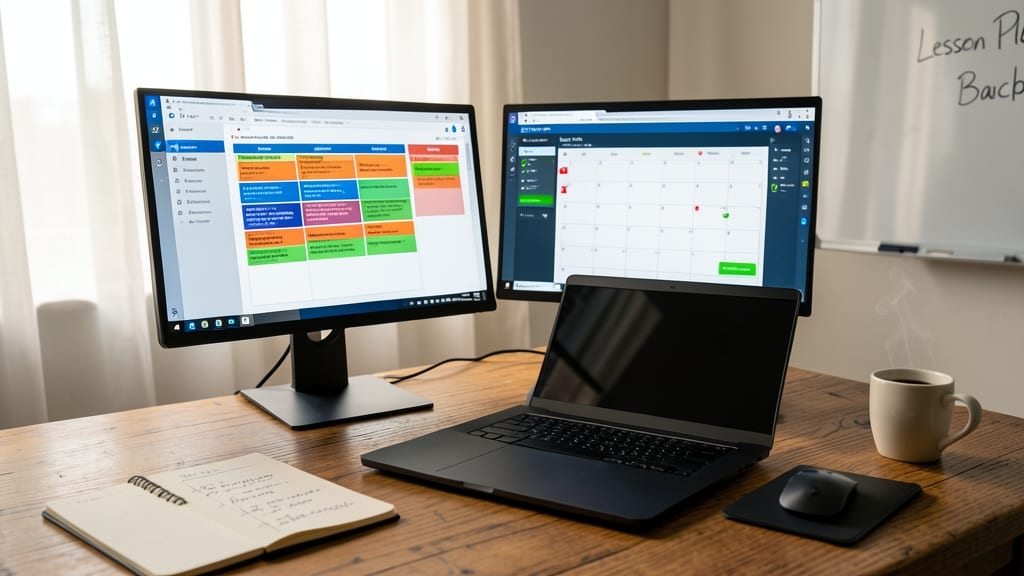
Say goodbye to scattered lesson plans and last-minute scrambling—Microsoft Teams’ Built-In Lesson Planning Assistant turns chaos into clarity. With calendar integrations, to-do lists, and automated reminders, you’ll never miss a deadline or forget a key resource again.
Create color-coded syllabi and link assignments directly to deadlines, while the Planner tab syncs with Outlook for seamless scheduling. Set up recurring tasks for grading, lesson prep, and parent communications, and let Teams handle the follow-ups. Studies show teachers using this feature cut prep time by up to 40%, freeing hours for what matters most: teaching.
Perfect for busy educators juggling multiple classes or those transitioning to hybrid teaching, this tool keeps everything in one place—so you can focus on inspiration, not organization. ✨
Secure Student-Teacher File Sharing
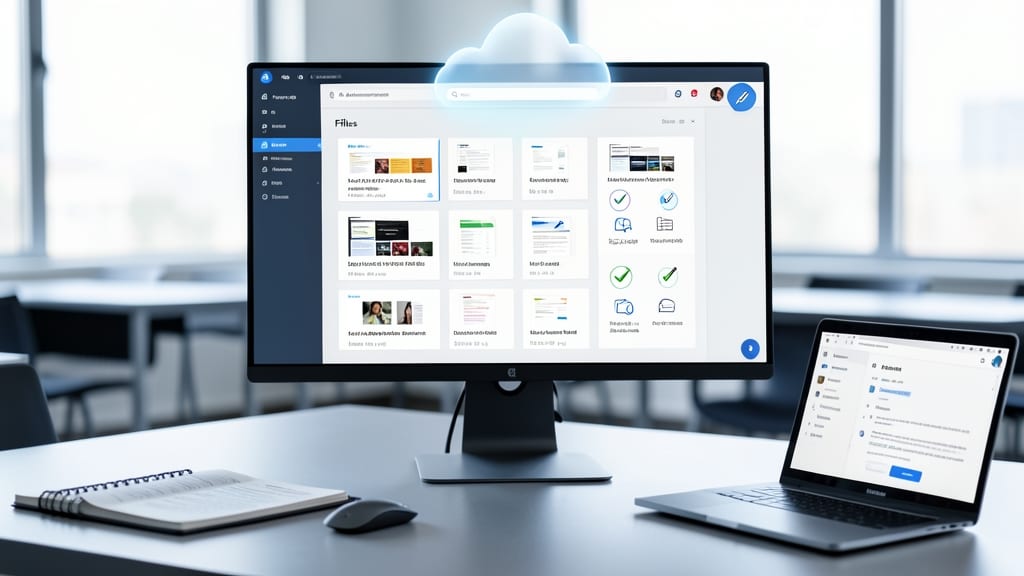
Tired of chasing down lost email attachments or dealing with version chaos when grading assignments? Microsoft Teams’ cloud-based file storage eliminates these headaches entirely by keeping all lesson materials, student submissions, and feedback in one secure, searchable hub.
The Files tab in Teams lets you create organized folders for each class, with automatic version history so you never lose track of updates. Share large files—like video lectures or interactive PDFs—without hitting email size limits, and use permissions controls to restrict access to only your class. Students can submit work directly through assignments, and you’ll always see the latest version with real-time syncing across devices.
Perfect for teachers juggling multiple classes or hybrid learning setups, this feature ensures no file gets buried in a cluttered inbox. Say goodbye to "Did you send me the final draft?" messages. ✨
Interactive Classroom Polls And Quizzes
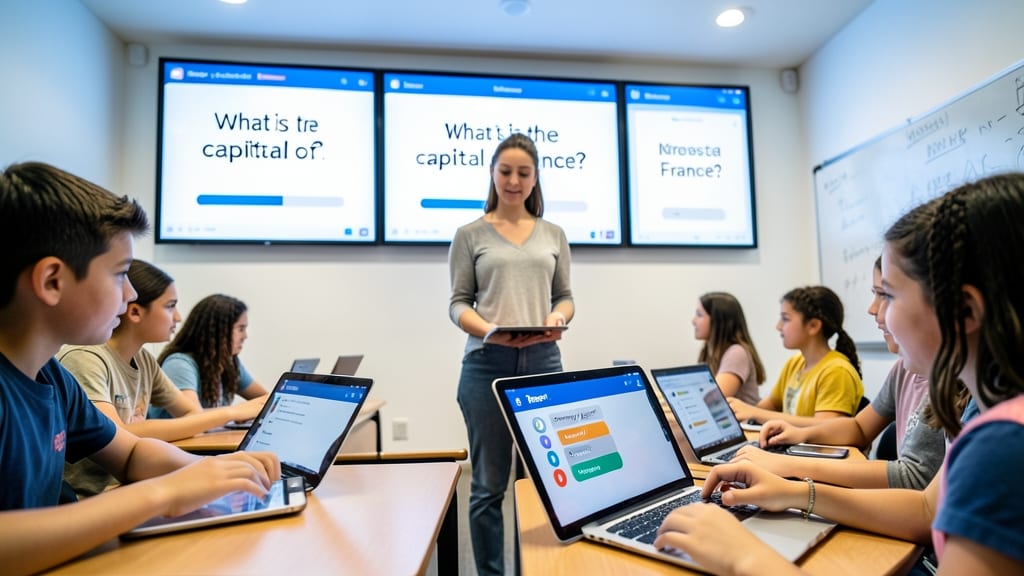
Turn passive lectures into dynamic discussions with Microsoft Teams’ built-in polling and quiz tools. Create real-time polls, quizzes, and exit tickets in seconds—no extra apps or grading headaches. Students respond instantly via their devices, giving you immediate insights into comprehension without interrupting flow.
Use multiple-choice, true/false, or open-ended questions with customizable time limits, and display live results as bar graphs or word clouds. The exit ticket feature lets you assign quick reflection questions at class end, while Teams Premium adds advanced analytics to track trends over time. Perfect for checking prior knowledge, reviewing material, or even hosting game-show-style review sessions.
Ideal for hybrid or virtual classrooms, this tool keeps students engaged while giving you actionable data. Whether you’re teaching math concepts or debating literature, polls turn passive listening into interactive learning—without the prep work. ✨
Parent-Teacher Communication Bridge

Tired of juggling WhatsApp, Remind, and email for parent updates? Microsoft Teams’ dedicated parent groups consolidate everything—from homework reminders to event calendars—into one secure, organized hub. No more lost messages or app-hopping; parents get real-time notifications and access to shared resources, all while keeping student data protected.
Create a private channel for each class, where you can post announcements with deadlines, share digital permission slips, or even embed Google Forms for quick feedback. The integrated calendar syncs with Outlook, so parents never miss a PTA meeting or field trip. Plus, @mentions ensure important updates cut through the noise.
Perfect for teachers who want transparent, efficient communication without the chaos. Parents love the clarity, and you’ll reclaim hours spent managing fragmented tools. ✨
Virtual Classroom Breakout Rooms

Need to facilitate small-group discussions without juggling multiple apps? Microsoft Teams’ breakout rooms let you split your class into virtual subgroups—all while keeping tabs on progress from the main session.
With just a few clicks, you can create up to 50 breakout rooms (or fewer, based on class size), assign students randomly or manually, and even set time limits. Ideal for language practice, peer reviews, or differentiated instruction, these rooms sync back to the main chat for seamless transitions. Plus, the screen-sharing feature lets you monitor discussions in real time.
Perfect for language teachers, project-based learning, or STEM collaboration, this tool turns whole-class activities into interactive, student-led experiences—no extra logins required. ✨
Integrated Office 365 Tools
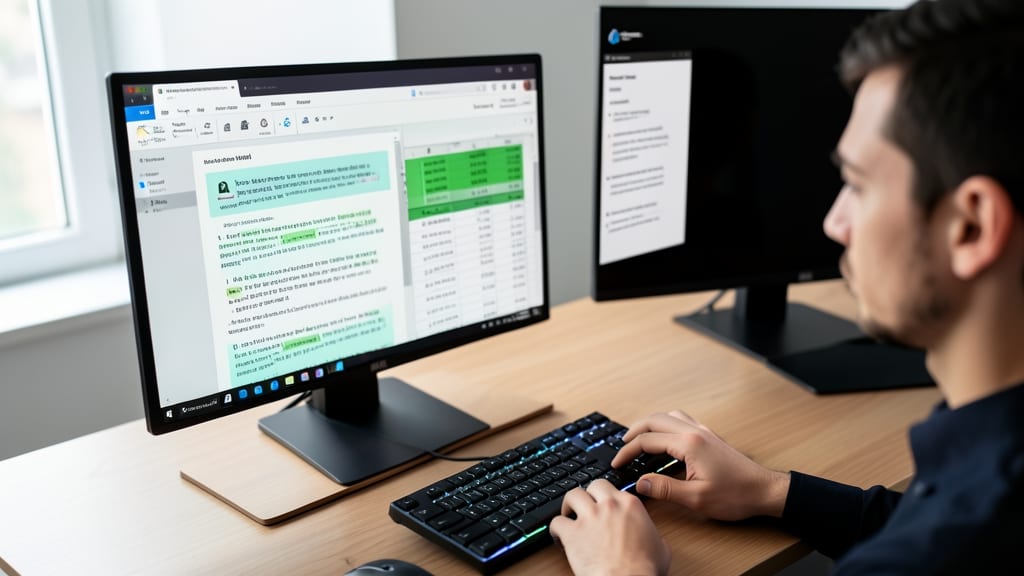
Say goodbye to juggling multiple tabs—Microsoft Teams integrates Word, Excel, and PowerPoint directly into your workflow. No more switching between apps mid-lesson or losing track of student submissions while bouncing between programs.
With real-time co-authoring in Word, you can grade assignments or review drafts alongside students without version conflicts. Excel’s built-in tools let you create interactive gradebooks or data analysis projects, while PowerPoint’s seamless presentation mode keeps lectures smooth and engaging. The integration also syncs files automatically, so your lesson plans and student work stay up-to-date across all devices.
This is a game-changer for teachers who juggle lesson prep, grading, and presentations—especially those who teach hybrid or remote classes. No more app-hopping; everything lives in one place. ✨
Automated Grading And Feedback
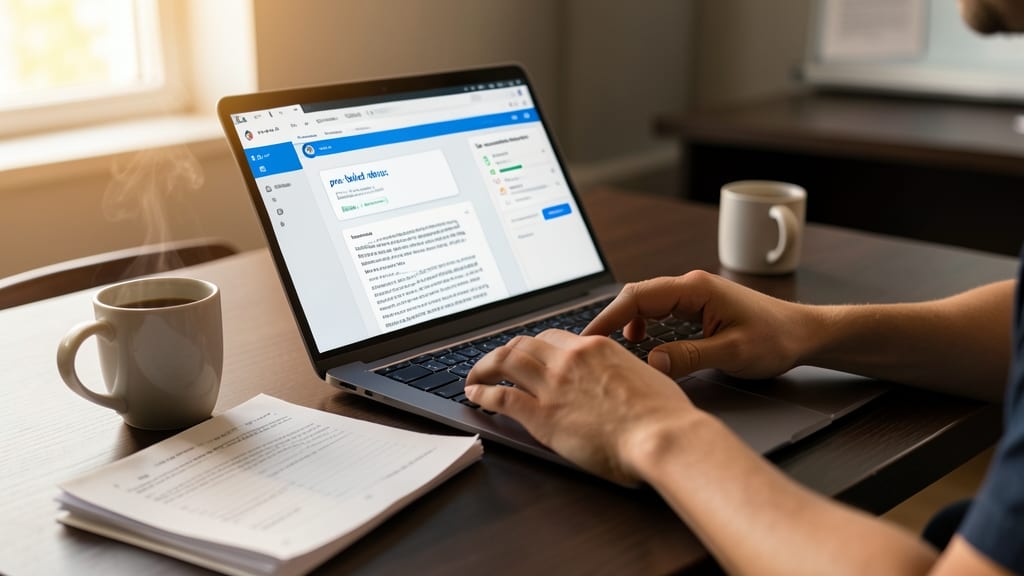
Tired of grading papers until midnight? Microsoft Teams’ automated grading tools turn feedback from a chore into a streamlined process—saving you dozens of hours each semester. With pre-built rubrics and customizable assignment templates, you can grade essays, quizzes, and projects faster while maintaining consistency.
The rubric builder lets you define criteria (e.g., clarity, creativity, accuracy) with weighted scores, while instant feedback comments auto-populate for common errors. For example, a 5-paragraph essay rubric can auto-highlight strengths like thesis clarity while flagging weak transitions—all in seconds. Plus, assignment templates ensure every student receives the same structure, reducing bias.
Perfect for high-school teachers juggling 100+ essays or college professors grading lab reports, this feature turns grading from a time sink into a productivity powerhouse. ✨
Cross-Platform Accessibility

Teaching shouldn’t be tied to a single device—Microsoft Teams lets you switch seamlessly between desktop, tablet, and mobile without losing functionality. Whether you’re grading assignments on your phone during a train ride or hosting a video lesson from your tablet, the experience stays consistent across all platforms.
The app syncs your chats, files, and class materials in real time, so you’re never left scrambling to find updates. With full-featured mobile apps (including video calls, file sharing, and class management), you can even conduct entire lessons from your smartphone if needed. The intuitive interface ensures no learning curve, whether you’re tech-savvy or just getting started.
Perfect for substitute teachers, traveling educators, or those who work across multiple locations, Teams keeps your classroom running smoothly—no matter where you are. 💻